Mobile / Smartphones
User Manual for Huawei Enjoy 10e Smartphone
Quick guide for the Huawei Enjoy 10e smartphone. Learn about basic gestures, camera settings, phone management, and system configurations.
Table of contents
Manual images
Click an image to enlargeQuick guide from the manual
This manual provides essential instructions for operating the Huawei Enjoy 10e smartphone. Key features covered include gesture-based navigation, data migration using Phone Clone, camera photography modes, and system configuration settings.
Basic Usage
The device supports full-screen gesture navigation. Swipe from the left or right edge to go back, swipe up from the bottom to return to the home screen, and swipe up and pause to view recent tasks. Use the Phone Clone app to migrate data from old devices (iOS or Android) to your new phone.
Camera and Gallery
The camera app includes various modes such as Panorama, HDR, and Pro mode. In Pro mode, you can manually adjust ISO, shutter speed, and white balance. The Gallery app allows for photo and video editing, including cropping, rotating, and adding filters or watermarks.
Apps
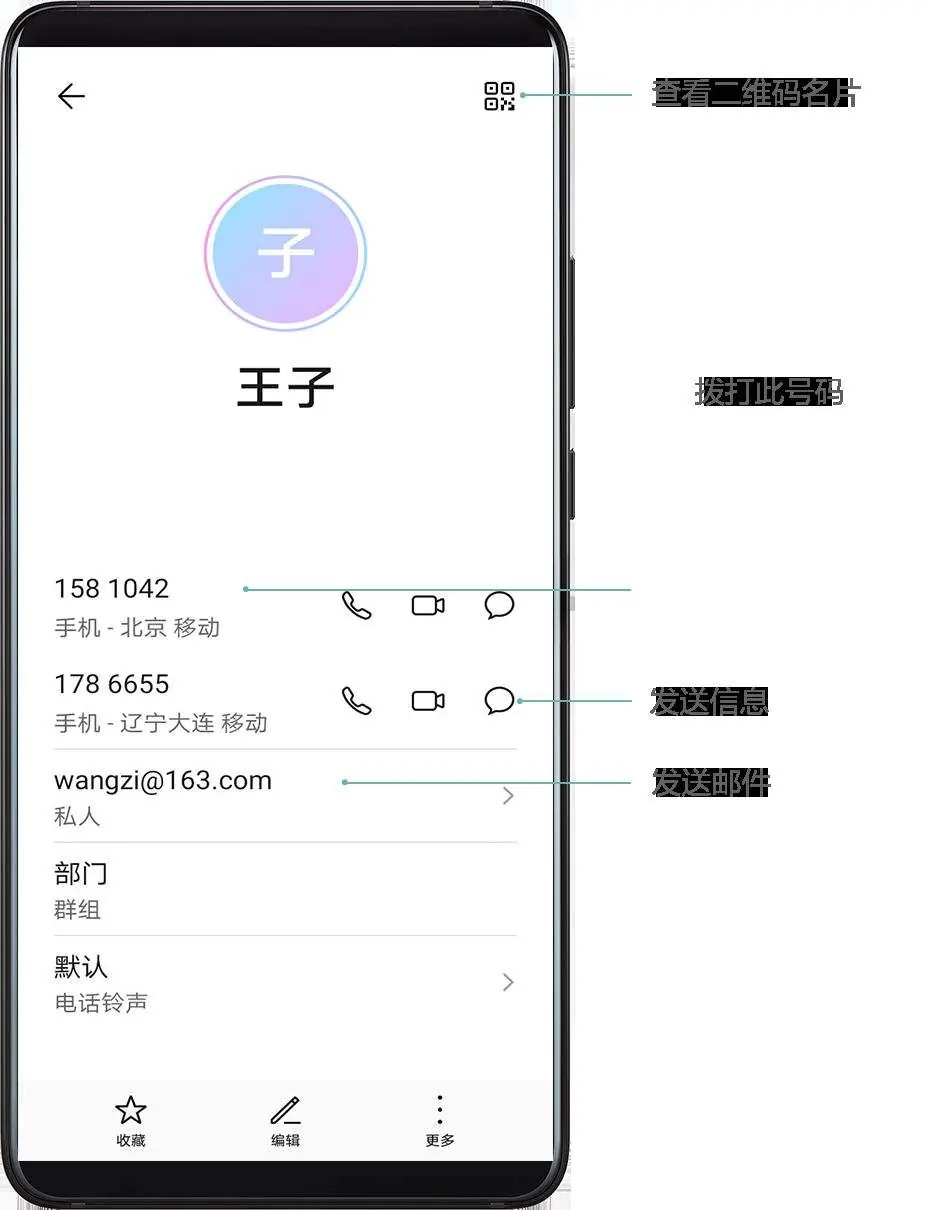
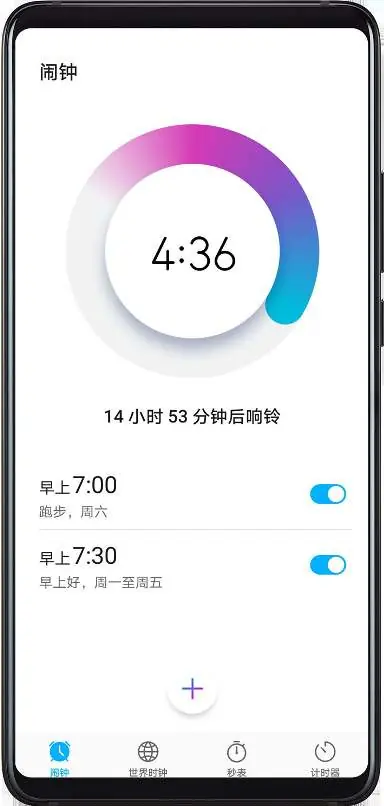
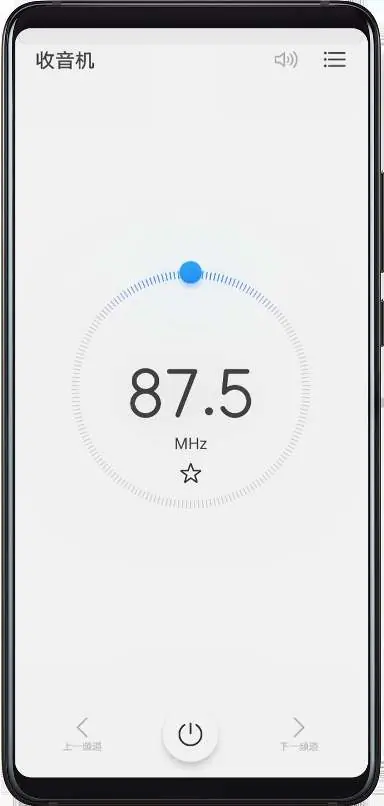
The device comes with essential applications including Contacts, Phone, Messages, Calendar, Clock, Notes, Recorder, Email, and Calculator. Use the Phone Manager app to optimize performance, manage data usage, and scan for viruses.
Settings
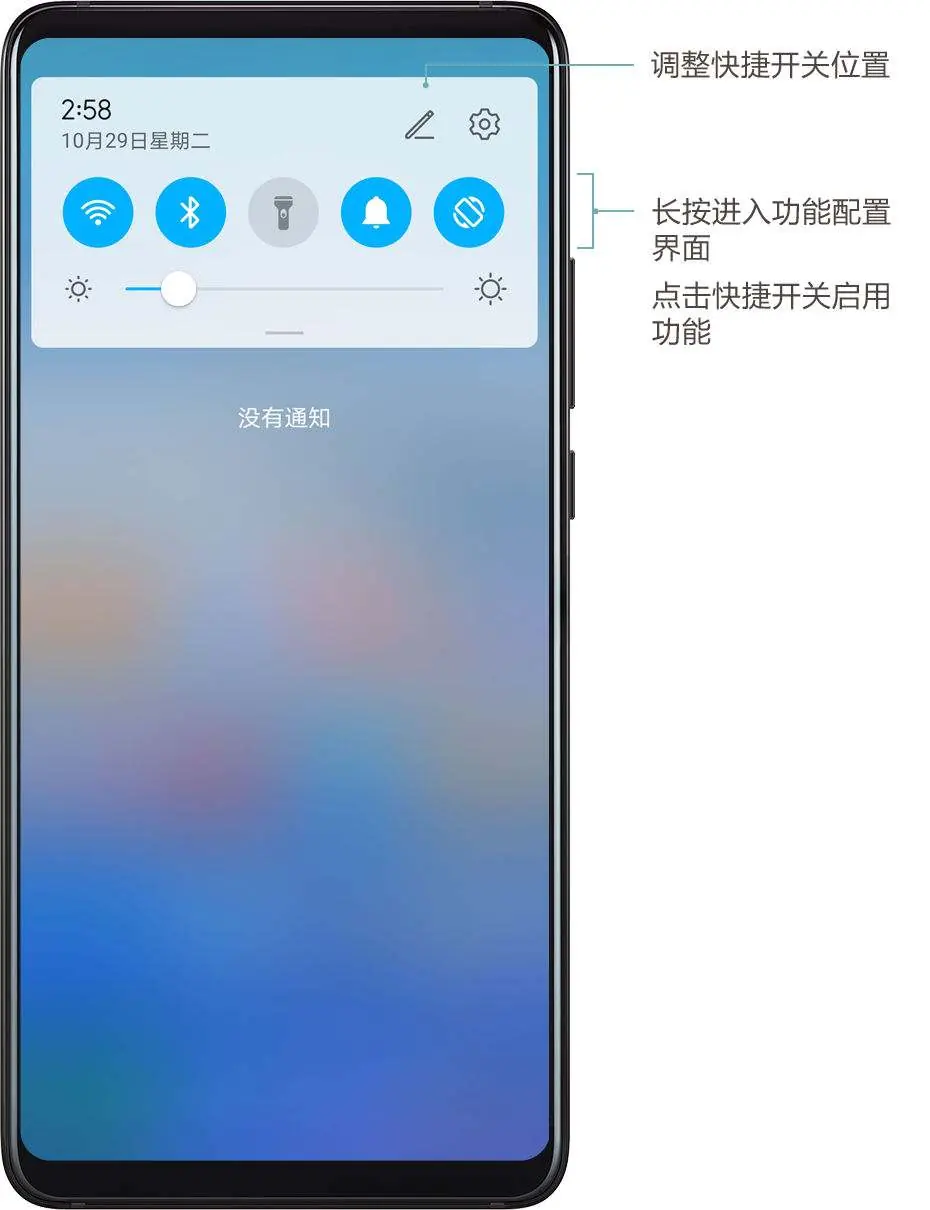
Configure your device via the Settings menu. Key settings include WLAN and Bluetooth connectivity, display adjustments (brightness, color temperature, dark mode), sound and vibration, biometrics (face recognition), battery management (power-saving modes), and storage management.
System and Updates
Keep your device updated via the Software Update menu. If the system becomes unstable, you can use the eRecovery feature to restore the system. You can also reset network settings or perform a factory reset if necessary.
Manufacturer information
Huawei Technologies Co., Ltd.
Practical help
Common problems
Phone not charging
Check if the charging port is dry and clean. Use the original charger and cable. If the phone is unresponsive, charge for 10 minutes before attempting to power on.
No signal while roaming
Manually select the network operator in Settings > Mobile Network > Mobile Data > Network Operator.
System instability
Try entering Safe Mode to identify problematic third-party apps. If the issue persists, use eRecovery to restore the system.
Before use
- Insert SIM card
- Charge the battery
- Connect to Wi-Fi
- Set up Huawei account
- Use Phone Clone to transfer data from your old device
Specs in practice
- Fastboot Mode
- A system recovery mode used for troubleshooting and system repair.
Images and diagrams
- Navigation gestures: Swipe from edges for back, bottom for home.
- Camera interface: Pro mode settings for ISO and shutter speed.
- Charging status: Battery icons indicate charge level.
Model compatibility
- Phone Clone supports iOS 8.0+ or Android 4.4+ devices.
- Huawei Histen sound effects are only available when headphones are connected.

Manual page author
David Miller
Documentation analyst
Organizes user manual content into clear summaries, with attention to model details, product context, and everyday usability.