Electronics / Headphones Earbuds
Connection Guide for Jabra PRO 9400 and GO 6400 with Nortel IP Phones
Learn how to connect your Jabra PRO 9400 or GO 6400 headset to Nortel IP 1120E, 1140E, 1150E, and 1165E phones. Follow step-by-step instructions for EHS adapter installation, base configuration, and phone settings.
Table of contents
Manual images
Click an image to enlargeQuick guide from the manual
This document provides instructions for connecting Jabra PRO 9400 and GO 6400 series headsets to specific Nortel IP desk phones. The process involves physical installation of the EHS adapter, base configuration via the SmartSetup Wizard, and specific menu settings on the desk phone.
Prerequisites
- Headset: Jabra PRO 9460, 9465, or 9470.
- Adapter: Jabra LINK 14201-32 EHS adapter.
- Phone Compatibility: Nortel IP 1120E, 1140E, 1150E, or 1165E.
- Firmware: Nortel IP phone firmware must be release 3.1 or higher.
Physical connection
- Connect the 1-sided end (USB plug) of the EHS adapter to the USB socket on your desk phone.
- Connect the split end of the EHS adapter to the Jabra PRO 9400 base:
- Plug the RJ10 plug into the socket marked with a phone symbol.
- Plug the RJ45 plug into the base socket marked with AUX.
Base setup
After physical connection, follow the instructions on the Jabra PRO 94x0 base SmartSetup Wizard. During the setup process:
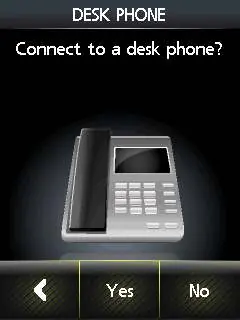
- Navigate to Phone settings >Desk phone >Connect to a desk phone? >Manual.
- Select Adapter Type DHSG.
- Set the phone setup switch on the base to position A.
Microphone volume
To adjust the microphone level:
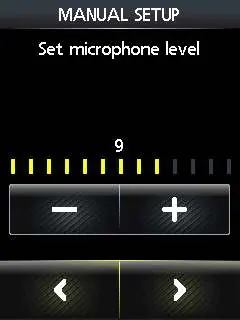
- Access the microphone volume setup in the base menu.
- The recommended setting is 7 out of 13.
Phone settings
To finalize the configuration on the Nortel phone:
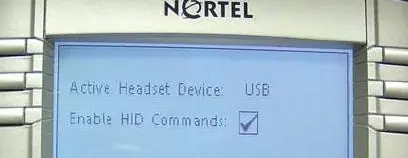
- Press the Service button twice.
- Navigate to Preset >Headsets >USB.
- Activate the menu option Enable HID Commands.
If the Jabra Setup Server is not reachable during the guided installation, please contact your local Jabra Support team.
Practical help
Common problems
Jabra Setup Server not reachable during guided installation
Contact your local Jabra Support team for assistance.
Before use
- Ensure you have the Jabra LINK 14201-32 adapter.
- Verify that the Nortel IP phone firmware is at least release 3.1.
- Confirm the headset model is compatible (PRO 9460, 9465, or 9470).
- Ensure the EHS adapter is connected to the correct ports (USB to phone, RJ10/RJ45 to base).
Specs in practice
- Adapter Type
- Must be set to 'DHSG' for compatibility with Nortel IP phones.
- Dial-tone switch
- Must be set to position 'A' on the base.
- Microphone level
- Recommended setting is 7 out of 13 for optimal audio.
Images and diagrams
- The EHS adapter uses a USB plug for the phone and split RJ10/RJ45 plugs for the base.
- The base setup requires navigating through the 'Phone settings' menu on the headset base screen.
- The Nortel phone requires enabling 'HID Commands' in the Service menu.
Model compatibility
- Compatible with Nortel IP 1120E, 1140E, 1150E, and 1165E.
- Requires Jabra LINK 14201-32 adapter.

Manual page author
David Miller
Documentation analyst
Organizes user manual content into clear summaries, with attention to model details, product context, and everyday usability.