User Guide for Jabra Evolve 20SE MS Mono Softphone Settings
Learn how to configure your preferred softphone settings in Jabra Direct for the Jabra Evolve 20SE MS Mono headset.
Quick answers from the manual
Quick answer
- To set a preferred softphone, open Jabra Direct, click Settings, and select your preferred softphone under the Softphone Integration section. p. 1
Key actions
- Configure preferred softphone p. 1
Problems and fixes
The setting is managed centrally by your organization.
p. 1Show 1 more answers Show less
Where to find it in the PDF
- Softphone Configuration p. 1
Table of contents
Quick guide from the manual
This document explains how to configure your preferred softphone settings within the Jabra Direct software for the Jabra Evolve 20SE MS Mono headset. This configuration is necessary if you have multiple softphones installed and need to specify which one the headset should prioritize.
Configuring Preferred Softphone
To set your preferred softphone, follow these steps:
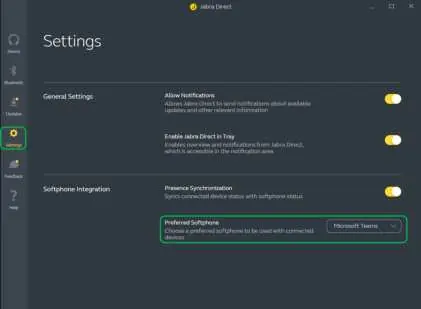
- Open the Jabra Direct application on your computer.
- Click on Settings in the menu located on the left side of the interface.
- Navigate to the Softphone integration section.
- Under Preferred softphone, select your desired application from the dropdown menu.
Important Notes
If your organization manages settings centrally, the option will be locked, indicated by a Lock icon. Please note that images and text in this guide are for illustrative purposes and may vary based on your connected device and software updates. Ensure you are using the latest version of Jabra Direct for full compatibility.
Practical help
Common problems
This indicates that your organization manages this setting centrally, and you cannot change it manually.
Before use
- Ensure Jabra Direct is installed on your computer.
- Update to the latest version of Jabra Direct.

Manual page author
Michael Turner
Technical manual editor