Power / Batteries Chargers
myCharge PowerPad+Plug 10K User Guide
Learn how to use, charge, and maintain your myCharge PowerPad+Plug 10K portable charger with this comprehensive guide.
Table of contents
Product Overview
The myCharge PowerPad+Plug 10K is a versatile portable power solution designed to keep your devices charged on the go. It features both wireless charging capabilities and USB ports, allowing you to charge up to three devices simultaneously. The unit is compact and designed for convenience, whether you are at home or traveling.
Recharging the PowerPad+Plug
To ensure your device is ready for use, you can recharge the PowerPad+Plug using a wall AC outlet or a USB-C power source. The device is fully charged when the four LED indicators show solid, non-blinking lights. You have three flexible ways to recharge: via a wall outlet, a car charger, or a computer USB port.
Charging Your Devices
The PowerPad+Plug supports two primary charging methods:
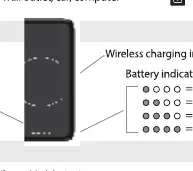
- Wireless Charging: Press the power button to activate the unit. Place your compatible device on the center of the PowerPad+Plug. The wireless charging indicator will light up once charging begins.
- USB Charging: Use your own cable to connect your device to one of the USB ports on the PowerPad+Plug. Charging should start automatically; if it does not, simply press the power button.
You can monitor the battery level at any time by pressing the power button. The four LED lights provide a clear indication of the remaining charge.
Safety and Maintenance
To ensure the longevity of your device and maintain safety, please adhere to the following guidelines:
- Do not expose the unit to heat sources, direct sunlight, or high-temperature environments.
- Avoid dropping the unit or subjecting it to excessive impacts.
- Do not attempt to disassemble, repair, or replace any part of the housing or battery.
- Always dispose of batteries at a local recycling center rather than in the trash.
This device contains chemicals known to cause health risks if handled improperly. Always follow local regulations regarding electronic waste disposal. If you experience any issues, ensure the device is properly charged and that all connections are secure. For further support, visit the official myCharge support website.
Manufacturer information
myCharge
Practical help
Common problems
Device not charging via USB
Ensure the cable is securely connected and press the power button to manually initiate charging.
Before use
- Ensure the PowerPad+Plug is fully charged (4 solid LEDs).
- Verify your device is compatible with wireless charging.
- Check that the power button has been pressed to activate the unit.
- Ensure no metal objects are between the device and the wireless charging pad.
Images and diagrams
- The LED indicators show battery status with 4 lights representing the charge level.
- The wireless charging indicator confirms active charging when lit.
- The power button is used to check battery levels and wake the device for charging.
Model compatibility
- Wireless charging is only for compatible devices.
- Supports simultaneous charging of up to 3 devices via USB and wireless.

Manual page author
Michael Turner
Technical manual editor
Reviews PDF manuals for structure, safety notes, and practical product details so readers can find the right information quickly.