Electronics / Speakers & Soundbars
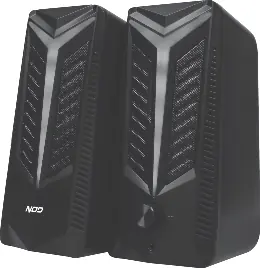
User Manual for NOD AURORA Stereo RGB Gaming Speakers
Quick guide for the NOD AURORA Stereo RGB Gaming Speakers. Learn how to connect, adjust volume, control RGB lighting, and check system requirements.
Quick answers from the manual
Quick answer
- Connect the USB cable to your computer for power and the 3.5mm jack to the audio output. Use the rotary knob to turn on and adjust volume, and the top touch button to change RGB lighting modes. p. 6
Key actions
- Adjusting volume and power p. 6
- Changing RGB lighting p. 6, 7
First start
- Initial setup p. 6
Problems and fixes
Insufficient power/sound
Insert the audio cable into the USB port on the back of the computer for more output power.
p. 7Technical specifications
| Parameter | Value | Meaning | Pages |
|---|---|---|---|
| Power (RMS) | 2 x 8W | Total output power | p. 5 |
| Frequency response | 120Hz-18kHz | Audio frequency range | p. 5 |
Where to find it in the PDF
- Product Overview p. 5
- Usage Instructions p. 6, 7
Table of contents
Manual images
Click an image to enlargeQuick guide from the manual
The NOD AURORA speakers are designed for use with laptops and PCs. To set them up, connect the USB cable to your computer for power and the 3.5mm jack to the audio output port. Use the rotary switch on the speaker to turn the device on and adjust the volume. You can customize the RGB lighting using the touch button on top of the speaker.
Parts identification
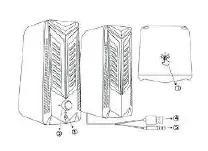
- 1. Light color pattern touch button: Used to cycle through lighting modes.
- 2. ON/OFF Rotary switch & volume adjustment: Turns the speakers on/off and controls volume level.
- 3. 3.5mm output for headphones: Allows you to connect headphones directly to the speaker.
- 4. USB cable: Provides power to the speakers.
- 5. 3.5mm jack connection: Transmits audio signal.
Specifications
- Power (RMS): 2 x 8W (16W total)
- Power supply: USB 5V
- Frequency response: 120Hz-18kHz
- Lighting: RGB with 6 different modes
- Dimensions: 90 x 104 x 188mm
- Cable length: Approx. 1.5m
System requirements
The speakers are suitable for laptops, PCs, and other audio players that support a 3.5mm audio output connection.
How to use
- Unpack the device and check for any damage.
- Connect the USB cable to your laptop or PC.
- Connect the 3.5mm jack cable to the computer's audio output.
- Optionally, connect your headphones to the 3.5mm output on the speaker.
- Turn the rotary switch clockwise to power on the speakers and adjust the volume.
- Press the touch button on the top of the speaker to cycle through the 6 lighting modes: Red, Yellow, Blue, Green, RGB colors, or No lighting.
Storage
Always store the appliance in a safe and clean place, preferably in its original packaging, and keep it out of the reach of children.
Practical help
Common problems
No sound or low volume
Ensure the USB cable is connected to a port that provides sufficient power. It is recommended to use a USB port on the back of the computer for better output power.
Device not working
Check for visible damage after unpacking. If damaged, do not use the device and contact the store of purchase.
Before use
- Remove all packing materials.
- Keep packing materials away from children.
- Inspect the device for any physical damage.
- Ensure your computer has a 3.5mm audio output port.
Specs in practice
- Frequency response
- The range of sound frequencies the speakers can reproduce (120Hz-18kHz).
- Power supply
- Powered via USB 5V; no external wall adapter required.
Images and diagrams
- The rotary switch on the front controls both power (on/off) and volume.
- The touch button on the top of the speaker controls the RGB lighting patterns.
- The 3.5mm headphone jack is located on the front for easy access.
Model compatibility
- Compatible with laptops, PCs, and audio players with a 3.5mm audio output.
- Requires a USB port for power.

Manual page author
Emily Carter
User documentation editor
Prepares concise manual descriptions and highlights the most useful setup, operation, and maintenance information for readers.