Electronics / Gaming Consoles
PlayStation 3 Slim CECH-2501A User Manual
Quick guide for the PlayStation 3 Slim (CECH-2501A). Includes setup, connection instructions, controller pairing, network configuration, and troubleshooting.
Table of contents
Manual images
Click an image to enlargeQuick guide from the manual
This manual provides essential setup, safety, and operational instructions for the PlayStation 3 (CECH-2501A) system. Key procedures include initial setup, network configuration, controller pairing, and hard disk replacement.
Safety
Follow all warnings to prevent electrical shock or injury. Do not open the cabinet. Keep the system in a well-ventilated area, at least 10 cm away from walls. Do not expose the system to water, dust, or high temperatures.
Getting Started
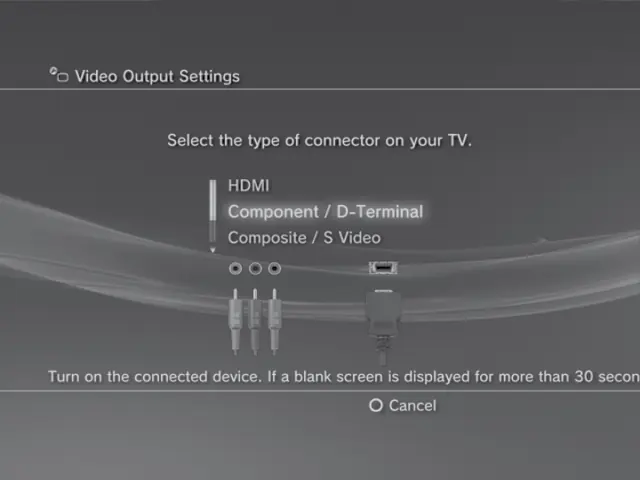
Connect the system to your TV using HDMI, Component, or AV cables. Perform the initial setup by following on-screen instructions for language, time, and network settings. If video is not displayed, turn off the system and hold the power button for at least five seconds to reset video output settings.
Wireless Controller
Pair the controller using the supplied USB cable. Assign a controller number by pressing the PS button. The controller battery can be charged by connecting it to the system via USB while the system is turned on.
Playing Content
Insert discs with the label side facing up. The system supports Blu-ray Disc, DVD, and CD media. Use USB devices for compatible media files like ATRAC, MP3, AAC, JPEG, and MPEG-4.
Network Settings
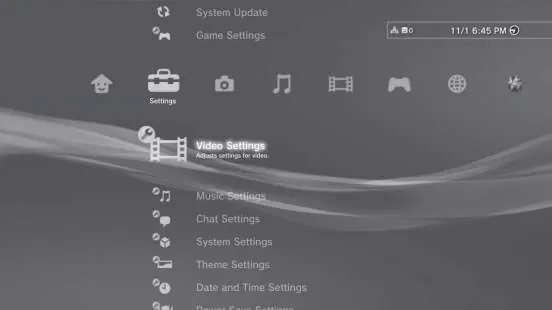
Configure wired or wireless network settings via the Settings menu. A broadband connection is required for internet access. Dial-up is not supported.
Hard Disk Replacement
The hard disk can be replaced. Ensure the system is off and unplugged before removal. Use a crosshead screwdriver to remove the screw cover and the HDD bay cover.
Troubleshooting
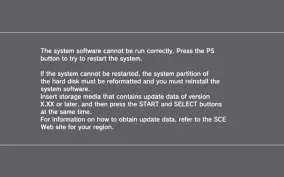
If the system does not turn on, check power connections. If the system beeps and turns off, it may be overheating; ensure vents are not blocked and the location is well-ventilated. If the screen is frozen, force the system to turn off by holding the power button for 15 seconds.
Specifications
The system features a Cell Broadband Engine CPU, RSX GPU, and a 160 GB hard disk. It supports various video resolutions up to 1080p.
Practical help
Common problems
System does not turn on
Check that the AC power cord is securely inserted in the system and the electrical outlet.
System beeps repeatedly and turns off
The system is overheating. Ensure vents are not blocked and the location is well-ventilated. Wait for it to cool down.
No picture on TV
Check cable connections and ensure the TV input matches the connector used. If it still fails, reset video output settings by holding the power button for 5 seconds.
System does not recognize USB device
Check that the device is inserted correctly. Try a different USB connector or remove unused USB hubs.
Before use
- Check all items are present (System, Controller, AC Cord, AV Cable, USB Cable)
- Ensure the system is in a well-ventilated area
- Connect to TV before plugging into power
- Pair the wireless controller using the USB cable
Specs in practice
- Power Consumption
- Approx. 230 W
Images and diagrams
- Front/Rear panel layout showing ports and buttons
- Controller button layout
- Connection diagrams for TV and Audio devices
Model compatibility
- Not compatible with PlayStation 2 format software
- Requires broadband for internet
- Some software may not support digital audio output

Manual page author
Emily Carter
User documentation editor
Prepares concise manual descriptions and highlights the most useful setup, operation, and maintenance information for readers.