TASCAM Sonicview 16/24 Firmware Update Guide
Official instructions for updating the firmware on TASCAM Sonicview 16 and Sonicview 24 mixing consoles to ensure optimal performance and compatibility.
Table of contents
Checking Current Firmware Version
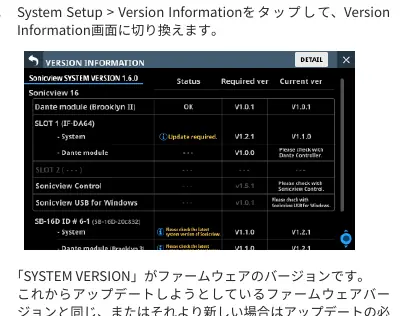
Before beginning the update process, verify the current firmware version installed on your TASCAM Sonicview 16 or 24. Power on the unit, press the MENU button, and navigate to System Setup > Version Information. The current firmware version is displayed under SYSTEM VERSION. If your unit is already running this version or a newer one, no update is required.
Important Compatibility Notes
Please note that snapshots created with MAIN firmware version 1.1.0 or higher cannot be recalled on units running version 1.0.x. Consequently, downgrading the MAIN firmware to version 1.0.x is not supported. Furthermore, snapshots or system data created on a unit with version 1.1.0 or higher cannot be imported or restored on a unit running version 1.0.x.
Update Procedure
To update your device, follow these steps:
- Download the latest firmware from the official TASCAM website. If the file is compressed (e.g., ZIP), extract it.
- Copy the firmware file to the root directory of a USB flash drive or SD card.
- Insert the media into the corresponding port on the top panel of the console.
- Navigate to Menu > System Setup > Firmware Update.
- Select the device tab you wish to update (MAIN, SLOT 1, or SLOT 2).
- Select the update file from the list. If the list exceeds five files, swipe vertically to scroll.
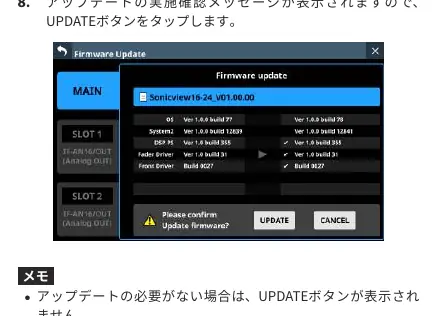
- Once selected, the system will display the current and new version numbers. Tap the UPDATE button to proceed.
- Confirm the update when prompted. The system will restart and begin the update process.
Safety and Completion
Warning: Do not power off the unit during the update process, as this may cause the device to become inoperable. Once the update is complete, a confirmation screen will appear. Use the physical POWER switch on the rear panel to restart the unit. Do not use any on-screen restart buttons if they appear. After restarting, verify the update by checking the Version Information screen again. Finally, delete the firmware update file from your USB drive or SD card.

Manual page author
Emily Carter
User documentation editor
Prepares concise manual descriptions and highlights the most useful setup, operation, and maintenance information for readers.