Power / Batteries Chargers
Trust 23637 Tanor 1080p Full HD Webcam User Guide
Comprehensive setup and usage guide for the Trust Tanor 1080p Full HD webcam, covering installation, connection, and privacy features.
Table of contents
Product Overview
The Trust Tanor 1080p Full HD webcam is designed to provide high-quality video for your professional and personal communication needs. This device is engineered for simplicity, offering a plug-and-play experience that ensures you can start video conferencing or streaming with minimal effort. Its compact design and versatile mounting options make it an ideal choice for both desktop computers and laptops.
Installation and Mounting
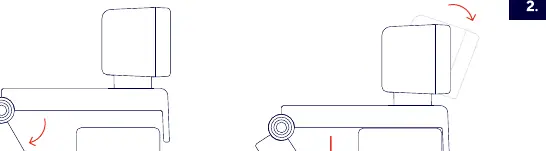
Setting up your webcam is a straightforward process. The device features an integrated, adjustable mounting clip that allows you to securely attach the camera to the top of your monitor or laptop screen. To install, simply unfold the mounting base and place it over the edge of your display. Adjust the angle of the camera by tilting the head to ensure you are perfectly framed in your video feed. The base is designed to provide a stable grip, preventing the camera from slipping during use.
Connecting the Webcam
The Trust Tanor webcam utilizes a standard USB-A connection, ensuring broad compatibility with most modern computers. To connect the device, locate an available USB-A port on your computer or laptop and insert the webcam's cable. Once connected, your operating system should automatically detect the device as a standard video input source. No additional driver installation is typically required for basic functionality, allowing you to select the camera directly within your preferred video conferencing or streaming software.
Privacy and Operation
Privacy is a key feature of the Tanor webcam. The device includes a built-in privacy shutter that can be slid across the lens when the camera is not in use. This physical barrier ensures that you have complete control over your visual privacy. When the camera is active, an LED indicator light will illuminate, providing a clear visual confirmation that the device is powered on and capturing video. Always ensure the privacy shutter is open before starting your video call to avoid any issues with image transmission.
Maintenance and Troubleshooting
To maintain optimal video quality, keep the camera lens clean by gently wiping it with a soft, dry cloth. Avoid using harsh chemicals or abrasive materials that could scratch the lens surface. If you encounter issues such as the camera not being recognized, try connecting it to a different USB port on your computer. Ensure that your software settings are configured to use the Trust webcam as the primary video input device. If the indicator light does not turn on, verify that the USB connection is secure and that the privacy shutter is fully retracted.
Manufacturer information
Trust International B.V.
Practical help
Common problems
Camera not detected by computer
Try connecting the USB cable to a different USB-A port on your computer.
No video feed in application
Ensure the privacy shutter is fully open and select the webcam as the input device in your software settings.
Before use
- Ensure the monitor or laptop screen is clean for stable mounting.
- Check that the USB-A port is functional.
- Verify the privacy shutter is in the open position.
- Confirm the camera is tilted to the desired angle.
Specs in practice
- 1080p Full HD
- Provides high-definition video resolution for clear communication.
Images and diagrams
- The mounting clip adjusts to fit various screen thicknesses.
- The USB cable connects directly to the computer's USB-A port.
- The privacy shutter slides horizontally to cover or reveal the lens.
- The LED indicator light confirms when the camera is active.
Model compatibility
- Compatible with devices featuring a standard USB-A port.
- Works with most video conferencing and streaming software.

Manual page author
Emily Carter
User documentation editor
Prepares concise manual descriptions and highlights the most useful setup, operation, and maintenance information for readers.