Mobile / Mobile Phones
User Manual for Alcatel GO FLIP 4
Get started with your Alcatel GO FLIP 4. This guide covers device setup, keypad navigation, status bar icons, and basic phone operations.
Table of contents
Manual images
Click an image to enlargeGetting Started
The Alcatel GO FLIP 4 is a feature phone running KaiOS. To begin using your device, ensure you have a Nano SIM card. The device supports microSD cards for expanded storage. Always ensure the battery is charged before initial use.
Device Overview and Keypad
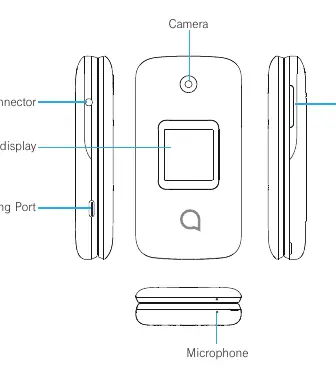
The device features an external display, camera, and charging port on the exterior. The internal keypad includes:
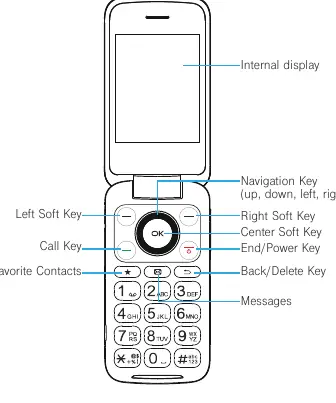
- Navigation Key: Used to move through menus (Up, Down, Left, Right).
- Center Soft Key: Accesses the app list and confirms selections.
- Left/Right Soft Keys: Context-sensitive keys for accessing Notices and Contacts.
- Call Key: Used to answer or initiate calls.
- End/Power Key: Ends calls, returns to the home screen, and powers the device on/off (press and hold).
- Back/Delete Key: Moves backward through menus or deletes characters.
- Volume Keys: Adjusts volume for calls, media, or ringtones.
Setup and Installation
Follow these steps to prepare your phone:
- Back Cover: Remove the back cover to access the battery compartment.
- Battery: Insert the battery into the slot.
- SIM/microSD: Insert your Nano SIM card and microSD card into the designated slots with the gold-colored contacts facing down.
- Assembly: Replace the back cover securely.
Warning: Only use Nano SIM cards. Attempting to insert other SIM types may damage the card slot.
Understanding Status Bar Icons
The status bar at the top of the screen provides essential information about your phone's state:
- Connectivity: Icons indicate 4G LTE, 4G, EDGE, 2G, Wi-Fi, and Roaming status.
- Notifications: New text/multimedia messages, new emails, missed calls, and upcoming events.
- Device Status: Battery level (charging, low, full), Bluetooth active, GPS on, Silent/Vibrate mode, and Airplane mode.
- Media: Song playing indicator.
Basic Operations
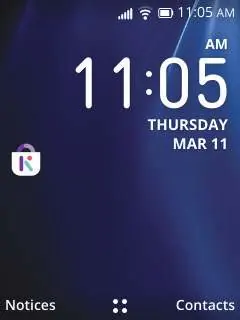
From the Home Screen, you can access the app list by pressing the Center Soft Key. Use the Navigation Key to move through the menu. The KaiOS-Store can be accessed by pressing the Left side of the Navigation Key. To lock or unlock your screen, use the security settings found in the menu.
Manufacturer information
Alcatel
Practical help
Common problems
Phone will not turn on
Ensure the battery is correctly installed and fully charged.
SIM card not detected
Verify that the Nano SIM is inserted with the gold contacts facing down.
Cannot hear the caller
Adjust the volume using the Volume Keys on the side of the phone during the call.
Before use
- Insert Nano SIM card
- Insert microSD card (optional)
- Install battery
- Attach back cover
- Charge the device fully
Images and diagrams
- Page 5 illustrates the external ports and buttons, including the charging port and volume keys.
- Page 6 provides a detailed map of the internal keypad and display.
- Page 8 shows the physical steps for removing the back cover and inserting the battery and SIM card.
Model compatibility
- Supports Nano SIM cards only.
- Supports microSD cards for storage expansion.

Manual page author
David Miller
Documentation analyst
Organizes user manual content into clear summaries, with attention to model details, product context, and everyday usability.