Mobile / Mobile Phones
User Manual for Alcatel Tkee Max 10.1-Inch Tablet
Quick start guide for the Alcatel Tkee Max 10.1-Inch tablet (model 8095). Learn how to set up your device, insert an SD card, connect to Wi-Fi, manage the home screen, and use basic features like Gmail and contacts.
Table of contents
Manual images
Click an image to enlargeQuick guide from the manual
This guide provides essential instructions for setting up and using your Alcatel Tkee Max 10.1-Inch tablet (model 8095). It covers basic hardware controls, initial setup, Wi-Fi connectivity, and navigation of the Android interface.
Device Overview
The tablet features physical controls and cameras for daily use:
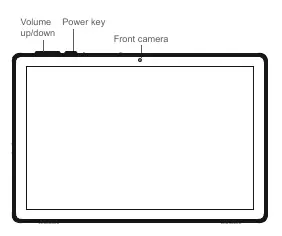
- Volume up/down: Located on the top edge of the device.
- Power key: Located on the top edge, next to the volume controls.
- Front camera: Centered on the top bezel of the screen.
- Rear camera: Located on the back of the device.
Getting Started
Before using your tablet for the first time, follow these steps:
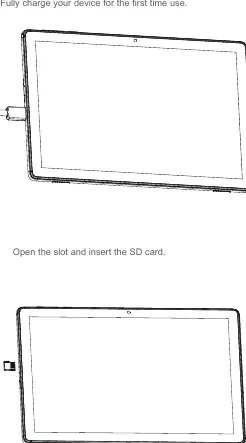
- Charging: Fully charge your device before the first use.
- SD Card: Open the designated slot on the device and insert your SD card to expand storage.
Home Screen
The Home screen is your central hub for applications and widgets.
- Customization: You can move frequently used items, shortcuts, folders, and widgets to the Home screen.
- Navigation: Slide the Home screen horizontally to access additional views.
- Status Bar: Swipe downward from the top of the screen to access the Notification panel or the Quick Settings panel.
- Notifications: Touch notifications to view details or swipe to clear them.
Connectivity
To access the internet, you must connect via Wi-Fi:
- Go to Settings > Network & internet > Wi-Fi.
- Touch the switch to turn Wi-Fi On.
- Select your network from the list. If secured, enter the password and touch CONNECT.
- For hidden networks, select Add network, enter the SSID and credentials, then touch SAVE.
Basic Applications
The tablet comes with pre-installed apps for communication:
- Contacts: Use the Contacts app to add, delete, or edit contacts. You can import/export contacts from external storage or email accounts.
- Gmail: Access your email via the Gmail app in the Google folder. You can manage multiple accounts by going to Settings > Add account.
Support
If you encounter issues, you can access the SUPPORT CENTER application on your tablet or visit www.alcatelmobile.com for frequently asked questions and chat support.
Official resources from the manual
Manufacturer information
Alcatel
Practical help
Common problems
Cannot connect to Wi-Fi
Ensure Wi-Fi is turned on in Settings > Network & internet. If the network is hidden, use the 'Add network' option.
Cannot find an application
Check the Home screen or swipe horizontally to see additional pages. You can also move apps to the Home screen for easier access.
Before use
- Fully charge the device battery.
- Insert an SD card if you require additional storage.
- Have your Wi-Fi network name and password ready.
Images and diagrams
- The device controls (Volume and Power) are located on the top edge.
- The front camera is positioned at the top center of the screen bezel.
- The rear camera is located on the back of the tablet.
Model compatibility
- Requires a Wi-Fi connection for internet access.
- Supports synchronization with Gmail and other email accounts.

Manual page author
David Miller
Documentation analyst
Organizes user manual content into clear summaries, with attention to model details, product context, and everyday usability.