Electronics / Security Cameras
User Manual for blurams Snowman 1080P Dome Camera
Quick guide for the blurams Snowman 1080P Dome Camera. Learn how to install, configure, and use your security camera with this easy-to-follow manual.
Table of contents
Manual images
Click an image to enlargeQuick guide from the manual
This guide provides essential information for setting up and using your blurams Snowman 1080P Dome Camera. Ensure you have a stable 2.4G Wi-Fi network available before beginning the configuration process.
Package contents
Upon opening the package, verify that you have the following items:
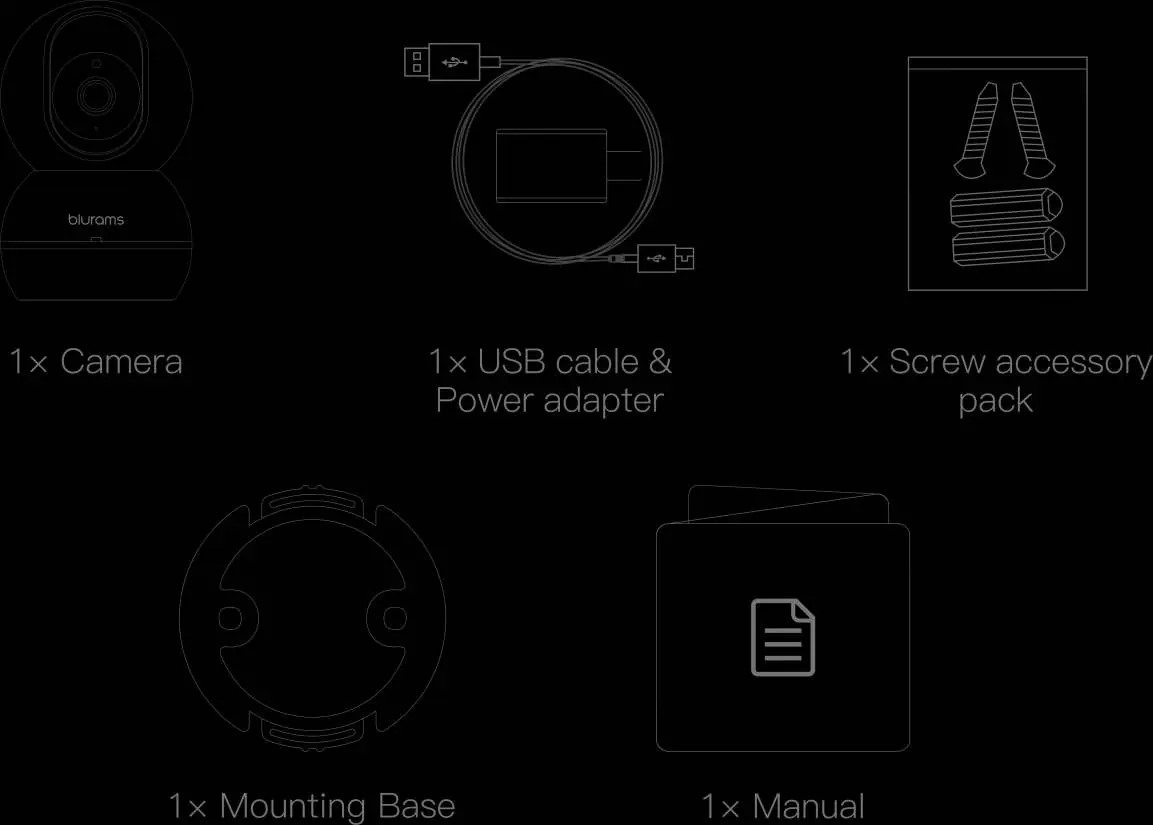
- 1x Camera
- 1x USB cable & Power adapter
- 1x Screw accessory pack
- 1x Mounting base
- 1x Manual
Camera components
Familiarize yourself with the camera hardware:
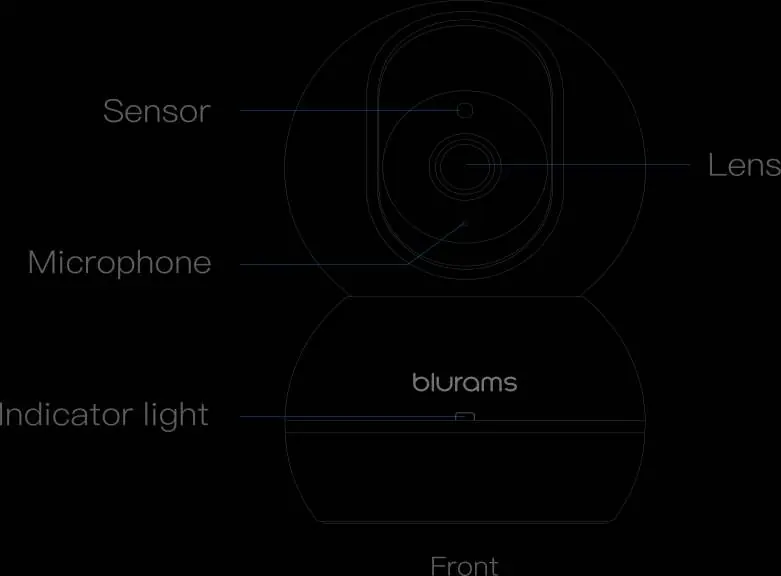
- Front: Sensor, Lens, Microphone, Indicator light.
- Top: TF card slot.
- Back: Vent, Speaker, USB interface, Reset button.
Installation instructions
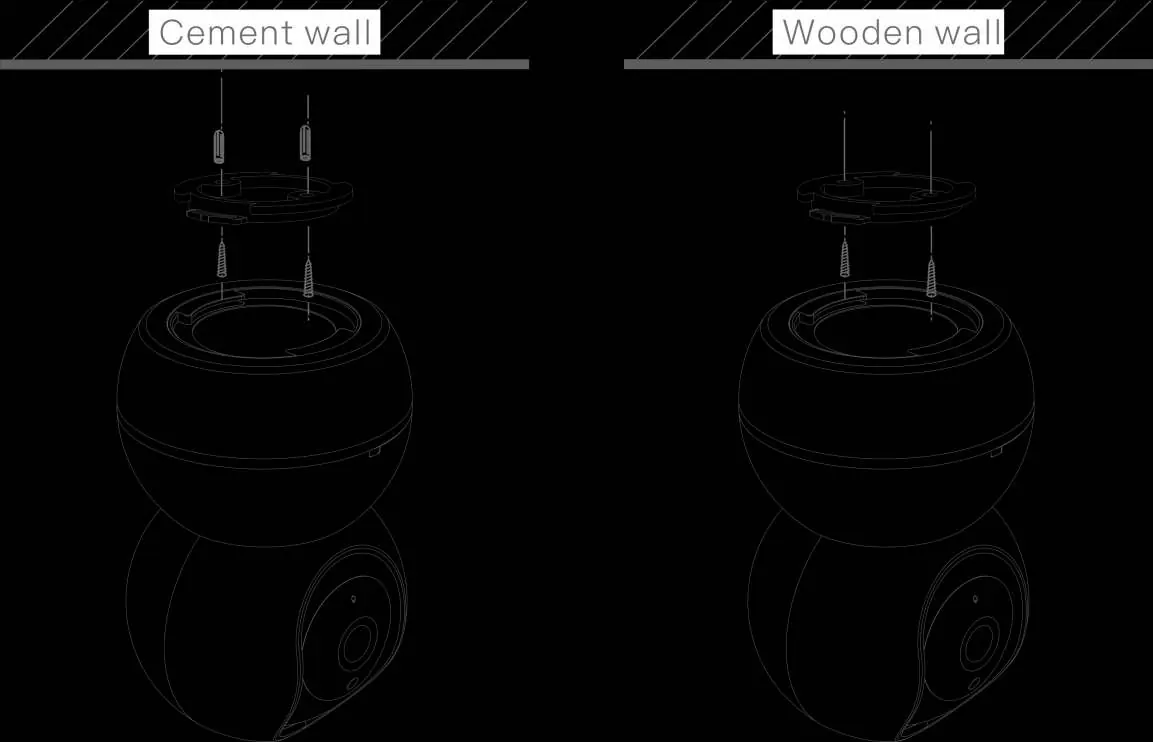
Follow these steps to mount your camera securely:
- Choose the best position for the camera.
- Place the mounting tab on the wall and drill holes as required (suitable for cement or wooden walls).
- Align the IP camera with the mounting tab.
- Place the camera over the fastened mounting tab and rotate it until it is locked and secured.
- Connect the camera to a power socket using the provided USB cable.
Quick configuration
To set up the camera for use:
- Ensure your smartphone is connected to a 2.4G Wi-Fi network.
- Scan the QR code provided in the manual to download the blurams app.
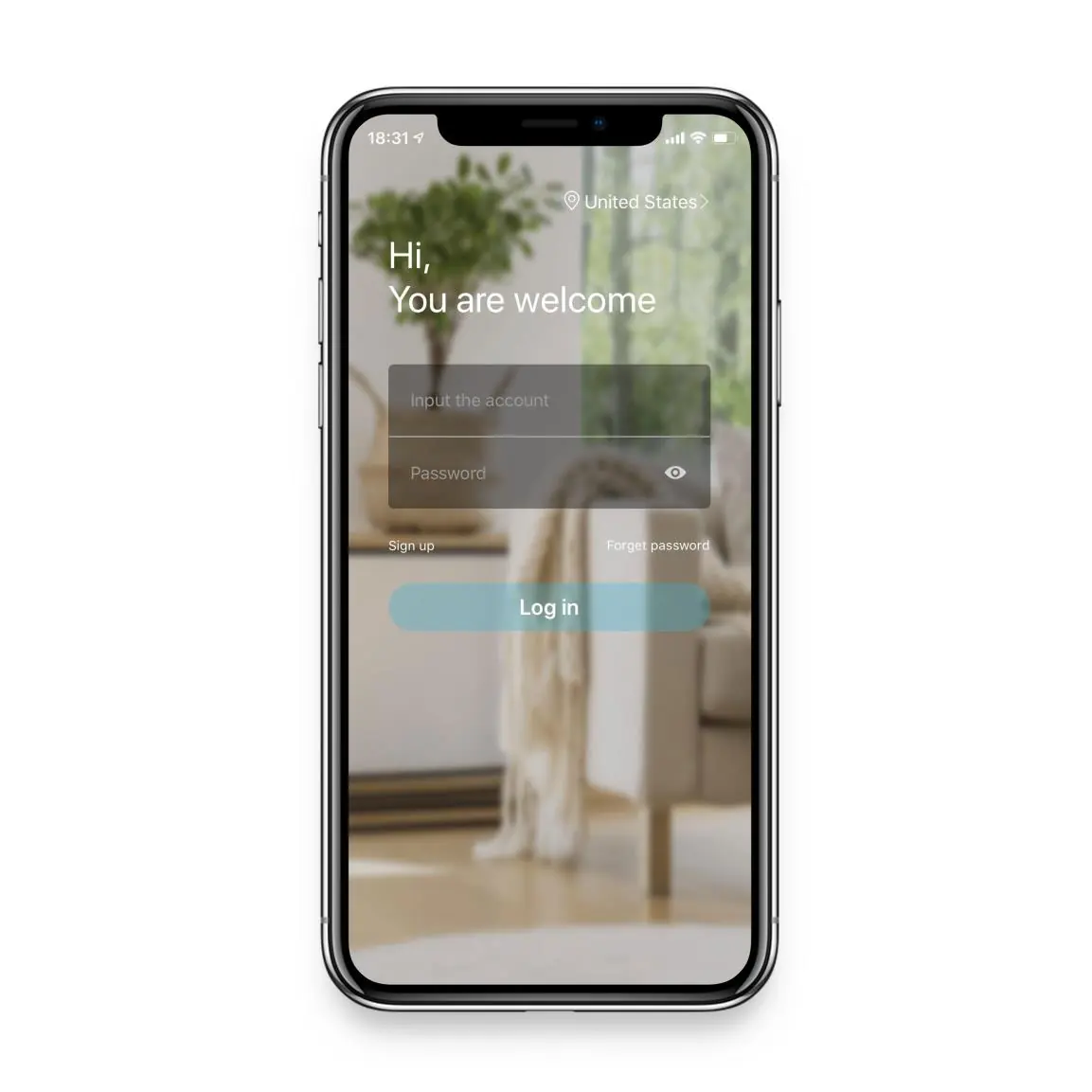
- Register and log into your blurams account.
- Follow the in-app instructions to add the camera to your account.
Using the app
Once configured, you can access the following features via the blurams app:
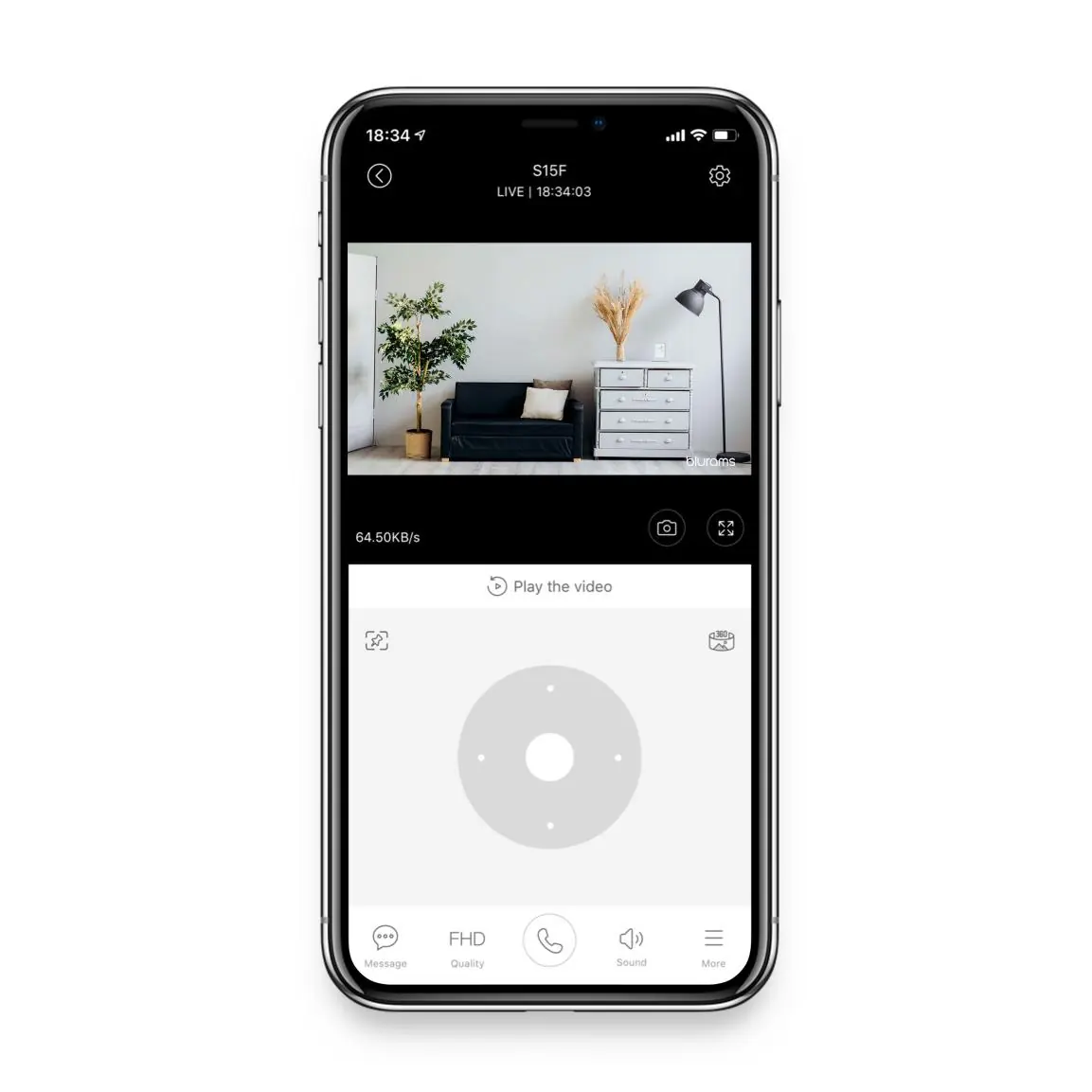
- Live View: Access the video interface to view live feeds.
- Features: Use voice commands, two-way audio, snapshot, and video recording.
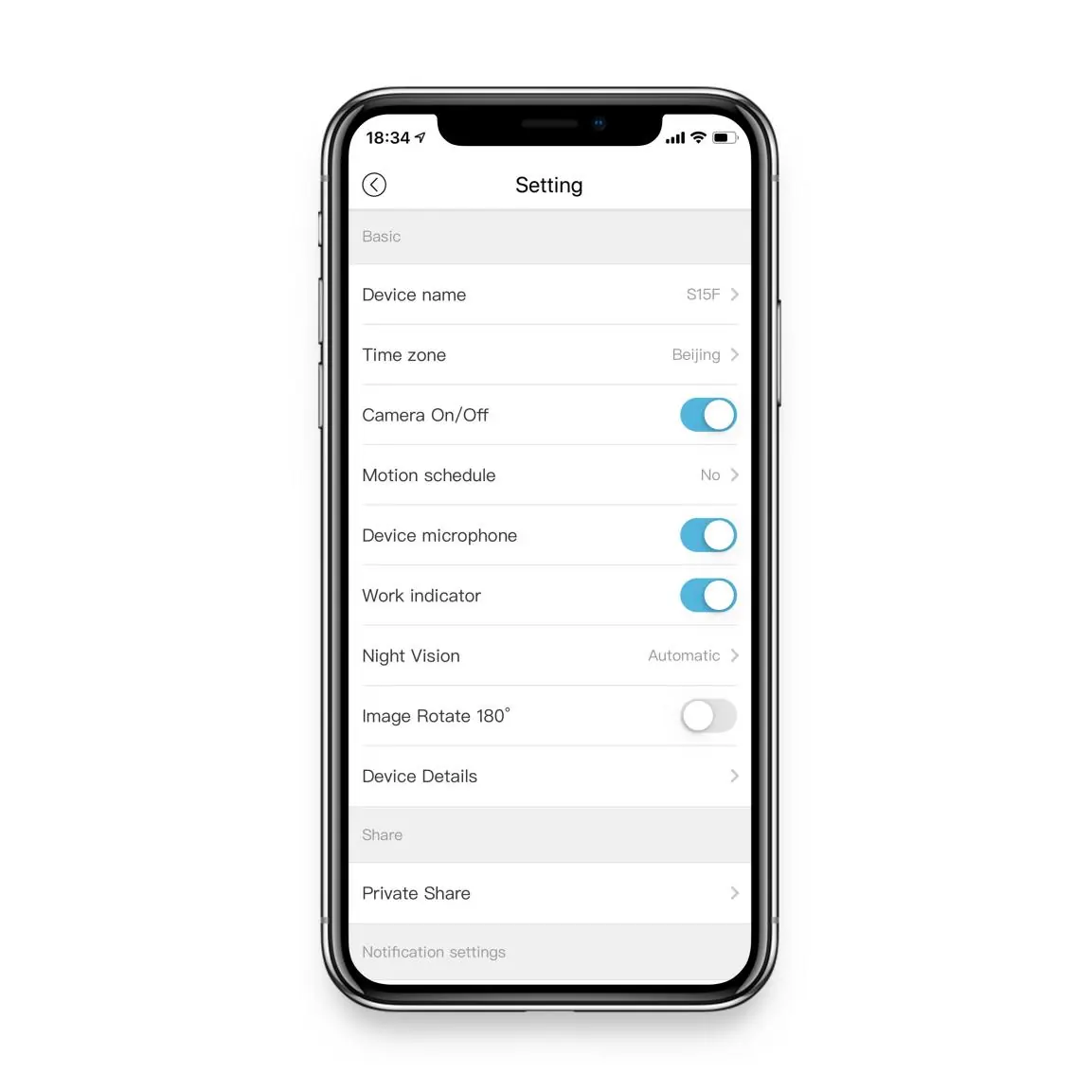
- Parameters Setting: Access the settings interface to customize device name, time zone, motion schedule, microphone settings, night vision, and image rotation.
Practical help
Common problems
Camera not connecting during setup
Ensure your smartphone is connected to a 2.4G Wi-Fi network, as 5G networks are not supported.
Difficulty mounting the camera
For cement walls, ensure you drill holes first using the mounting tab as a guide before inserting screws.
Before use
- Verify package contents are complete.
- Ensure a 2.4G Wi-Fi network is available.
- Download the blurams app.
- Register a blurams account.
Specs in practice
- TF card slot
- Slot for inserting a memory card for local video storage.
- Reset button
- Used to restore the camera to factory settings if troubleshooting is required.
Images and diagrams
- The installation diagram illustrates how to attach the mounting base to both cement and wooden walls using the provided screws.
- The component diagram identifies the location of the lens, microphone, speaker, and ports.
Model compatibility
- Requires a 2.4G Wi-Fi network for operation.

Manual page author
David Miller
Documentation analyst
Organizes user manual content into clear summaries, with attention to model details, product context, and everyday usability.