Home / Security
Blurams Dome Lite 2-A31 Security Camera User Manual
Quick setup guide and user manual for the Blurams Dome Lite 2-A31 security camera. Learn how to connect, install the app, and configure your device.
Quick answers from the manual
Quick answer
- The Blurams Dome Lite 2-A31 is a security camera that requires the Blurams app for setup. Connect it to power, install the app, and follow the prompts to add the device. p. 4, 5, 6
Key actions
- Connect the camera to power p. 4
- Download the Blurams app p. 5
- Add camera to app p. 6
First start
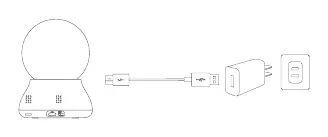
- Power on the device using the provided USB cable and adapter. p. 4
- Register an account in the Blurams app. p. 6
Maintenance and reset
- Use the reset button located on the back of the camera. p. 3
Technical specifications
| Parameter | Value | Meaning | Pages |
|---|---|---|---|
| Power Input | 5V / 1A | Required power supply | p. 9 |
| Operating Temperature | -10°C to 50°C | Safe operating range | p. 9 |
Where to find it in the PDF
- Package Contents p. 1
- Camera Overview p. 2, 3
- Setup Instructions p. 4, 5, 6
- Web Access p. 7
- Safety Information p. 8
Table of contents
Manual images
Click an image to enlargeQuick guide from the manual
The Blurams Dome Lite 2-A31 is a security camera designed for indoor monitoring. To get started, connect the camera to a power source, download the Blurams app, and follow the in-app instructions to add the device to your account. You can also access the camera via a web browser.
Package contents
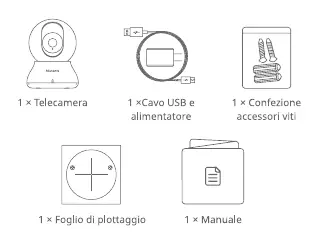
- 1 x Security Camera
- 1 x USB cable and power adapter
- 1 x Screw accessories pack
- 1 x Positioning sheet
- 1 x User manual
Camera overview
Front view:
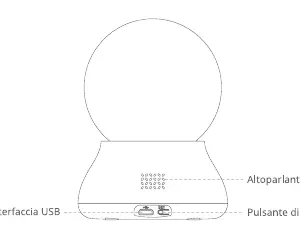
- Lens
- Microphone
- Micro SD card slot
- Indicator light
Back view:
- Speaker
- USB interface
- Reset button
Power connection
Connect the provided power adapter to a wall outlet using the USB cable. It is recommended to use the original accessories included in the package for optimal performance.
App setup
- Download and install the blurams app from the App Store or Google Play.
- Register a new account and log in.
- On the main page, click the "+" icon in the top right corner.
- Select your camera model and follow the on-screen instructions to complete the setup.
Web interface access
After setting up the camera via the mobile app, you can access the live feed through a web browser (Chrome, Firefox, Edge) by visiting https://client.blurams.com/login. Log in with your registered email and verification code to view the camera and adjust settings.
Safety and technical specifications
Operating conditions: Do not use the camera in environments with extreme temperatures. The suitable operating temperature range is -10°C to 50°C.
Power requirements: The recommended power input is 5V DC / 1A. Ensure the power adapter is CE approved.
RF exposure: Maintain a distance of at least 20 cm between the device and the human body during operation.
Frequency range: 2.412 MHz ~ 2.472 MHz.
Official resources from the manual
Practical help
Common problems
Camera setup failure
Ensure the camera is powered using the original 5V/1A adapter and that you have a stable Wi-Fi connection. Use the reset button if the device is unresponsive.
Cannot access live feed
Check your internet connection and ensure you are logged into the correct Blurams account. Verify the camera is powered on.
Before use
- Verify all package contents are present
- Download the Blurams app
- Ensure a 5V/1A power source is available
- Have your Wi-Fi credentials ready
Specs in practice
- Operating Temperature
- -10°C to 50°C
- Frequency Range
- 2.412 MHz ~ 2.472 MHz
Images and diagrams
- The front of the camera features the lens, microphone, Micro SD slot, and status indicator.
- The back of the camera contains the speaker, USB power port, and the reset button.
Model compatibility
- Compatible with standard web browsers (Chrome, Firefox, Edge) via the web client.
- Requires the Blurams app for initial configuration.

Manual page author
Emily Carter
User documentation editor
Prepares concise manual descriptions and highlights the most useful setup, operation, and maintenance information for readers.