Industrial / Payment Systems
RMA Processing Guide for Cantaloupe Seed Live
Learn how to create and submit a Return Merchandise Authorization (RMA) for parts in the Cantaloupe Seed Live platform. This guide covers the step-by-step process, including entering issue descriptions, shipping details, and advanced swap...
Table of contents
Manual images
Click an image to enlargeQuick Guide to RMA Processing
This document outlines the procedure for submitting a Return Merchandise Authorization (RMA) for parts within the Cantaloupe Seed Live platform. Follow these steps to ensure your request is processed correctly.
Creating a Parts RMA
To initiate a return for parts, follow these steps:
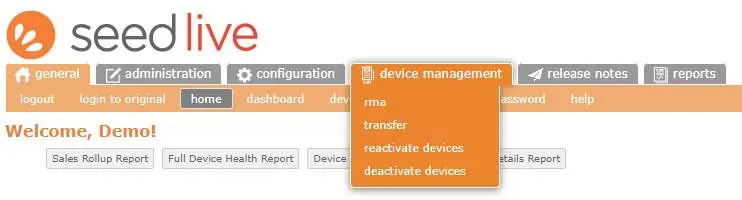
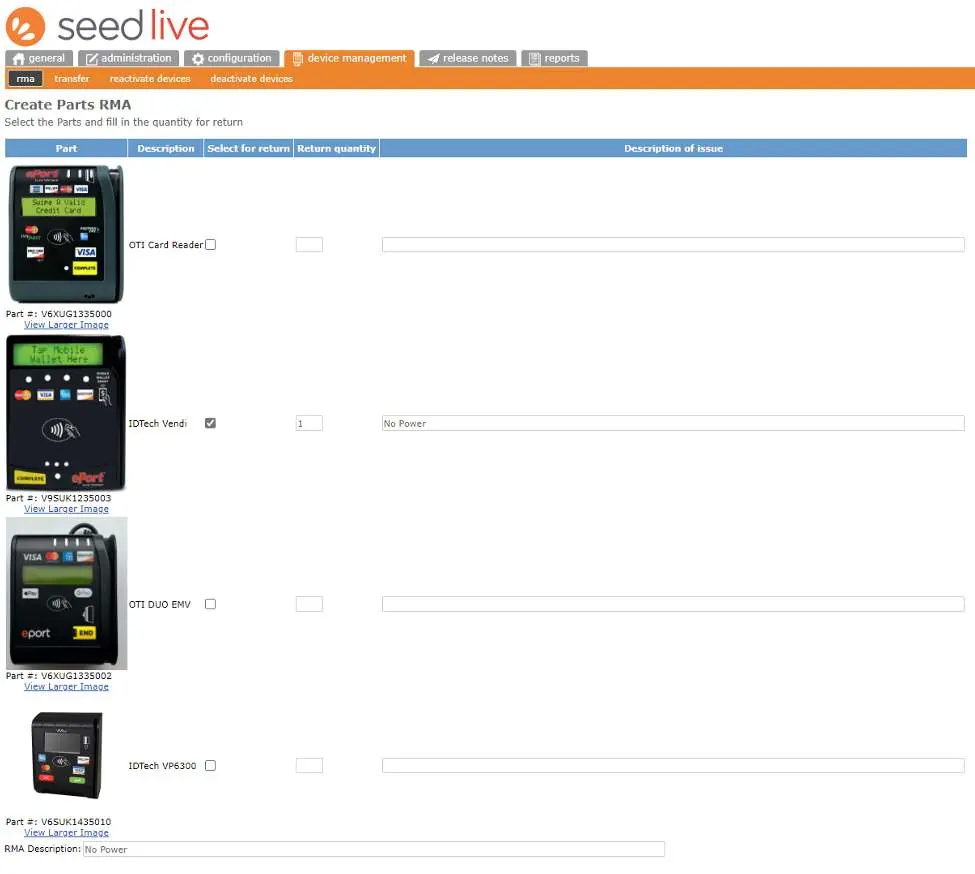
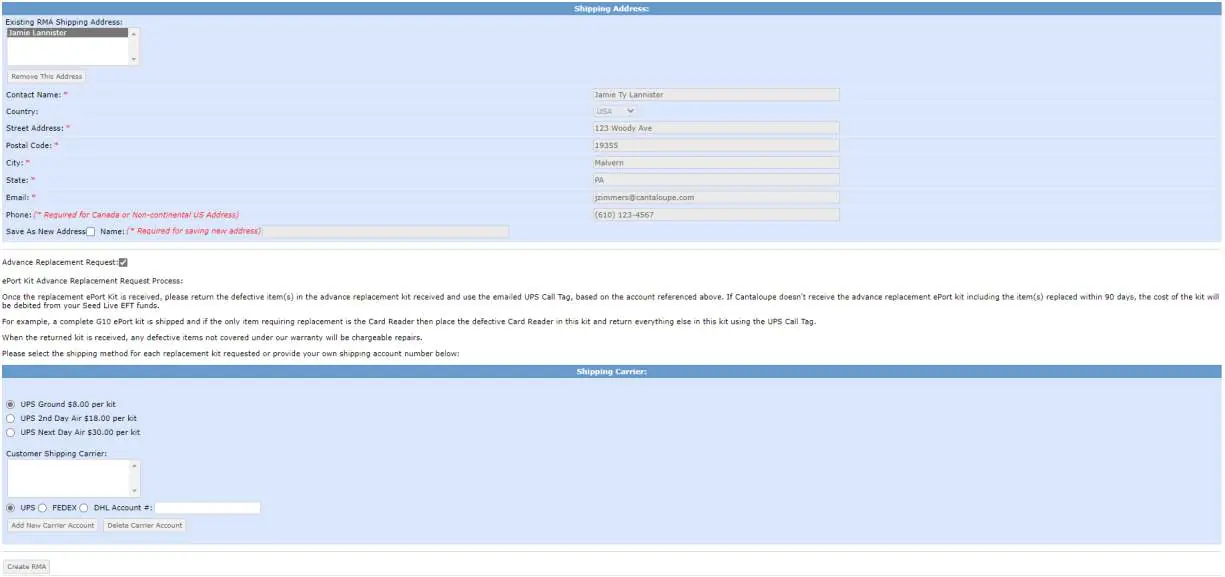
- Login: Access your account in Seed Live.
- Navigate: Go to the Device Management tab and select RMA from the menu.
- Initiate: Click the Create Parts RMA button.
- Details: Enter the quantity of parts being returned. In the Description of Issue box, provide a clear explanation of the problem. This is essential for accurate diagnosis. If you have a case number, include it here.
- Shipping: Enter the contact name and shipping information in the provided fields.
- Submit: Click the Create RMA button to finalize the request.
Advanced Replacement Options
If you require an advanced swap, check the Advanced Replacement Request box. You will then be prompted to choose a shipping speed before clicking the Create RMA button.
Confirmation and Support
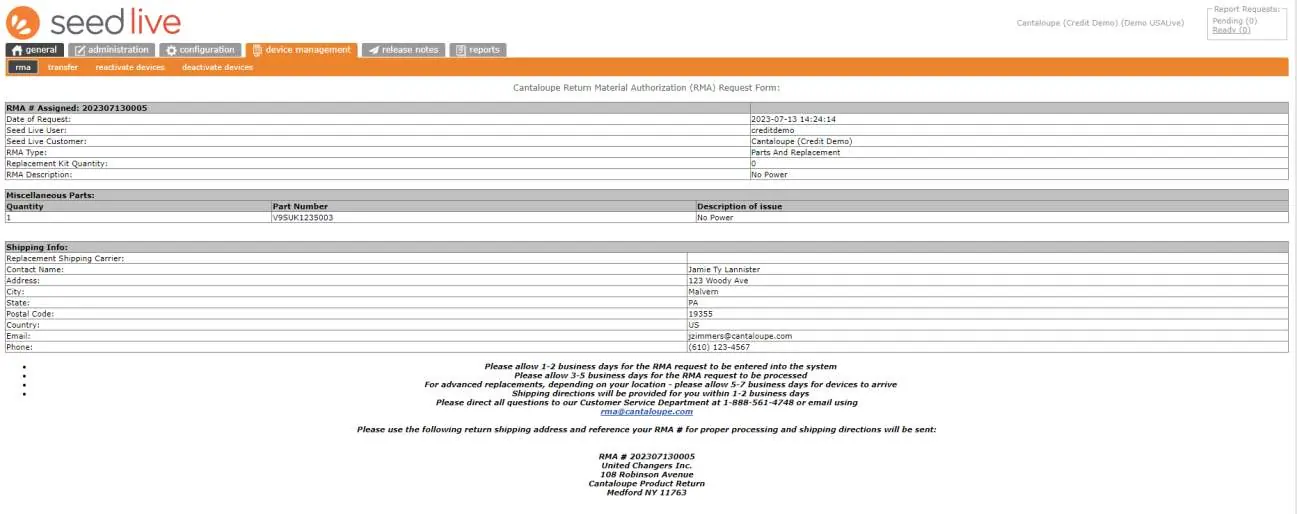
After submission, you will be directed to a confirmation page. Please review the turnaround time information displayed at the bottom of this screen. If you require assistance or have questions regarding your RMA, contact the Customer Service team at 1-888-561-4748 or via email at [email protected].
Practical help
Common problems
Device not working
Provide a detailed description of the issue in the 'Description of issue' box to assist with diagnosis.
Need replacement quickly
Use the 'Advanced Replacement Request' option and select a shipping speed.
Before use
- Ensure you are logged into Seed Live.
- Have the quantity of parts ready.
- Prepare a clear description of the issue.
- Have shipping address and contact details ready.
Images and diagrams
- The interface shows a 'Device Management' tab containing the 'RMA' menu.
- The 'Create Parts RMA' screen allows selection of specific parts and entry of issue descriptions.
- The shipping address form includes fields for contact name, address, and email.
Model compatibility
- This process is specific to the Seed Live platform for Cantaloupe hardware parts.

Manual page author
Emily Carter
User documentation editor
Prepares concise manual descriptions and highlights the most useful setup, operation, and maintenance information for readers.