Garden / Outdoor
Falcon ELD User Guide
Quick guide for the Falcon ELD system, covering installation, app setup, hours of service recording, certification, and troubleshooting.
Table of contents
Manual images
Jump to the sectionQuick guide from the manual
This guide provides essential instructions for the Falcon ELD system. Per FMCSA rules, this document must be kept in the vehicle at all times, along with a supply of duty status graph-grids sufficient to record the driver's duty status for a minimum of 8 days.
ELD Setup
Find a suitable location for the ELD device, ensuring it is positioned upright (check for the THIS SIDE UP label on the enclosure). Route the wiring harness and connect it to the vehicle's diagnostics or dedicated telematics port, then connect the device. Upon first startup, the device may take up to 2 minutes to initialize; a solid green light indicates it is ready for use.
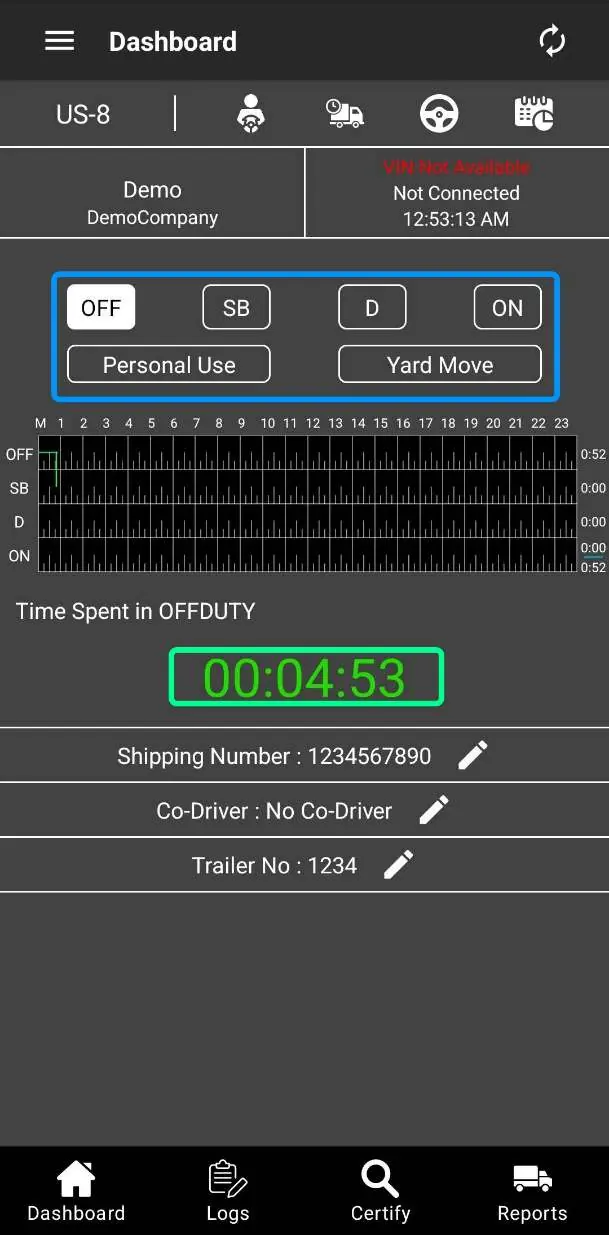
Installing the Falcon ELD Driver Interface App
Download the app from your mobile device's app store. If unavailable, scan the QR code on the back of the manual. Log in using credentials provided by your motor carrier. Upon the first login, grant necessary permissions, including Location and Bluetooth connectivity, for proper background operation.
Recording Hours of Service
After logging in, use the 6 available status buttons to switch your duty status. If Personal Use or Yard Moves are not enabled by your carrier, these buttons will be disabled. The device automatically switches to Drive when the vehicle starts moving and to On-Duty when it stops. If unidentified events are detected, you will be prompted to review and assume them.
Viewing Hours of Service
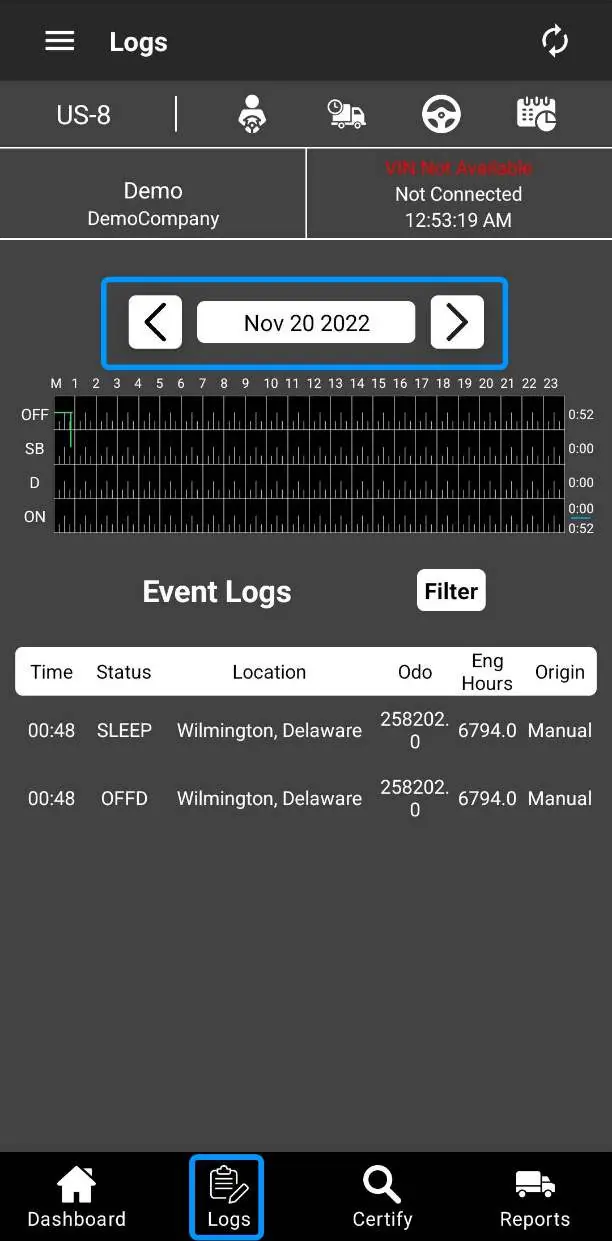
Access your event history via the Logs tab. Switch between days using the arrows next to the date or by swiping the screen. View remaining hours by clicking the markers at the top of the dashboard.
Certifying Hours of Service
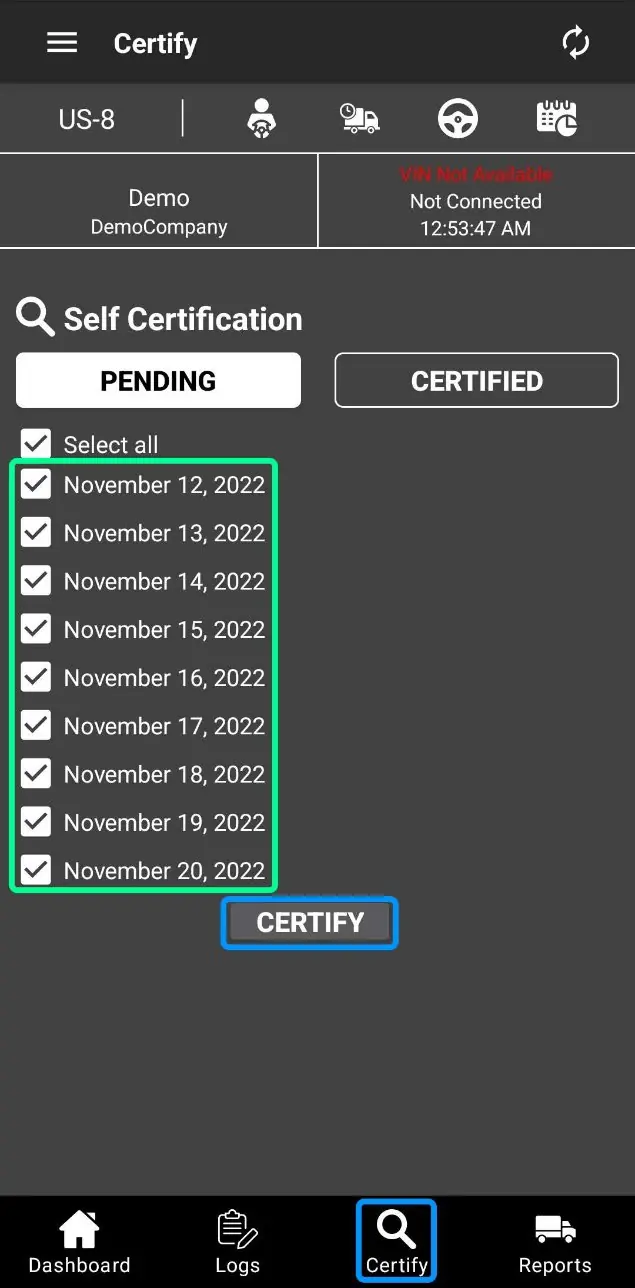
Press the Certify tab to open the certification panel. Select the days you wish to certify from the pending list and click the Certify button. If a day appears in both pending and certified lists, it requires recertification due to new events or changes.
Transferring eRODS
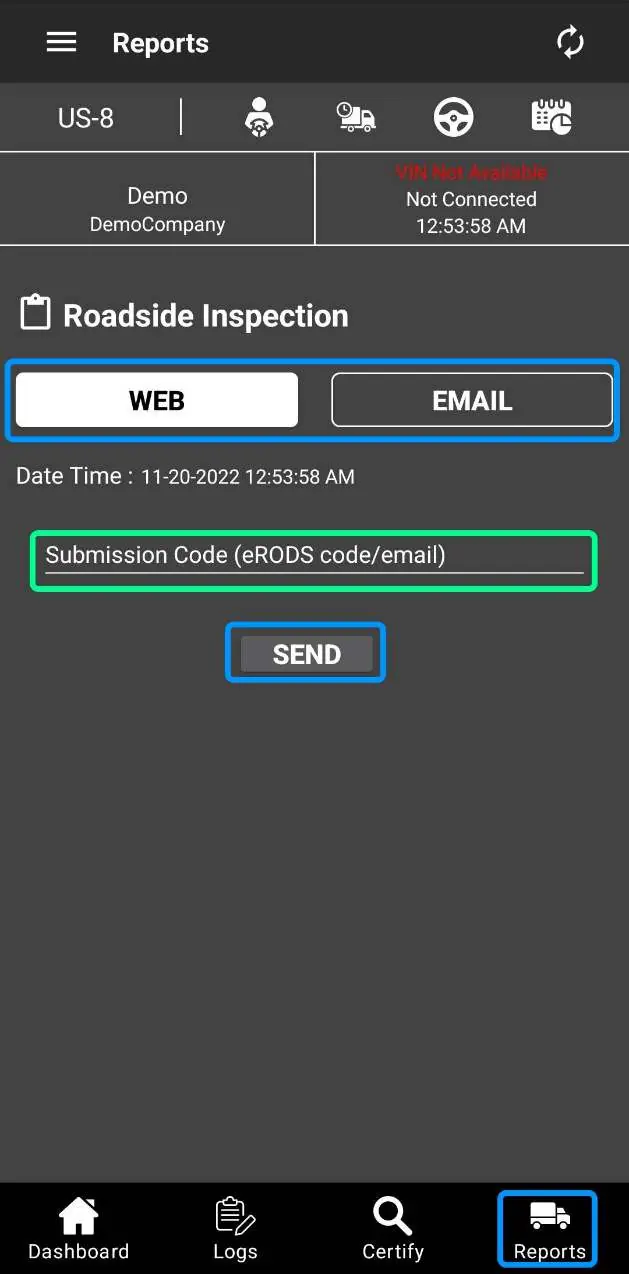
Initiate a transfer from the Reports tab. Select the required method (Web or Email) and enter the code provided by the inspecting official. Note that the Email method sends logs directly to FMCSA systems, not to the comment field.
ELD Features
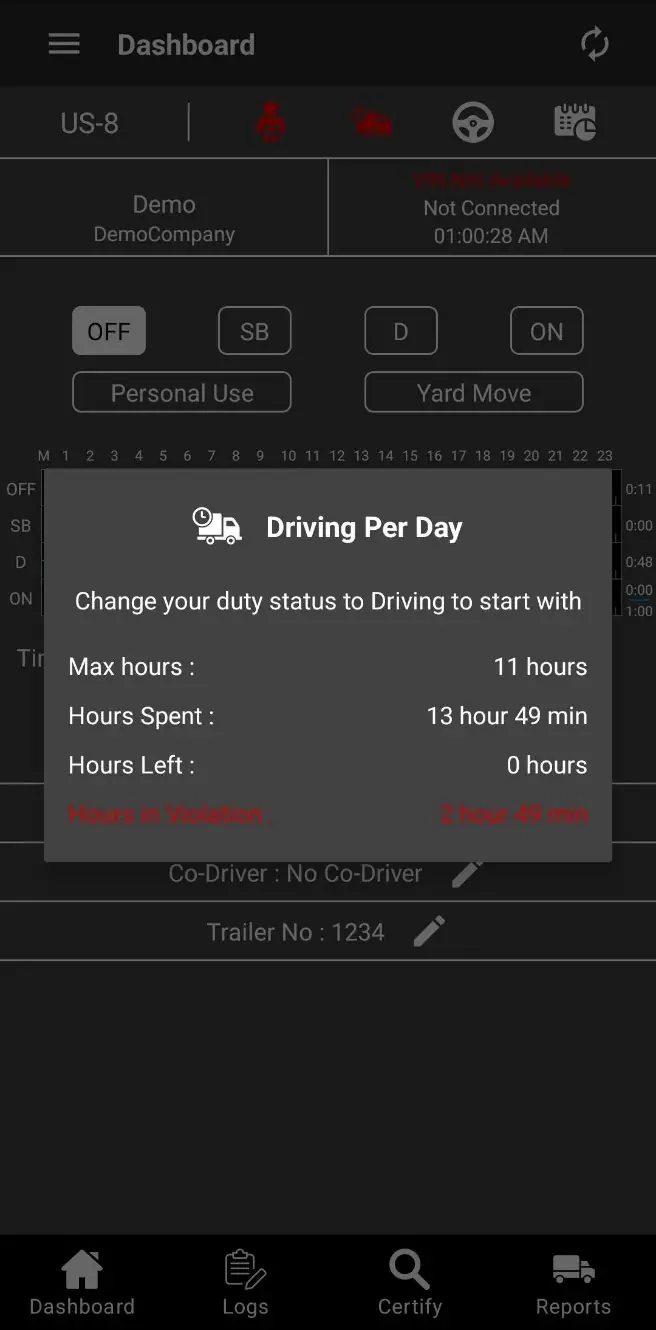
The app provides automatic warnings if you are approaching hours of service limits. If a violation occurs, status icons will flash red.
Malfunction Reporting
If an ELD malfunction occurs, the driver must notify the motor carrier in writing within 24 hours and reconstruct records of duty status (RODS) for the current and previous 7 days using paper logs or compliant software. Manual logging cannot exceed 8 days following a malfunction.
Frequently Asked Questions
If icons flash red, the app is disconnected. Check the device's physical indicator lights. If the green light is solid, try reconnecting via app settings. If the issue persists or the text displays MALFUNCTION, follow the Malfunction Reporting procedures. For support, contact +1 302-600-0128 or email [email protected].
Manufacturer information
Falcon Electronics
Practical help
Common problems
Icons flashing red / Disconnected
Check the physical indicator lights on the ELD device. If the green light is solid, try reconnecting via app settings. If not, follow Malfunction Reporting procedures.
Unable to find app
Scan the QR code on the back of the manual.
Missing credentials
Contact your motor carrier to receive login credentials.
Before use
- Ensure the ELD device is mounted upright (THIS SIDE UP).
- Connect the device to the vehicle's diagnostics or telematics port.
- Wait for the solid green light (up to 2 minutes for initialization).
- Install the Falcon ELD app on your mobile device.
- Grant Location and Bluetooth permissions to the app.
- Keep a supply of paper duty status graph-grids for at least 8 days.
Specs in practice
- Solid Green Light
- The ELD device is initialized and ready for use.
Images and diagrams
- Dashboard: Shows current status buttons, event graph, and time spent in current status.
- Logs: Displays event history with options to filter and switch dates.
- Certify: Interface for reviewing and confirming daily logs.
- Reports: Used for roadside inspections to transfer eRODS via Web or Email.
Model compatibility
- Requires a vehicle with a diagnostics or dedicated telematics port.
- Requires a mobile device with Bluetooth and Location services enabled.

Manual page author
Michael Turner
Technical manual editor
Reviews PDF manuals for structure, safety notes, and practical product details so readers can find the right information quickly.