Home / Security
User Guide for Eve Outdoor Cam
Comprehensive installation and setup guide for the Eve Outdoor Cam. Includes wiring instructions, mounting steps, Wi-Fi configuration, and HomeKit Secure Video setup.
Table of contents
Manual images
Click an image to enlargeQuick guide from the manual
The Eve Outdoor Cam is a smart security camera designed for outdoor use. Before installation, ensure you have a 2.4 GHz Wi-Fi network available at the installation site. The device requires a neutral wire and a ground wire for installation. If you are unsure about the electrical installation, please consult a qualified electrician.
Product components
The package includes the following parts:

- Mounting Plate (1)
- Mounting Bracket (2)
- Mounting Cover (3)
- Mounting Ring (4)
- Mounting Clip (5)
- Mounting Screw (6)
- Ingress Seal Bracket (7)
- Ingress Seal (8)
- Wall Anchors / Screws
- Connection Terminals
- Allen Key
Installation
Choose a location: The camera is best installed replacing an existing outdoor light. An installation height of 2.5 m / 8 ft and a tilt angle of 30° is ideal. Please respect local laws regarding the filming of public spaces.
Check Wi-Fi coverage: Ensure your iPhone has at least two bars of reception at the installation location. The camera connects exclusively to 2.4 GHz Wi-Fi networks.
Disconnect power: Switch off the fuse connected to your existing outdoor light in your fuse box. Verify that no current is flowing.
Mounting steps:
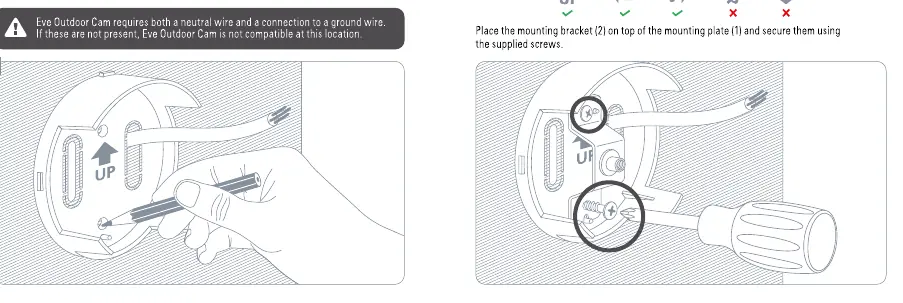
- Remove the existing outdoor light. Position the mounting plate (1) with the UP arrow pointing upwards and secure it using the supplied wall anchors and screws.
- Attach the mounting bracket (2) to the mounting plate.
- Place the mounting cover (3) and mounting ring (4) onto the bracket.
- Pass the camera cable through the cable inlet.
- Connect the wires from your power cable to the camera using the supplied connection terminals (L, N, PE).
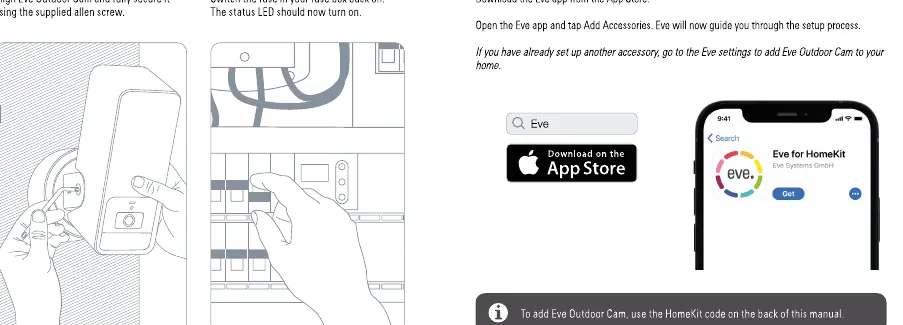
- Secure the camera to the mounting bracket using the mounting clip (5) and mounting screw (6).
Setup
Once installed, switch the fuse back on. The status LED should turn on. Download the Eve app from the App Store. Open the app and tap Add Accessories to follow the setup process. Use the HomeKit code located on the back of this manual to add the camera to your home.
Features and settings
Recordings: The camera supports Apple HomeKit Secure Video. This requires iCloud+ (not included). Recordings are stored securely in iCloud.
Motion Detection: You can adjust motion sensitivity in the accessory settings within the Eve app.
Motion Light: The floodlight turns on automatically when motion is detected. You can adjust the duration or deactivate this feature in the app settings.
Light Boost: Use the Light Boost button in the app to make the floodlight shine extra-bright for a period of time.
Resetting the camera
Wi-Fi Reset: To connect to a different Wi-Fi network, push and hold the reset button on the bottom of the camera for 5 seconds until the LED starts blinking blue.
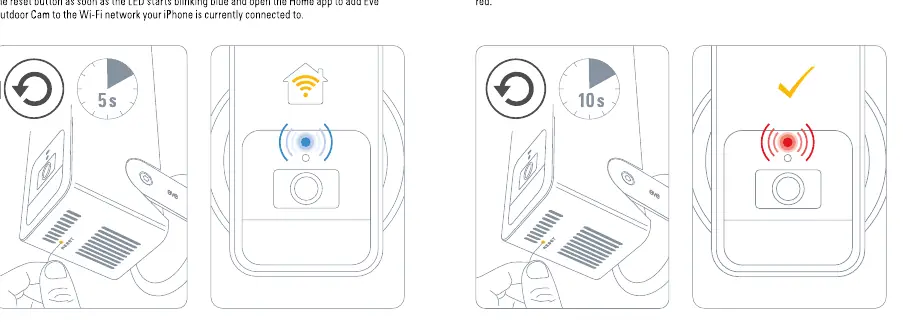
Factory Reset: To reset all settings, including HomeKit pairing, push and hold the reset button for 10 seconds until the LED starts blinking red.
Manufacturer information
Eve Systems
Practical help
Common problems
Wi-Fi connection issues
Ensure you are using a 2.4 GHz network. Temporarily disable the 5 GHz network on your router during setup if necessary.
Installation compatibility
The camera requires both a neutral wire and a ground wire. If these are not present at the installation site, the camera cannot be installed.
Camera not responding
Perform a Wi-Fi reset (5s) or a full factory reset (10s) using the reset button on the bottom of the camera.
Before use
- Ensure you have a 2.4 GHz Wi-Fi network available at the installation site.
- Verify the presence of a neutral wire and a ground wire in your existing outdoor light fixture.
- Download the Eve app from the App Store.
- Have your HomeKit setup code ready (located on the back of the manual).
Specs in practice
- Installation Height
- 2.5 m / 8 ft is recommended for optimal coverage.
Images and diagrams
- Mounting Plate: Must be installed with the 'UP' arrow pointing upwards.
- Wiring: Connect wires to the provided terminals (L, N, PE).
Model compatibility
- Requires Apple HomeKit Secure Video.
- Requires iCloud+ for recording storage.

Manual page author
David Miller
Documentation analyst
Organizes user manual content into clear summaries, with attention to model details, product context, and everyday usability.