Electronics / Monitors
User Manual for Feelworld 5.5" 12G SDI On-Camera Monitor
Get the most out of your Feelworld 5.5" 12G SDI On-Camera Monitor with this comprehensive user guide. Learn about power options, touch screen navigation, LUT loading, and technical specifications.
Table of contents
Manual images
Click an image to enlargeQuick guide from the manual
This monitor is designed for professional video production, featuring a 5.5-inch full HD IPS screen with 1200nits brightness. It supports 12G-SDI and HDMI 2.0 inputs and outputs. Key operations include touch screen navigation and a physical menu wheel. Ensure you use compatible power sources (NP-F battery, DC 12V, or Type-C 5V) and follow the maintenance guidelines to protect the LCD screen.
Safety and maintenance
To ensure the longevity of your monitor, please follow these precautions:
- Avoid heavy impacts and dropping the unit.
- Keep the product away from heat sources and prolonged sun exposure.
- Do not disassemble or repair the unit yourself.
- Clean the screen only with a clean, soft cloth. Do not use chemical solutions, spray detergents, or hard objects on the screen.
- Do not write on or stick items to the screen.
Product overview
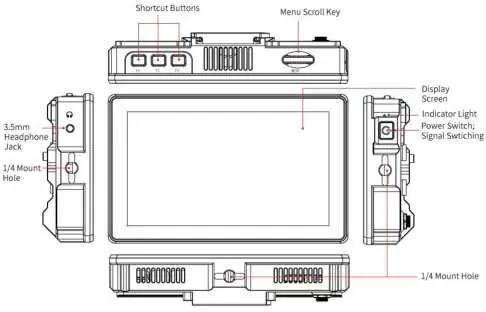
The monitor features shortcut buttons and a menu scroll key on the top. The rear panel houses the NP-F battery slot, 12G SDI input/output, HDMI input/output, DC power input, and a Type-C power input port.
Power supply options
The monitor offers three power supply methods:
- NP-F Battery: Compatible with Sony NP-F series batteries (F970, F960, F950, F930, F770, F750, F730, F570, F550, F530). Remove the battery if not in use for a long time.
- DC 12V Input: Supports 7-24V wide voltage. Requires a DC 5.5x2.1mm power plug (adapter purchased separately).
- Type-C 5V Input: Suitable for power banks. Recommended for local power supply only; do not use to provide loop-out power to other devices.
Menu operation
You can operate the monitor using the touch screen or the physical menu wheel:
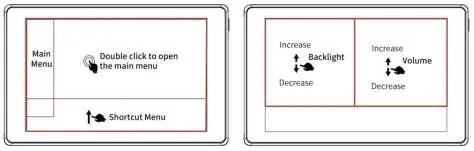
- Touch Screen: Double-click to open the main menu. Swipe up from the bottom to open the shortcut menu. Use the left side of the screen to adjust backlight brightness and the right side to adjust volume.
- Menu Wheel: Rotate to adjust settings. Short press to open the main menu. Long press to open the shortcut menu.
Menu functions
The menu system provides extensive control over your monitoring experience, including:
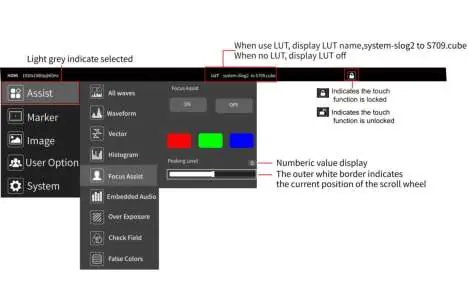
- Assist: Waveform, Vector, Histogram, Focus Assist, Embedded Audio, Over Exposure, Check Field, False Color, and Time Code.
- Marker: Grids, Safe Frames, Center Marker, and Ratio Marker.
- Image: Scan Mode, Aspect Ratio, Anamorphic, Image Flip, Zoom Mode, Image Freeze, and Pixel-to-Pixel (P2P).
- User Option: LUT management, HDR settings, and display adjustments (Backlight, Brightness, Contrast, Saturation, Tint).
- System: Language, OSD settings, Volume, Cooling Fan, Source selection, Reset, and Firmware Update.
LUT loading and calibration
To load custom LUTs:
- Format a USB flash drive to FAT32.
- Ensure LUT files are in .cube format, under 7.9Mb, and named using English or Arabic numerals.
- Insert the USB drive into a Type-C to USB adapter connected to the monitor's Type-C port.
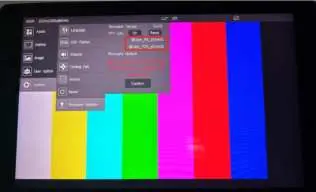
- Navigate to Main Menu > LUT > Lut Import > Confirm.
For color calibration, ensure files are named correctly (e.g., @User_P3xxxx.cube or @User_709xxxx.cube).
Troubleshooting
If you encounter issues, check the following:
- Black and white/monochrome picture: Check saturation, brightness, and contrast settings. Ensure 'Monochrome' is turned off.
- No image: Verify signal cable connections and ensure the power source is active and sufficient.
- No sound: Check if the volume is muted or set too low.
Technical specifications
The monitor features a 1920x1080 resolution, 1000:1 contrast ratio, and 1200cd/m2 brightness. It operates between -20°C and 70°C and weighs 306g.
Practical help
Common problems
Only black and white or monochrome picture
Check saturation, brightness, and contrast adjustments. Ensure the 'Monochrome' function is disabled.
No image after powering on
Check if the signal cable is connected properly. Ensure you are using a standard power adapter or that the battery is fully charged.
No sound from earphone
Check if the volume control is muted or set too low; press the volume button and increase the level.
Before use
- Ensure the screen is clean and free of hard objects.
- Verify the power source (NP-F battery, DC 12V, or Type-C 5V).
- Check that the signal cable (SDI or HDMI) is securely connected.
- If using custom LUTs, ensure the USB drive is formatted to FAT32 and files are in .cube format.
Images and diagrams
- The top of the monitor contains shortcut buttons and a menu scroll key.
- The rear panel includes the NP-F battery slot, 12G SDI In/Out, HDMI In/Out, DC Power In, and Type-C Power In.
Model compatibility
- Supports Sony NP-F series batteries (F970, F960, F950, F930, F770, F750, F730, F570, F550, F530).
- Supports 12G-SDI and HDMI 2.0 input/output formats.

Manual page author
David Miller
Documentation analyst
Organizes user manual content into clear summaries, with attention to model details, product context, and everyday usability.