Computers / Keyboards Input
User Guide for Genius Wired Mouse, Keyboard, and Combo
Quick guide for Genius wired input devices, covering hardware installation, mouse button functions, safety guidelines, and maintenance tips.
Table of contents
Quick guide from the manual
This document serves as a multi-language quick guide for Genius wired mice, keyboards, and keyboard-mouse combos. It provides essential information on hardware installation, basic mouse operation, safety precautions, and maintenance to ensure optimal performance.
Hardware installation
The devices feature plug-and-play functionality, meaning they are ready to use immediately after connection.
- Plug the USB or PS/2 connector into the corresponding port on your computer.
- The system will automatically detect the device.
Mouse factory settings
The standard mouse configuration includes:
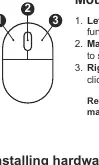
- Left Button: Performs traditional functions such as clicking, double-clicking, and dragging.
- Magic-Roller: Used for scrolling and navigating the Internet and Windows documents.
- Right Button: Performs traditional right-click functions.
Safety and maintenance
To ensure safe and long-lasting operation, follow these guidelines:
- Environment: Keep the device away from liquids and moisture. Operate only within a temperature range of 0°C to 40°C (32°F to 104°F).
- Handling: Do not disassemble the device, as this will void the warranty. Never attempt to repair the device yourself.
- Ergonomics: To prevent physical discomfort or injury, maintain good posture, keep your wrists straight, and take regular breaks to stretch. Position the keyboard and mouse at or below elbow height.
- Cleaning: Disconnect the device from the computer once a month. Clean it using a soft cloth or a cotton swab. Do not use soap or harsh cleaning agents.
Troubleshooting and support
If you encounter issues that cannot be resolved, disconnect the device and visit the official support website at https://global.geniusnet.com/support for further assistance.
Official resources from the manual
Manufacturer information
Genius
Practical help
Common problems
Device not working
Ensure the USB or PS/2 connector is firmly plugged into the computer port. If the issue persists, disconnect and reconnect the device.
Physical discomfort during use
Adjust your chair and desk height, maintain an upright posture, and ensure your wrists are not resting on hard surfaces for extended periods.
Before use
- Ensure the computer is powered on.
- Identify the correct port (USB or PS/2) on your computer.
- Verify the operating environment is between 0°C and 40°C.
Specs in practice
- Storage Temperature
- -20°C to 50°C
- Storage Humidity
- 5% to 85%
- Plug and Play
- The device is automatically configured by the operating system upon connection.
Images and diagrams
- The mouse diagram identifies the Left Button (1), Magic-Roller (2), and Right Button (3).
- The hardware installation diagram shows the connection of a USB or PS/2 cable to a computer tower or laptop.
Model compatibility
- Supports both USB and PS/2 connection types depending on the specific model hardware.

Manual page author
Michael Turner
Technical manual editor
Reviews PDF manuals for structure, safety notes, and practical product details so readers can find the right information quickly.