Electronics / Video Transmission
User Manual for Gofanco 3x3 Video Wall Controller 4K30
Quick guide for the Gofanco 3x3 Video Wall Controller 4K30. Learn how to set up your video wall, configure inputs, manage OSD settings, and control the device via LAN or RS232.
Table of contents
Manual images
Click an image to enlargeQuick guide from the manual
The Gofanco 3x3 Video Wall Controller 4K30 is a high-performance video processor designed to create 3x3 video walls, with cascading capabilities to support up to 10x10 configurations. It supports four input types (USB Type-C, VGA, DisplayPort, and HDMI) and offers multiple control methods including front panel buttons, IR remote, RS232, and LAN.
Package Contents
- 3x3 Video Wall Controller 4K30
- 2x Mounting ears with 6 screws
- 1x IR remote control
- 1x Power adapter (24V/2A)
- 1x USB cable
- 1x User's guide
Hardware Installation
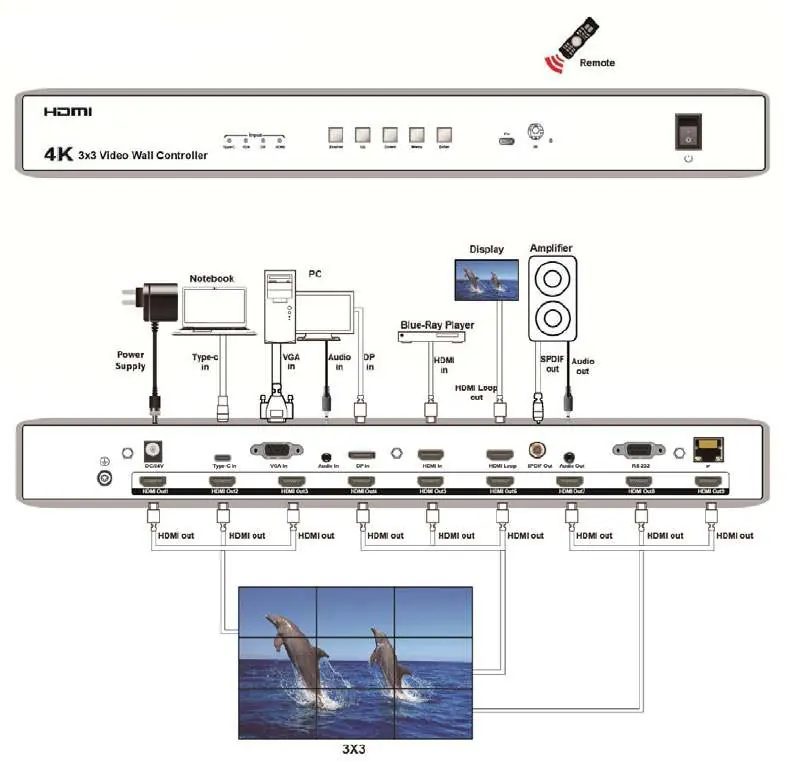
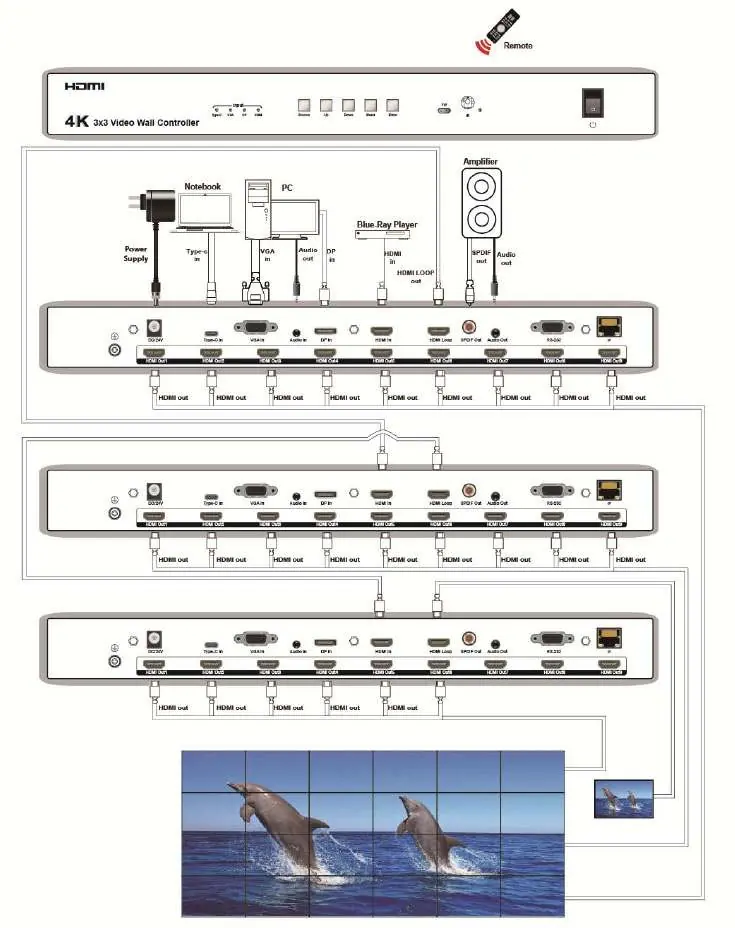
- Power off all source devices and HDMI displays.
- Connect your source devices to the controller's inputs.
- Connect your HDMI displays to the HDMI outputs using HDMI cables.
- Optional: Connect the Local HDMI Output to a local display or another controller for cascading.
- Optional: Connect audio devices to the S/PDIF or Analog output ports.
- Optional: Connect the RS232 cable or Ethernet cable for PC control.
- Plug in the power adapter and power on all devices.
Front Panel Layout
The front panel features input LEDs, source selection, OSD navigation buttons (Up, Down, Menu/Left, Enter/Right), a Micro USB port for firmware updates, an IR eye, and the power switch.
Rear Panel Layout
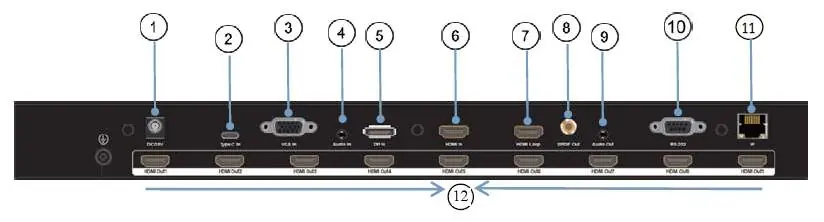
The rear panel contains the power jack, input ports (Type-C, VGA, Audio, DisplayPort, HDMI), output ports (Local HDMI, S/PDIF, Analog, 9x HDMI outputs), and control ports (RS232, RJ45).
OSD Menu & Operation
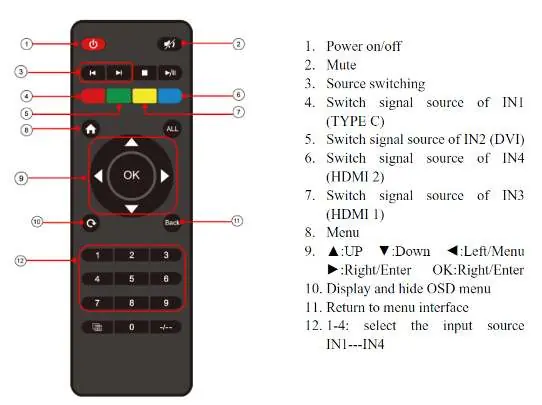
The OSD interface allows for detailed configuration of the video wall. Press the source button to toggle inputs. Use the front panel buttons or the included IR remote to navigate the menu. The OSD automatically turns off after 20 seconds of inactivity.
Video Wall Setup
Access the Video Wall menu to configure presets, set horizontal and vertical display numbers, manage cascading, and map ports. You can also adjust mirror modes, image rotation (180 degrees), and edge settings (default margin 3.5mm) to ensure seamless alignment.
Network & Web GUI Control
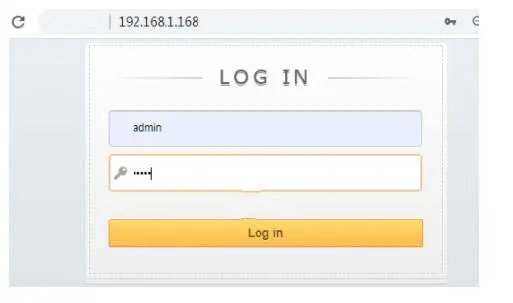
The controller can be managed via a web browser. Connect the controller to your network and access the GUI by typing 192.168.1.168 in your browser. Default login credentials are username: admin and password: admin. The interface allows for full control over video wall settings, audio, and network configuration.
RS232 Control
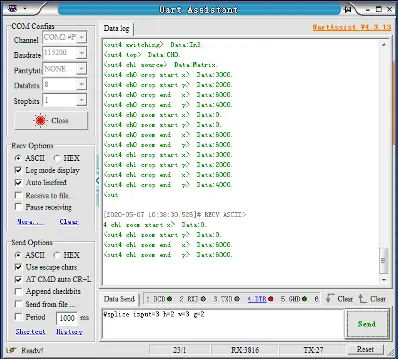
For advanced control, connect the controller to a PC's serial port using the included RS232 cable. Download the control software from www.gofanco.com/downloads to manage the device via serial commands.
Specifications
- Video Format: Ultra HD TV/FHDTV: 4K@30Hz/1080p
- Input Ports: 1x USB Type-C, 1x DisplayPort, 1x VGA, 1x HDMI
- Output Ports: 9x HDMI, 1x HDMI Loop out
- Power Consumption: 33 Watts (max)
- Dimensions: 438 (L) x 274 (W) x 44 (H) mm
Official resources from the manual
Practical help
Common problems
No signal on displays
Check all cable connections and ensure the source device is outputting a compatible signal.
OSD menu not appearing
The OSD turns off after 20 seconds of inactivity. Press any button on the front panel or remote to wake it up.
Cannot access Web GUI
Ensure your PC and the controller are on the same network segment. The default IP is 192.168.1.168.
Before use
- Power off all devices before connecting cables.
- Ensure you have sufficient HDMI cables (not included).
- Verify the power adapter matches the 24V/2A specification.
- Check that your source devices are compatible (Type-C, DP, HDMI, VGA).
Specs in practice
- Video Wall Modes
- Supports various configurations (e.g., 1x1, 2x2, 3x3) and up to 10x10 via cascading.
- Power Consumption
- Maximum power draw is 33 Watts.
Images and diagrams
- Front Panel: Shows input LEDs, source selection, and menu navigation buttons.
- Rear Panel: Displays all input/output ports including HDMI, RS232, and RJ45.
- Connection Diagram: Illustrates a typical 3x3 setup with source devices and displays.
Model compatibility
- Supports HDCP 2.2/1.4.
- Web GUI compatible with Chrome, Firefox, Apple, and IE 11.

Manual page author
Michael Turner
Technical manual editor
Reviews PDF manuals for structure, safety notes, and practical product details so readers can find the right information quickly.