Industrial / Commercial Timers
User Guide for HME ZOOM Nitro Drive-Thru Timer System
Quick start guide for the HME ZOOM Nitro Drive-Thru Timer System. Learn how to interpret dashboard metrics, configure settings, and manage your drive-thru performance data.
Table of contents
Manual images
Click an image to enlargeQuick Guide
The HME ZOOM Nitro Drive-Thru Timer System is designed to measure and display drive-thru lane events to help optimize service times. The system tracks metrics at up to eight detection points, providing real-time feedback on performance against preset goals.
Dashboard Overview
The Dashboard provides a visual overview of your drive-thru performance. Key metrics include:
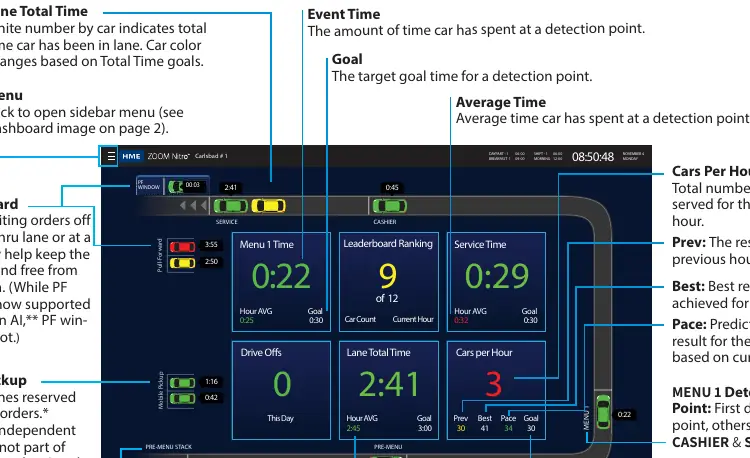
- Lane Total Time: The total time a car has been in the lane, tracked from the first detection point to the last.
- Event Time: The time a car has spent at a specific detection point.
- Cars Per Hour: The total number of cars served in the current hour.
- Pace: A prediction of the final result for the hour based on the current count.
- Goal: The target time or result desired for a specific metric.
Color Coding: The system uses colors to indicate performance against goals:
- Green: Exceeding your goal.
- Yellow: Meeting your goal.
- Red: Not meeting your goal.
System Components
- Timer Signal Processor (TSP): Receives event data from car detections in the drive-thru lane or reserved parking locations.
- Control Unit (CU): Processes data from the TSP to provide information for the ZOOM Dashboard display.
Configuration
To make changes to your ZOOM Nitro Timer:
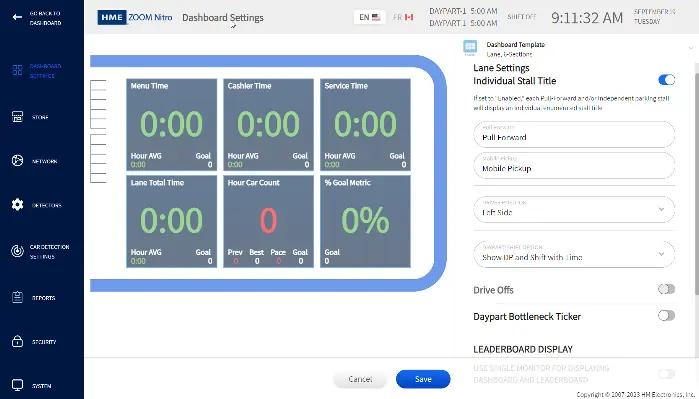
- Connect a mouse to the USB port on the Control Unit (CU) or use a back-office PC if configured on the same network.
- Click the menu icon to open the settings.
- Click on SECURITY and log in. If you do not have a password, contact HME Technical Support to obtain a temporary Manager password.
- Once logged in, click on DASHBOARD SETTINGS in the sidebar menu to edit your layout, lane settings, and section graphics.
Drive-Thru Leaderboard
The Drive-Thru Leaderboard displays the top three and bottom three stores ranked against others in your network. Your store is always outlined and displayed alongside its closest competitors to help motivate performance.
Support
For further assistance, you can scan the QR code in the manual to visit the HME website. You can also contact HME support:
- Phone: 1-800-848-4468 (options 1, 2, 3)
- Email: [email protected]
- Training Portal: https://www.hme.com/training
Official resources from the manual
Practical help
Common problems
Forgot manager password
Contact HME Technical Support to obtain a temporary Manager password.
Cannot edit dashboard settings
Ensure a mouse is connected to the CU USB port or access via a configured back-office PC.
Metrics not updating
Verify that the Timer Signal Processor (TSP) is correctly installed and receiving data from lane detectors.
Before use
- Ensure the Control Unit (CU) is powered and connected to the network.
- Verify the Timer Signal Processor (TSP) is installed and receiving data.
- Connect a USB mouse to the CU for local configuration.
- Obtain Manager credentials for system access.
Specs in practice
- Lane Total Time
- Total time tracked from the first detection point to the last.
- Cars Per Hour
- Total number of cars served in the current hour.
Images and diagrams
- Dashboard Overview: Shows metrics like Menu 1 Time, Service Time, and Lane Total Time.
- Dashboard Settings: Interface for customizing lane and section graphics.
Model compatibility
- Vision AI requires additional equipment.
- Mobile Ordering is supported via independent detectors.

Manual page author
Michael Turner
Technical manual editor
Reviews PDF manuals for structure, safety notes, and practical product details so readers can find the right information quickly.