Electronics / Camera Monitors
User Manual for Lilliput 12G-SDI 3RU Rack Mount Monitor
Comprehensive user guide for the Lilliput 12G-SDI 3RU Rack Mount Monitor. Includes setup, menu navigation, display settings, and troubleshooting.
Table of contents
Manual images
Click an image to enlargeQuick guide from the manual
This monitor is designed for professional use, featuring dual 7-inch screens with 1920x1200 resolution and 1000 nits brightness. Before using the device, ensure it is connected correctly and use the standard power adapter provided. Avoid blocking vent holes and do not use chemical solutions for cleaning; wipe with a clean, soft cloth instead. If the device will not be used for a long time or during thunder weather, unplug the power.
Product Description
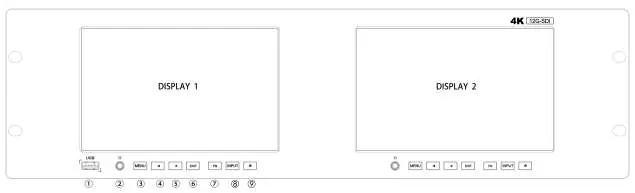
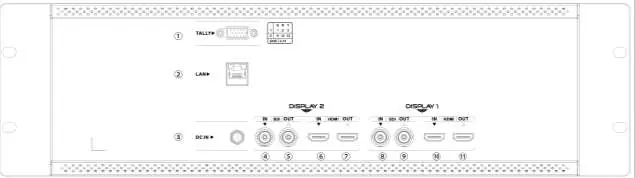
The front housing features buttons for Menu, Input, Power, and a customizable FN button. The back housing provides various interfaces including TALLY, LAN, DC 12V power input, and multiple SDI/HDMI inputs and outputs. Note that interfaces within DISPLAY 1 provide the signal source for the left monitor, while DISPLAY 2 interfaces serve the right monitor.
Menu Settings
The monitor offers extensive menu settings accessible via the MENU button. Key functions include:
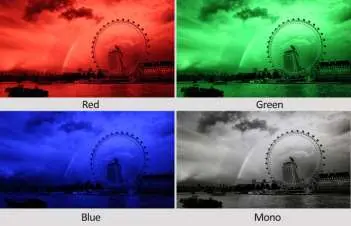
- Picture: Adjust Brightness, Contrast, Saturation, Tint, Sharpness, Back Light, RGB Range, HDMI EDID, HDR, and Color Temperature.
- Marker: Configure Center Marker, Aspect Marker, Safety Marker, Marker Color, Aspect Mat, and Thickness.
- Function: Control Scan mode, Aspect ratio, Overscan, H/V Delay, Check Field, and Freeze.
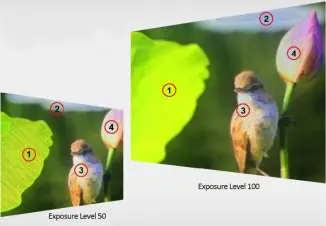
- Waveform: Manage Full Mode, Waveform display (Y, YCbCr, RGB), Transparency, Peaking, False Color, Exposure, Histogram, and Time Code.
- Audio: Adjust Volume, select Audio Channel, and configure Level Meter.
- System: Set Language, Color Bar, OSD settings, DHCP/IP configuration, and No Signal Mode.
Troubleshooting
If you encounter issues, try the following:
- Black-and-white display: Check if color saturation is properly set.
- No picture: Verify HDMI/SDI cable connections and ensure the standard power adapter is used.
- Abnormal colors: Check cables for loose pins or bad connections.
- Size error: Go to MENU -> DISPLAY -> Overscan to adjust the picture.
- General issues: Perform a factory reset via SYSTEM -> Manufacturer Default -> ON.
Remote Terminal Instructions
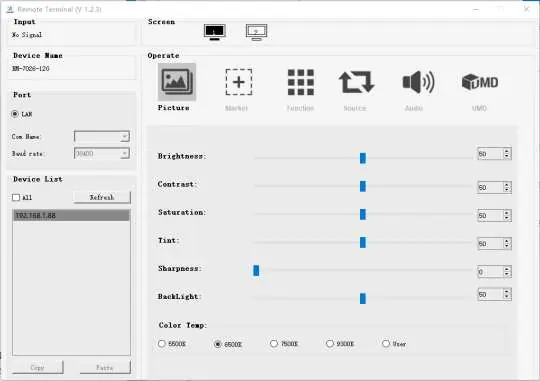
The device can be controlled remotely via the Remote Terminal application. Connect via LAN, search for devices, and use the application to adjust Picture, Marker, Function, Source, Audio, and UMD settings. You can also copy configurations between devices with the same model.
Technical Specifications
The monitor features a 2x7" panel with 1920x1200 resolution, 1200:1 contrast, and 160° viewing angles. It supports DC 12-24V input voltage and has a power consumption of ≤21W (12V). Operating temperature ranges from 0°C to 50°C.
Practical help
Common problems
Only black-and-white display
Check whether the color saturation is properly set up.
Power on but no pictures
Check if HDMI/SDI cables are correctly connected and use the standard power adapter.
Wrong or abnormal colors
Check if cables are tightly connected; broken or loose pins may cause bad connection.
Picture shows size error
Press MENU -> DISPLAY -> Overscan to zoom in/out pictures automatically.
General malfunction
Press MENU and choose SYSTEM -> Manufacturer Default -> ON, then press ENTER.
Before use
- Read the User Guide before using the product.
- Ensure the device is connected correctly.
- Use the standard power adapter provided in the package.
- Do not block any vent holes.
- Avoid placing the display screen towards the ground.
- Unplug the power if the device is not in use for a long time or during thunder weather.
Specs in practice
- Physical Resolution
- 1920x1200 pixels.
- Input Voltage
- DC 12-24V.
- Power Consumption
- ≤21W at 12V.
Images and diagrams
- Front Housing: Identifies buttons for Menu, Input, Power, and FN (customizable).
- Back Housing: Identifies TALLY, LAN, DC 12V power, and SDI/HDMI input/output ports.
Model compatibility
- Supports 12G-SDI and HDMI 2.0 inputs.
- Time Code is only available under SDI mode.
- DHCP can be enabled for remote control via LAN.

Manual page author
Michael Turner
Technical manual editor
Reviews PDF manuals for structure, safety notes, and practical product details so readers can find the right information quickly.