Electronics / Cameras
Logitech G Cloud Gaming Handheld Setup Guide
Comprehensive setup and operation guide for the Logitech G Cloud Gaming Handheld, covering device components, power-on procedures, and charging instructions.
Table of contents
Manual images
Jump to the sectionDevice Overview
The Logitech G Cloud Gaming Handheld is a dedicated device designed for cloud gaming. It features a high-quality touch screen, dual joysticks, a D-pad, and a full suite of gaming buttons including A, B, X, Y, and shoulder triggers (L1, L2, R1, R2). The device also includes a G button, a Home button, and dedicated function buttons for navigation and control.
Component Identification
The device is equipped with several physical interfaces to enhance the gaming experience:
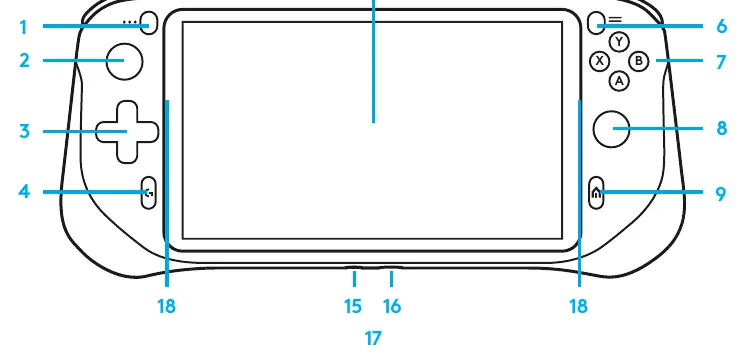
- Touch Screen: The primary interface for navigation and interaction.
- Audio and Connectivity: Includes a 3.5 mm headphone jack, dual speakers for stereo sound, and dual microphones for communication.
- Charging and Storage: Features a USB Type-C port for charging and a dedicated TF card slot for expandable storage.
- Controls: Ergonomically placed joysticks, D-pad, and shoulder triggers provide precise control for various gaming genres.
Getting Started
To begin using your device, follow these simple steps:
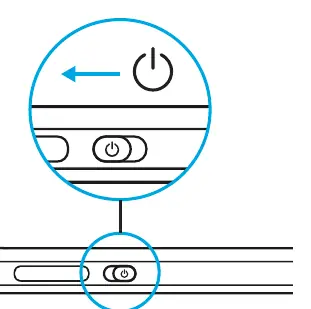
- Powering On: Locate the power switch on the top edge of the device. Slide and hold the switch to turn the unit on.
- Initial Setup: Once the device is powered on, follow the on-screen setup wizard. This guide will walk you through connecting to Wi-Fi, signing into your accounts, and configuring your preferences for an optimal cloud gaming experience.
Charging the Device
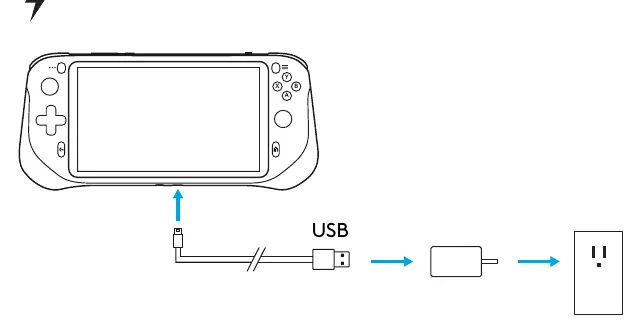
To ensure your device remains powered for extended gaming sessions, use the provided USB cable. Connect the USB Type-C end into the charging port located on the bottom of the device. Connect the USB Type-A end to the included power adapter, and plug the adapter into a standard wall socket. The device will begin charging automatically.
Support and Maintenance
For any questions or technical assistance, please visit the official support website at logitechG.com/support/cloud. Keep the device clean and dry, and ensure the charging port is free of debris to maintain optimal performance. Always use the provided or compatible charging equipment to prevent damage to the battery or internal components.
Official resources from the manual
Manufacturer information
Logitech
Practical help
Common problems
Device will not power on
Ensure the device is charged by connecting it to a power source using the provided USB Type-C cable and adapter.
Before use
- Unpack the device and accessories
- Locate the power switch
- Ensure you have a stable Wi-Fi connection for the setup wizard
- Charge the device fully before the first long gaming session
Specs in practice
- TF Card Slot
- A slot for inserting a microSD card to expand the device's storage capacity.
Images and diagrams
- The device features a central touch screen flanked by controls.
- The top edge houses the power switch, volume buttons, and shoulder triggers.
- The bottom edge contains the 3.5 mm audio jack and the USB Type-C charging port.
- Dual microphones and speakers are integrated into the chassis for audio input and output.
Model compatibility
- Use only the provided or manufacturer-recommended power adapter for charging.
- The device is designed primarily for cloud gaming services.

Manual page author
David Miller
Documentation analyst
Organizes user manual content into clear summaries, with attention to model details, product context, and everyday usability.