Electronics / Two-Way Radios
User Guide for Motorola Edge 60 Fusion
A comprehensive user guide for the Motorola Edge 60 Fusion. This manual covers hardware setup, SIM card installation, gesture controls, Moto AI features, and troubleshooting steps for common issues.
Table of contents
Manual images
Click an image to enlargeQuick guide from the manual
This guide provides essential information for setting up and using your Motorola Edge 60 Fusion. Key tasks include inserting SIM/SD cards, configuring your Google account, and learning gesture controls. For advanced features, explore the Moto AI section to enhance your productivity.
Hardware overview
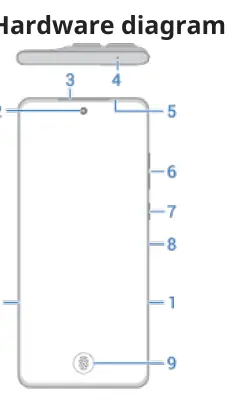
The device features a front camera, earpiece/speaker, proximity sensor, volume buttons, power button, and a fingerprint sensor. The rear includes the main camera, ultrawide/macro camera, flash, and wireless charging area. Ensure that any protective case used does not obstruct the air vent hole located on the device.
SIM and SD card setup
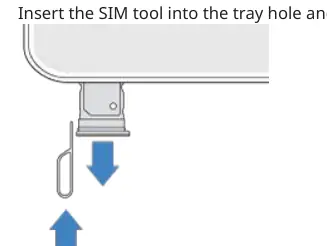
Your phone supports physical SIM cards and eSIM. To insert or remove cards, use the provided SIM tool to eject the tray. The device also supports an optional microSD card up to 1 TB for portable storage.
Getting started
During initial setup, you can copy data from your old phone. Ensure both phones are charged and connected to Wi-Fi. Sign in to your Google account to synchronize contacts, photos, and app data.
Navigation and gestures
You can navigate using either gesture navigation or 3-button navigation. Gestures include swiping from the bottom to go home, swiping from the edges to go back, and dragging up to see recent apps. You can customize these settings in Settings > Gestures.
Moto AI features
Moto AI simplifies your daily tasks. Features include Catch me up for summarizing notifications, Pay attention for transcribing audio, and Remember this for saving screenshots and notes. Access these features via the prompt bar.
Troubleshooting
If you encounter issues, try these steps:
- Phone is slow or unstable: Restart the phone, check for system updates, or clear storage.
- Phone won't turn on: Charge the device and perform a forced restart by holding the power button for 7-10 seconds.
- Screen is frozen: Force restart the device.
- SIM not recognized: Reinsert the SIM card or reset the eSIM.
Manufacturer information
Motorola
Practical help
Common problems
Phone is slow or unstable
Restart the phone, check for system updates, or clear unnecessary storage.
Phone won't turn on
Charge the device and perform a forced restart by holding the power button for 7-10 seconds.
SIM card not recognized
Remove and reinsert the physical SIM card or reset the eSIM settings.
Screen is frozen or unresponsive
Perform a forced restart by holding the power button for 30 seconds.
Before use
- Charge the phone battery
- Insert SIM card or set up eSIM
- Insert optional microSD card
- Connect to a Wi-Fi network
- Sign in to your Google account
Specs in practice
- Qualcomm aptX HD
- Technology for 24-bit music quality over Bluetooth.
Images and diagrams
- Hardware diagram showing the location of the front camera, sensors, buttons, and ports.
Model compatibility
- Supports microSD cards up to 1 TB.
- Supports both physical SIM and eSIM.
- Not designed to work while submerged underwater.

Manual page author
Emily Carter
User documentation editor
Prepares concise manual descriptions and highlights the most useful setup, operation, and maintenance information for readers.