Electronics / IP Phones
Polycom VVX 410 IP Phone
A comprehensive guide for the Polycom VVX 410 IP Phone, detailing call management, voicemail setup, device views, and button functions.
Table of contents
Manual images
Click an image to enlargeQuick Guide
This document provides essential instructions for operating the Polycom VVX 410 IP Phone. Key features include managing calls, setting up voicemail, and utilizing phone views. For immediate assistance, ensure your phone is connected to the network and familiarize yourself with the four main views: Home, Calls, Active Call, and Lines.
Phone Views
The phone interface consists of four primary views:
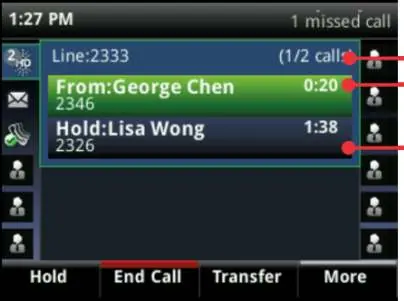
- Home View: Displays icons for phone functions. Press the Home key to access.
- Lines View: The default view showing phone lines, favorites, and soft keys.
- Calls View: Accessible when one or more calls are active. Call status is indicated by color: Dark green (Active), Bright blue (Incoming), Dark blue (Held).
- Active Call View: Shows details of the current active call.
Use the navigation keys to switch between views and select options.
Call Handling
Placing a Call
- Pick up the handset or press the Speakerphone or Headset button.
- Enter the phone number and press Send or Dial.
Answering a Call
Answer using the handset, speakerphone, or headset. To answer a new call while on an active call, press Answer; the current call will be automatically held.
Ending a Call
Replace the handset, press the Speakerphone or Headset button, or press End Call. For held calls, navigate to the Calls view, highlight the call, press Resume, and then End Call.
Call Features
- Microphone Mute: Press the Mute button during a call. Mute applies to all modes.
- Hold and Resume: Press Hold or the Hold button. To resume, highlight the call in the Calls view and press Resume.
- Call Transfer: Press Transfer, call the other party, and press Transfer again when ready.
- Conference Call: Call the first party, press More, then Confrnc. Dial the second party and press Confrnc again.
Voicemail and Settings
Voicemail Setup
Dial the Activation Code *62, then press Dial or Send. Enter the default password (19992005) followed by #. Follow the prompts to change your password and record greetings.
Do Not Disturb (DND)
- Enable: Dial *78 and press Send, or press the DND softkey.
- Disable: Dial *79 and press Send.
Redial
Dial the Activation Code *66, then press Send or Dial.
Device Overview
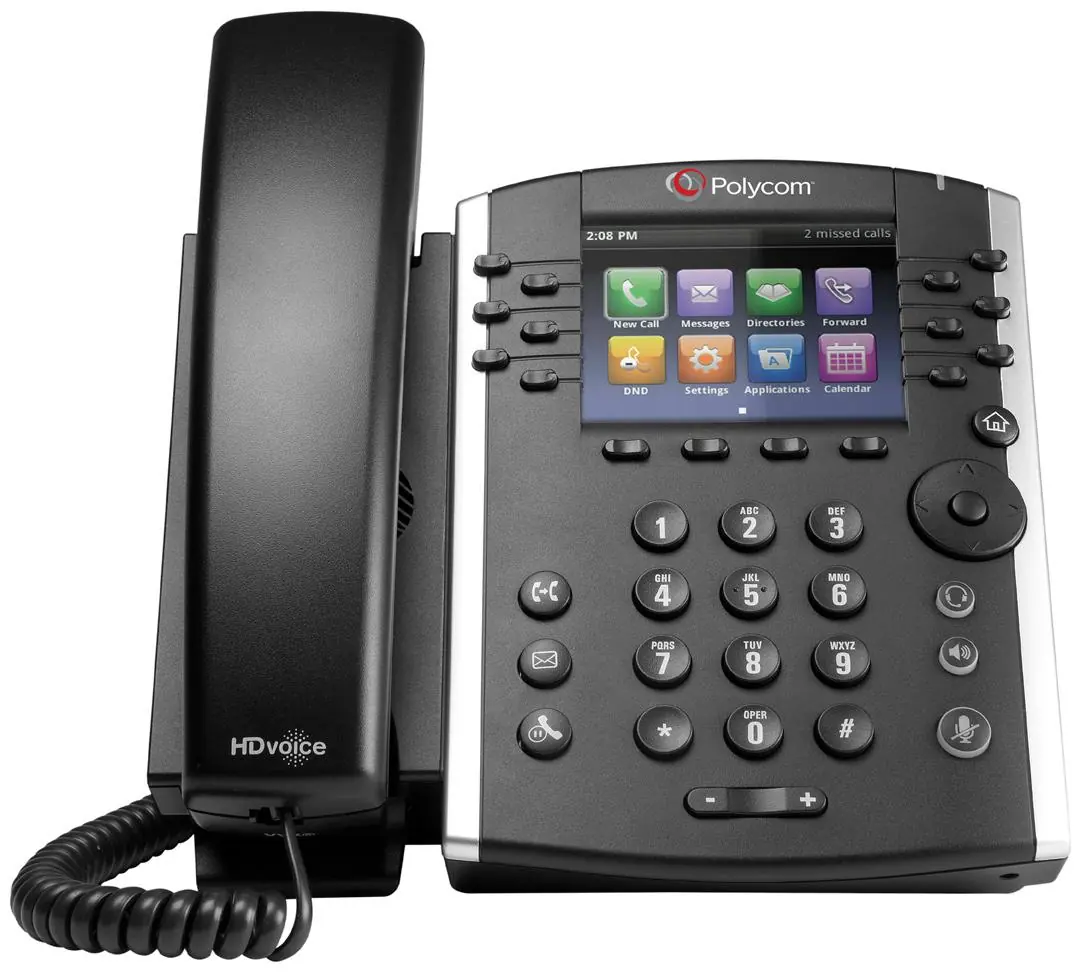
The phone features a color display, line keys for speed dial or call appearances, navigation keys for menu selection, and standard telephony buttons including volume control, transfer, hold, and messages.
Practical help
Common problems
Cannot be heard by the other party
Check if the Mute button is active. Press the Mute button to toggle it off.
Cannot resume a held call
Navigate to the Calls view, use the arrow keys to highlight the held call, and press Resume.
Voicemail not working
Ensure you have set up your voicemail using the activation code *62 and the default password 19992005.
Before use
- Ensure the handset is properly connected.
- Verify the phone is connected to the network.
- Check your voicemail activation code (default is *62).
- Familiarize yourself with the four main views: Home, Calls, Active Call, and Lines.
Specs in practice
- Voicemail Indicator Light
- Flashes red when you have a new voicemail message.
Images and diagrams
- 2: Color Display
- 3: Voicemail Indicator Light
- 6: Navigation/Select Key
- 7: Headset Button
- 8: Speaker Phone Button
Model compatibility
- Voicemail activation code: *62
- Do Not Disturb activation code: *78
- Do Not Disturb deactivation code: *79
- Redial activation code: *66

Manual page author
Emily Carter
User documentation editor
Prepares concise manual descriptions and highlights the most useful setup, operation, and maintenance information for readers.