HVAC / Heat Pumps
Operating Instructions for Siemens SIMATIC HMI TP 177A, TP 177B, OP 177B
Quick guide for Siemens SIMATIC HMI TP 177A, TP 177B, and OP 177B. Includes installation, connection, configuration, operation, and maintenance instructions.
Table of contents
Manual images
Click an image to enlargeQuick guide from the manual
This document provides operating instructions for the Siemens SIMATIC HMI TP 177A, TP 177B, and OP 177B devices. It covers essential procedures for installation, system configuration, operation, and maintenance. Users should refer to the full PDF for detailed technical specifications and safety guidelines.
Device Overview
The TP 177A, TP 177B, and OP 177B are HMI panels designed for industrial automation. They feature touch-sensitive screens (and membrane keyboards on some models) for monitoring and controlling processes. The devices support various communication protocols, including MPI, PROFIBUS DP, and PROFINET, depending on the specific model.
Installation and Connection
Ensure the device is installed in a suitable cabinet or enclosure. The front panel must maintain an IP65 protection rating when correctly installed. Follow the specific mounting instructions for your model, using the provided mounting clips. Connect the device to a 24V DC power supply, ensuring correct polarity. Use shielded cables for all connections to comply with EMC requirements. Proper equipotential bonding is required to prevent high equalizing currents.
Operating the HMI
The HMI is operated via the touch screen. Avoid using sharp objects that could damage the surface. The device provides visual feedback when a control element is touched. Users can log in to the system using passwords to access protected functions. The system supports multiple languages and project-specific configurations.
System Configuration
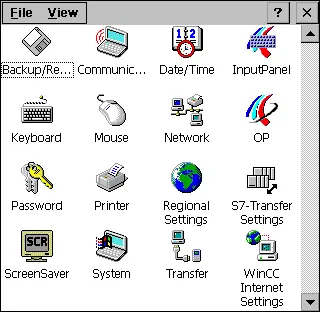
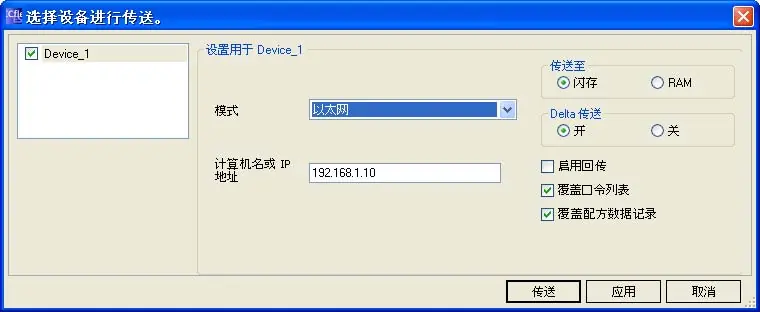
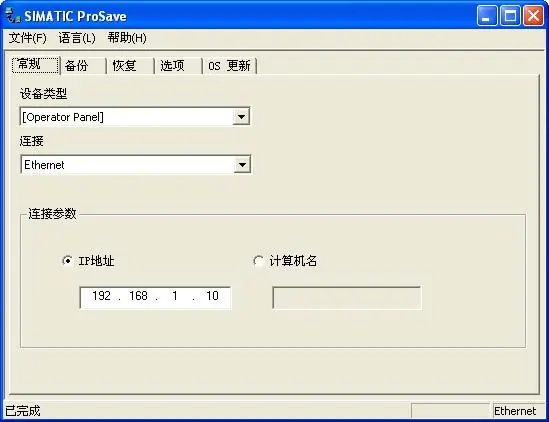
The Control Panel allows for various system settings, including date/time, screen brightness, network configuration, and password protection. Use the Loader menu to access the Control Panel, transfer projects, or start the runtime application. System updates and project transfers can be performed via WinCC flexible or ProSave software.
Maintenance
The HMI devices are largely maintenance-free. Clean the touch screen and keyboard membrane regularly using a soft cloth and mild cleaning agents. Do not use compressed air or harsh solvents. If the device requires repair, it must be returned to the Siemens service center.
Troubleshooting
The manual includes a comprehensive list of system alarms. If an alarm occurs, check the error code in the appendix to identify the cause and follow the recommended corrective actions, such as checking cable connections, verifying network settings, or restarting the device.
Manufacturer information
Siemens AG
Practical help
Common problems
Device fails to start
Check the power supply wiring on the terminal block; ensure polarity is correct.
OS update fails
Lower the system bitrate. If using a higher bitrate, ensure you are using a version 3 or higher PC/PPI cable.
Touch screen unresponsive
Recalibrate the touch screen via the Control Panel settings.
Communication errors
Verify cable connections, check network settings, and ensure the correct protocol is configured in the Control Panel.
Before use
- Verify package contents (HMI device, terminal block, mounting clips).
- Ensure the power supply is 24V DC.
- Check the mounting cutout dimensions for your specific model.
- Ensure the installation environment meets the specified temperature and humidity requirements.
- Verify that the required communication cables are available.
Specs in practice
- Power Supply
- 24V DC (nominal), with specific tolerance ranges (typically 20.4V to 28.8V).
- Protection Rating
- IP65 for the front panel when correctly installed in a suitable enclosure.
Images and diagrams
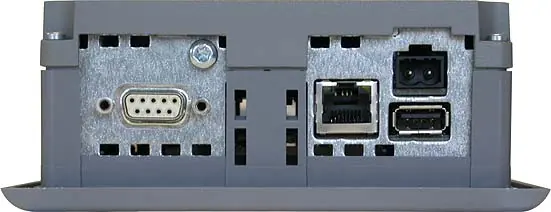
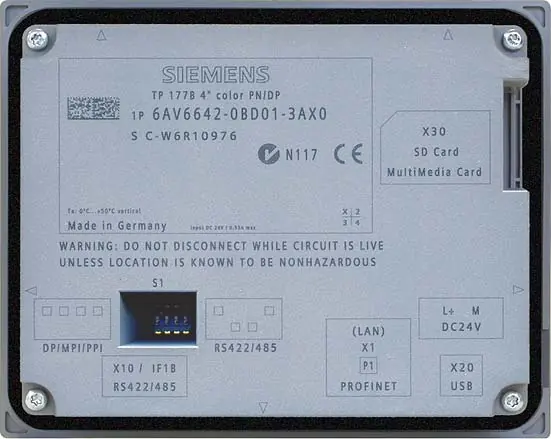
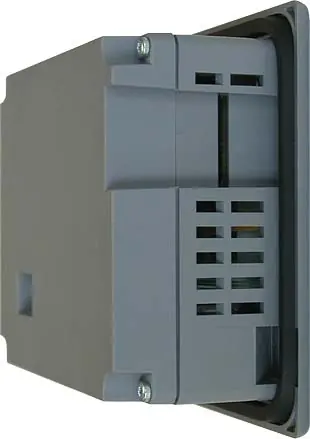
- Rear view diagrams show the location of ports (RS422/485, USB, PROFINET, Power).
- Mounting diagrams illustrate the use of clips to secure the panel in the cutout.
- Wiring diagrams show the connection of the power supply and equipotential bonding.
Model compatibility
- Requires WinCC flexible software for project configuration.
- Supports specific Siemens controllers (S7-200, S7-300/400) and third-party controllers via defined protocols.
- Only use Siemens-certified SD/MultiMediaCards.

Manual page author
David Miller
Documentation analyst
Organizes user manual content into clear summaries, with attention to model details, product context, and everyday usability.