Mobile / Smartphones
User Manual for Ulefone Note 10P Smartphone
Quick start guide for the Ulefone Note 10P smartphone. Learn how to insert SIM and TF cards, set up network connections, configure face unlock, and understand device layout.
Table of contents
Manual images
Click an image to enlargeQuick Guide from the Manual
This guide provides essential setup instructions for the Ulefone Note 10P smartphone. It covers the physical layout of the device, how to install SIM and memory cards, and basic configuration for network and security features.
Device Layout
Front View: The front of the device features the screen, front camera, receiver, light/proximity sensor, and a headset jack at the top. The bottom edge contains the microphone, USB port, and speaker.
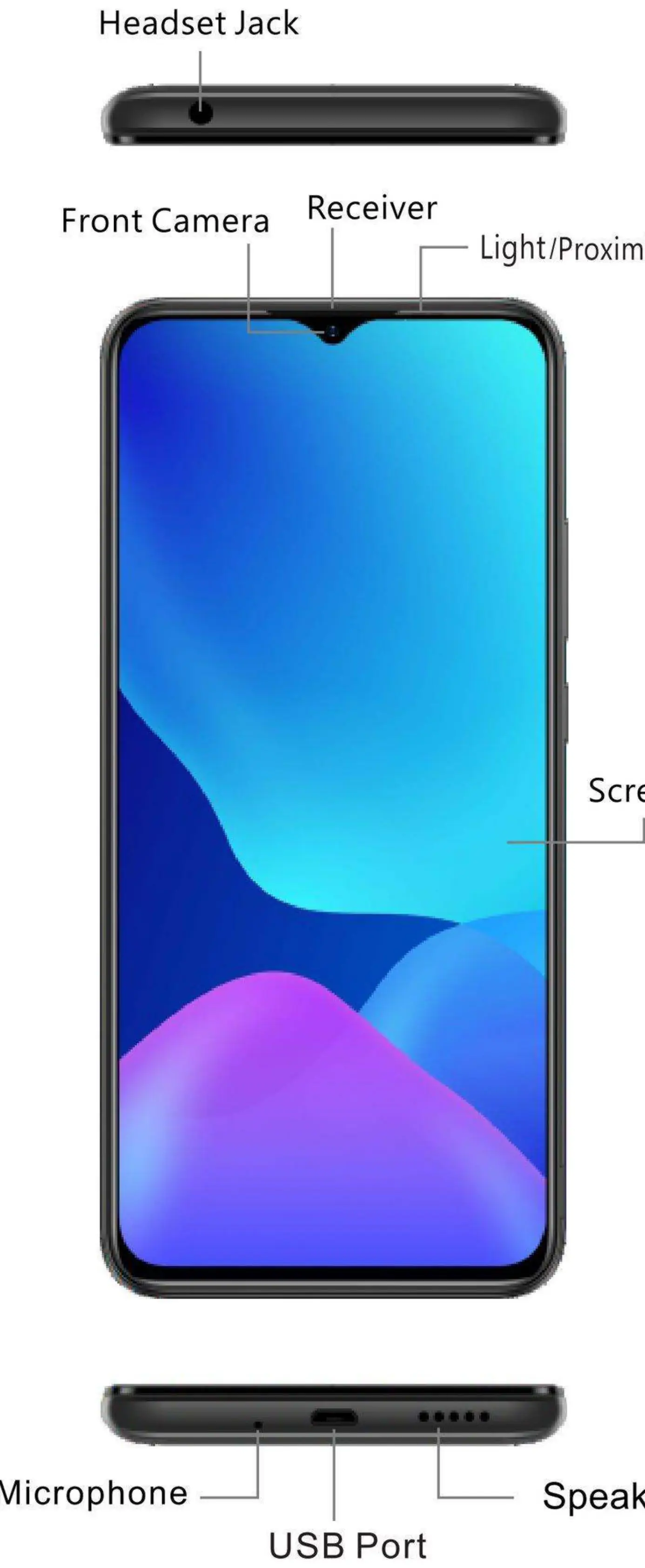
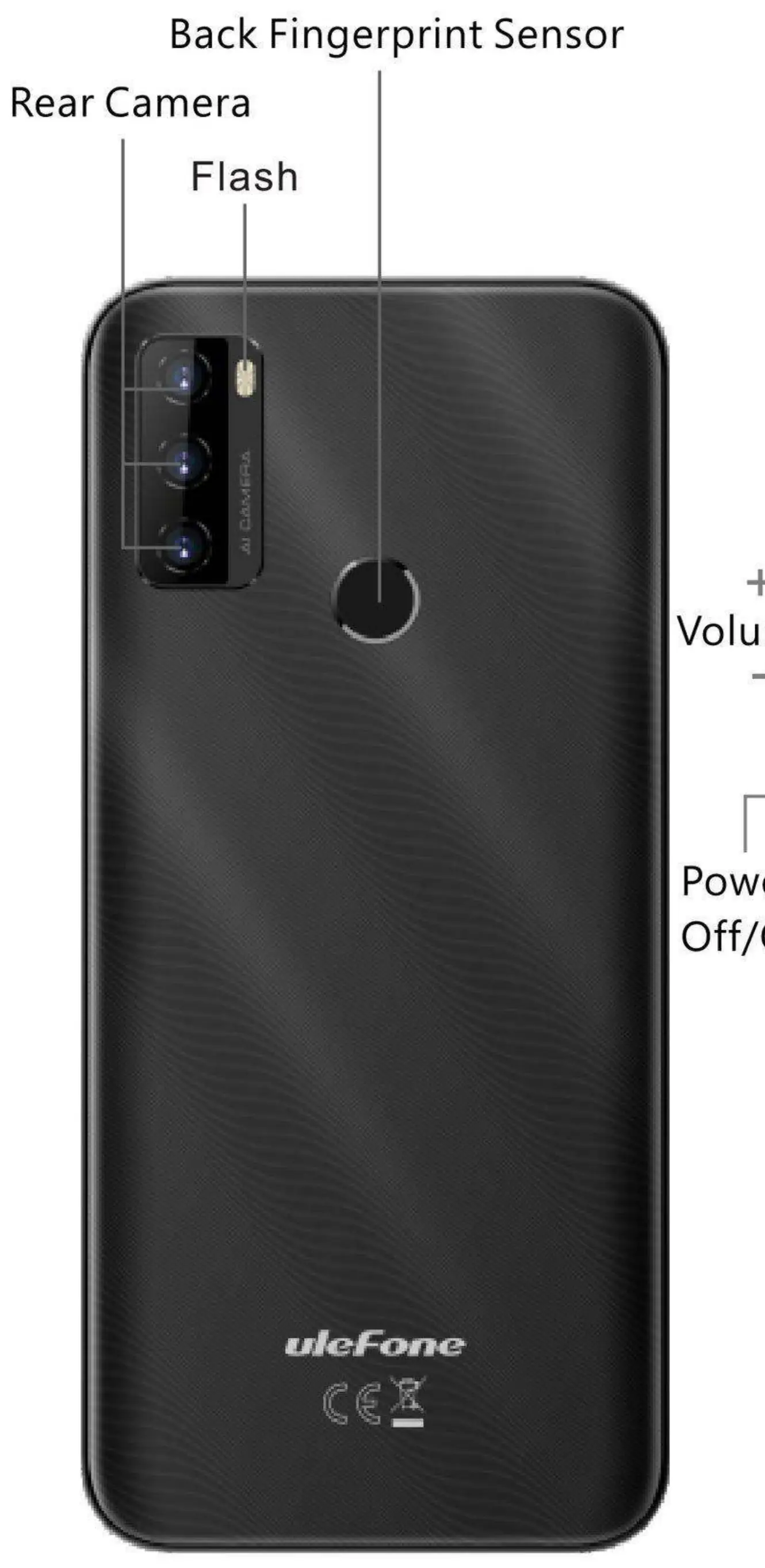
Rear View: The back of the device includes the rear camera array, flash, and a fingerprint sensor. The side edges house the volume keys and the power on/off button.
Inserting Cards
Follow these steps to install your SIM and TF (memory) cards:
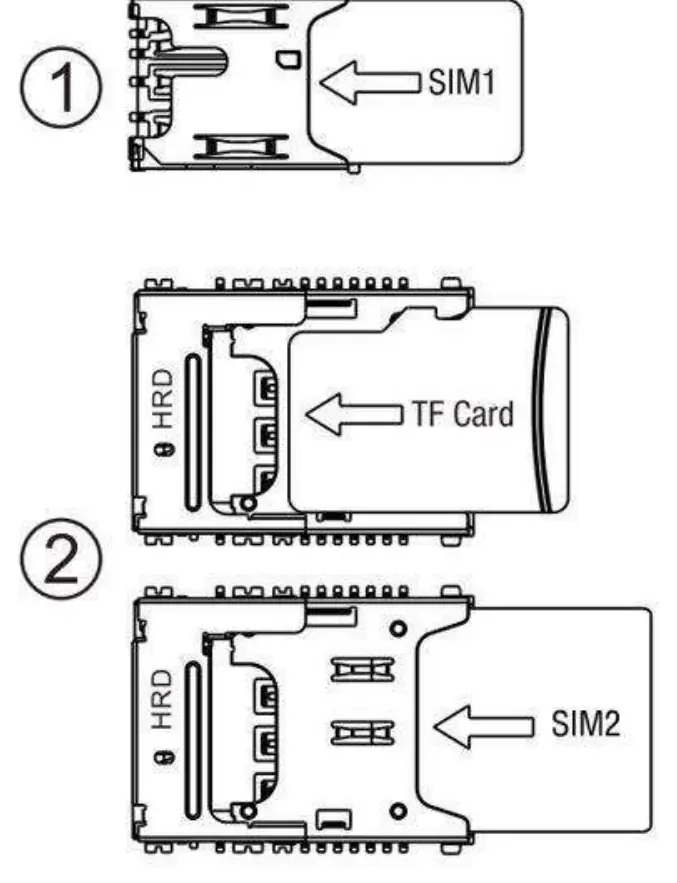
- Ensure the phone is powered off before inserting any cards.
- Locate the card tray.
- Slot 1: Insert a Nano SIM card.
- Slot 2: Insert a Micro SIM card and a TF card.
Important Notes:
- Do not use hand-cut cards or incorrect card types, as this may damage the card slot.
- The device supports TF cards up to 128GB.
Network and Connectivity
To configure your network settings:
- WiFi: Go to Settings > Network & Internet > WiFi.
- Hotspot: Go to Settings > Network & Internet > Hotspot & tethering.
Security
To set up biometric security:
- Face Unlock: Go to Settings > Face Unlock.
Support and Contact
For further assistance or full compliance documentation, please visit the official Ulefone website or contact the service center at [email protected].
Manufacturer information
Ulefone
Practical help
Common problems
SIM card not recognized
Ensure the phone is powered off before insertion and that you are using the correct card type (Nano SIM for Slot 1, Micro SIM for Slot 2). Do not use hand-cut cards.
TF card not working
Ensure the card is inserted correctly in Slot 2. The device supports TF cards up to 128GB.
Before use
- Power off the device before inserting SIM or TF cards.
- Verify you have the correct SIM card sizes (Nano SIM for Slot 1, Micro SIM for Slot 2).
- Ensure the TF card is compatible (up to 128GB).
Images and diagrams
- The front diagram identifies the headset jack, front camera, receiver, light/proximity sensor, screen, microphone, USB port, and speaker.
- The rear diagram identifies the rear camera, flash, fingerprint sensor, volume keys, and power button.
Model compatibility
- Supports GSM, WCDMA, and LTE-FDD network bands.

Manual page author
Michael Turner
Technical manual editor
Reviews PDF manuals for structure, safety notes, and practical product details so readers can find the right information quickly.