Electronics / Cameras
Urmet 1099-211B Cloud Camera User Guide
Comprehensive user guide for the Urmet 1099-211B Smart WiFi IP Camera, covering installation, network configuration, safety precautions, and maintenance.
Table of contents
Product Overview
The Urmet 1099-211B is a high-quality Smart WiFi IP camera designed for surveillance systems. It is intended for transmitting and recording video images. Please note that this device is not a burglar alarm system, and the manufacturer is not responsible for any losses or damages resulting from theft or improper use of the device.
Safety and Installation Precautions
Before installation, ensure the device is intact. Always disconnect the power supply before performing any cleaning or maintenance. Do not use spray products for cleaning. The camera should be installed in a well-ventilated area, away from heat sources like radiators, direct sunlight, or environments with excessive dust, vibrations, or mechanical impacts. Avoid installing the device in marine environments or areas with high humidity, as these can accelerate corrosion. If the device has been transported from a cold to a warm environment, wait at least three hours before powering it on to allow it to adapt to the new conditions.
Installation and Network Setup
For a successful installation, ensure all units are powered off before starting. If installing multiple cameras on the same network, configure them one at a time. Ensure the WiFi signal strength at the camera location is at least 60. The camera can be mounted on a wall or other flat surface. To record video, insert a microSD card (not included) while the device is powered off, then format it using the mobile app after powering on. Upon first power-up, the camera enters Access Point (AP) mode. To connect it to your WiFi network, download the Urmet V-Stream app on your mobile phone and follow the quick setup instructions provided in the app.
Maintenance and Firmware
Periodically check the Urmet website for software and firmware updates to ensure optimal performance. The device supports up to 3 simultaneous remote unicast connections, depending on your network bandwidth. If you encounter issues, a reset button is available; press it for at least 3 seconds to restore the camera to factory settings. Always ensure the camera has internet access to automatically synchronize the date and time, as incorrect time settings can compromise video recordings on the SD card.
Privacy and Disposal
Users are responsible for complying with local laws regarding video surveillance and recording. It is prohibited to record copyrighted material. At the end of its life, the device must be disposed of separately from household waste in accordance with the WEEE directive. Please use designated collection centers or return the device to the retailer when purchasing a new equivalent product.
Manufacturer information
Urmet S.p.A.
Practical help
Common problems
Device not working or malfunctioning
Disconnect power via the main switch and contact an authorized service center.
Incorrect date/time on recordings
Ensure the camera has internet access, as it synchronizes time automatically upon startup.
Need to restore factory settings
Press and hold the reset button for at least 3 seconds.
Before use
- Check device integrity after unpacking.
- Ensure the installation environment is not too humid or dusty.
- Verify that the power supply matches the rating plate data.
- Install a suitable circuit breaker upstream.
- Ensure WiFi signal strength is at least 60.
- Insert microSD card while the device is powered off (if recording).
- Download the Urmet V-Stream app.
Specs in practice
- WiFi Frequency Band
- 2380MHz to 2673.5MHz
- Max EIRP (802.11b)
- 17.41 dBm
- Max EIRP (802.11g)
- 17.14 dBm
- Max EIRP (802.11n HT20)
- 15.82 dBm
- Max EIRP (802.11n HT40)
- 15.92 dBm
Images and diagrams
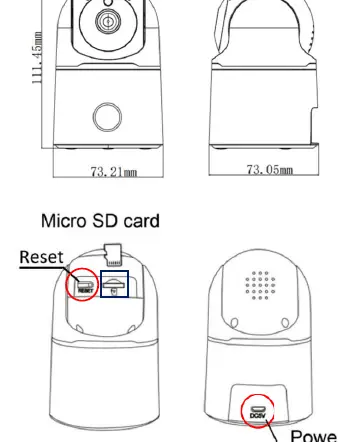
- The diagram shows the physical dimensions of the camera (111.45mm height, 73.21mm width).
- The rear view highlights the location of the Micro SD card slot and the Reset button.
- The bottom view indicates the Power input port.
Model compatibility
- Requires Urmet V-Stream app for configuration.
- Supports up to 3 simultaneous remote unicast connections.
- MicroSD card required for local storage (not included).

Manual page author
Michael Turner
Technical manual editor
Reviews PDF manuals for structure, safety notes, and practical product details so readers can find the right information quickly.