Electronics / Cameras
Urmet 1099-211B Wi-Fi Camera Connection Guide
A comprehensive guide for connecting your Urmet 1099-211B Wi-Fi camera to your network using the V-Stream application.
Table of contents
Manual images
Jump to the sectionGetting Started with Your Urmet Camera
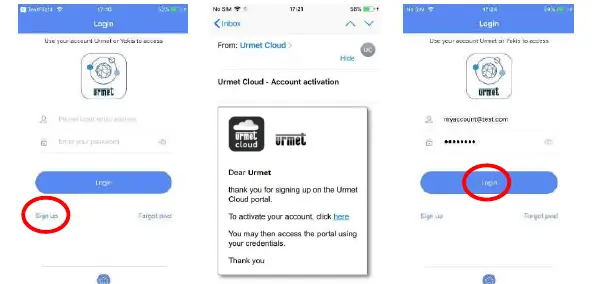
The Urmet 1099-211B Wi-Fi camera is designed for easy integration into your home security network. To begin, you must first download the V-Stream application from your smartphone's app store. Once installed, create a new Urmet Cloud account by selecting the Sign up option. You will receive a confirmation email to activate your account; ensure you check your inbox and follow the instructions provided to complete the registration process.
Connecting the Camera to Wi-Fi
After logging into the V-Stream app, tap the plus (+) icon to add a new device and select the AP Configure option. The camera will broadcast its own Wi-Fi hotspot. If your smartphone does not automatically connect to this network, navigate to your phone's Wi-Fi settings and select the network named URM_XXXXXXX. If prompted for a password, enter 01234567.

Once connected to the camera's hotspot, return to the V-Stream app and select Next. The application will then display a list of available Wi-Fi networks detected by the camera. Select your home router's network from this list and enter your Wi-Fi password. The camera will then initiate the connection to your router.
Finalizing Setup and Viewing Live Video
After the camera connects to your router, wait for the process to complete. The camera should now appear in your device list within the V-Stream app. If the status does not immediately show as Online, pull down on the device list to refresh the status. Once the camera is online, tap the device icon to start the live video stream. You can now monitor your home directly from your smartphone, with options to capture images, record video, or use the two-way talk feature if supported by your specific model.
Manufacturer information
Urmet S.p.A.
Practical help
Common problems
Camera status is not Online
Pull down on the device list in the V-Stream app to refresh the connection status.
Smartphone not connecting to camera hotspot
Manually open your smartphone's Wi-Fi settings and select the network named URM_XXXXXXX.
Before use
- Download the V-Stream app
- Create and activate a Urmet Cloud account
- Ensure your smartphone has Wi-Fi enabled
- Have your home Wi-Fi password ready
Images and diagrams
- The setup process involves using the V-Stream app to bridge the camera from its initial Access Point mode to your local home Wi-Fi network.
- The app interface guides you through selecting the camera's temporary SSID and then switching to your router's network.
Model compatibility
- Requires a smartphone with the V-Stream app installed.
- The camera creates a temporary Wi-Fi hotspot (SSID: URM_XXXXXXX) for initial configuration.

Manual page author
David Miller
Documentation analyst
Organizes user manual content into clear summaries, with attention to model details, product context, and everyday usability.