Power / Batteries Chargers
StarTech.com 10X-CHARGING-STATION 10-Port USB-C 350W Charging Station User Guide
Quick start guide for the StarTech.com 10X-CHARGING-STATION, a 10-port USB-C 350W charging station designed for desktop or 19-inch rack mounting.
Table of contents
Manual images
Jump to the sectionProduct Overview
The StarTech.com 10X-CHARGING-STATION is a high-capacity 10-port USB-C charging station capable of delivering a total of 350W of power. It is designed for versatile deployment, allowing for either desktop use with included snap-on feet or rack-mount installation in standard 19-inch server racks.

Intelligent Power Allocation
The device features intelligent power management. When the total power demand reaches 350W, the station automatically deactivates ports with the lowest current draw to prioritize high-demand devices. Normal operation resumes once the aggregate power requirement drops below 290W.
LED Status Indicators
The front panel provides real-time status for each port:
- Blue LED (Solid): Slow charging.
- Blue LED (Slow Blink): Charging at less than 1A.
- Blue LED (Fast Blink): Charging at 1A or more.
- Red LED: Indicates the port has been disabled due to intelligent power allocation or overcurrent protection (OCP). If the light remains red after a hot-plug event, power cycle the unit using the power switch.
Installation
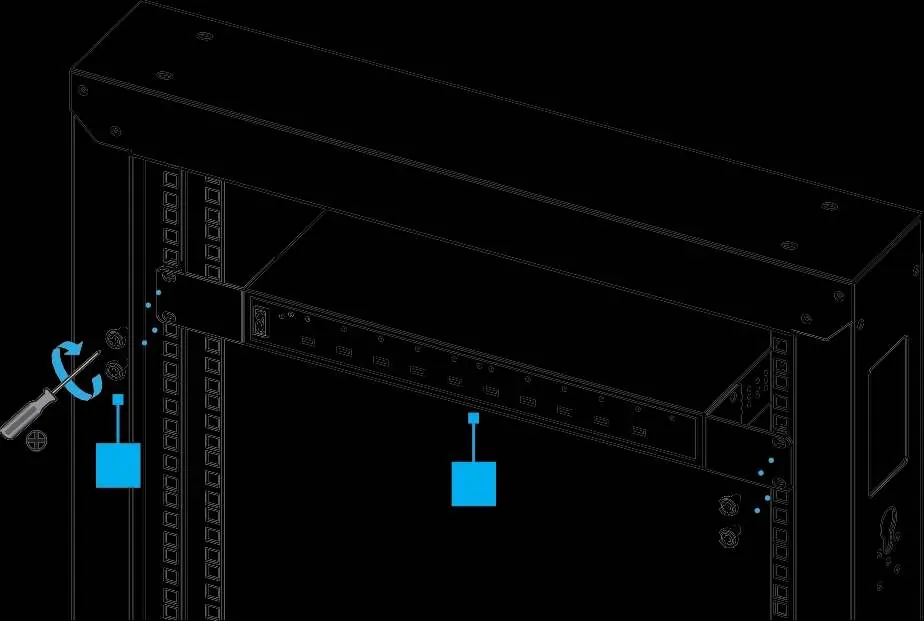
The unit includes mounting ears for 19-inch rack installation and snap-on feet for desktop placement. Ensure adequate ventilation space around the fan exhaust (labeled 10) to maintain safe internal temperatures. Never operate the unit if parts are missing or damaged.
Maintenance and Safety
Keep the ventilation holes clear to allow for passive cooling. Do not touch the internal circuitry or exposed electrical cables while the unit is connected to power. For technical support, community forums, and the latest documentation, visit www.StarTech.com/support.
Official resources from the manual
Practical help
Common problems
LED indicator remains red after connecting a device
The port may have triggered overcurrent protection. Power cycle the charging station using the power switch.
Devices are not charging or charging slowly
The station may have reached its 350W total power limit. It will prioritize high-demand devices and resume normal operation once total load drops below 290W.
Unit sliding on desktop surface
Ensure the rubber pads are correctly attached to the snap-on desktop feet.
Before use
- Verify all package contents (10-port charger, rack ears, screws, cage nuts, feet, power cable).
- Ensure you have a PH1 Phillips screwdriver for M3 screws and a PH2 for M5 screws.
- Check the server rack mounting hole type to determine if cage nuts are required.
- Ensure there is sufficient clearance for the fan exhaust.
- Read all safety warnings regarding exposed circuitry.
Specs in practice
- Total Power Output
- 350W shared across all 10 USB-C ports.
- Power Delivery Profiles
- Supports 5V, 9V, 12V, 15V, and 20V at 3.0A (up to 60W per port).
Images and diagrams
- Front panel features 10 USB-C ports and status LEDs.
- Rear panel includes the AC power input and fan exhaust.
- Bottom panel contains slots for attaching desktop feet.
- Rack mounting uses the included ears and M5 screws.
Model compatibility
- Designed for 19-inch server racks.
- Requires PH1 and PH2 Phillips screwdrivers for installation.
- Optional cage nut tool recommended for rack installation.

Manual page author
Emily Carter
User documentation editor
Prepares concise manual descriptions and highlights the most useful setup, operation, and maintenance information for readers.