Documents / Warranty Safety
Acer NITRO 16S AI User Manual
Comprehensive user manual for the Acer Nitro 16S AI laptop, covering setup, hardware features, software utilities like NitroSense, security, maintenance, and troubleshooting.
Table of contents
Product Overview
The Acer Nitro 16S AI is a high-performance gaming laptop designed for demanding tasks. It features advanced cooling systems, customizable performance modes via NitroSense, and high-speed connectivity options including USB 4 and HDMI 2.1.
Getting Started
Follow the provided setup guide for initial configuration. Ensure the device is placed on a stable surface and kept away from extreme temperatures (below 0°C or above 50°C). Use only the included AC adapter to prevent damage.
Hardware and Ports
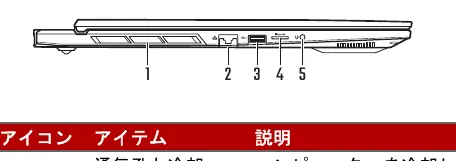
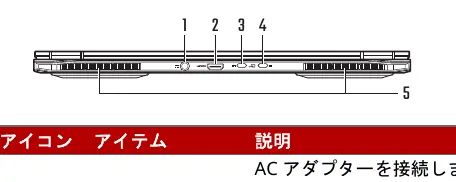
The device includes various ports for connectivity:
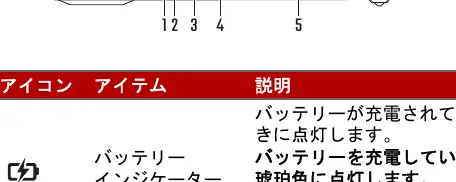
- USB Type-A and Type-C: Supports high-speed data transfer and device charging.
- HDMI 2.1: For high-quality video output.
- Ethernet (RJ-45): For stable wired network connections.
- MicroSD Card Slot: For expandable storage.
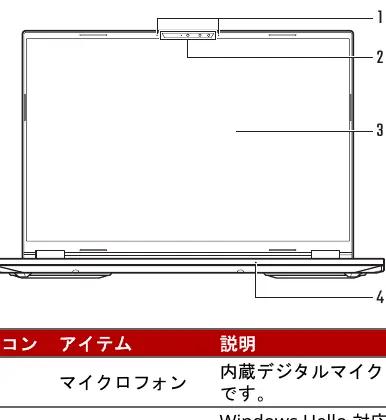
- Audio Jack: Supports headsets and microphones.
NitroSense Software
NitroSense allows users to monitor system performance, control fan speeds, and customize power modes (Quiet, Balanced, Performance, Turbo, Eco). It also provides tools for system checkups, battery calibration, and app management.
Security and Maintenance
Protect your data using BIOS passwords and hardware security locks. Regularly clean the device with a soft cloth and avoid using liquid cleaners. Keep the system updated to protect against online threats.
Battery Care
To maximize battery life:
- Avoid leaving the battery fully charged for extended periods.
- Use the 'Optimized Battery Charging' mode.
- Keep the device in a cool, dry environment.
- Perform periodic battery calibration as recommended in the software.
Troubleshooting
If you encounter issues, check the FAQ section for common problems such as boot failures, display issues, or audio problems. If the system fails to respond, use the power button to perform a hard reset. For persistent hardware errors, contact an authorized Acer service center.
Disposal
Dispose of the device and its battery according to local regulations. Do not treat them as household waste.
Related manuals
Related manuals from the same brand or category.
Computers / Laptops
Welcome to Your Acer Predator Helios Neo 16S AI
ACERHome Appliances / Washing Machines
Acer Nitro V 16S User Manual
ACERComputers / Laptops
Acer Nitro V 16S User's Manual
ACER
Manual page author
Michael Turner
Technical manual editor
Reviews PDF manuals for structure, safety notes, and practical product details so readers can find the right information quickly.