Computers / Laptops
Welcome to Your Acer Predator Helios Neo 16S AI
Comprehensive user manual for the Acer Predator Helios Neo 16S AI, covering setup, maintenance, security, and software features.
Table of contents
Product Overview
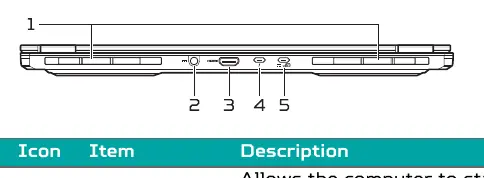
The Acer Predator Helios Neo 16S AI is a high-performance notebook designed for mobile computing. It features advanced cooling, customizable lighting, and AI-enhanced collaboration tools. The device includes a variety of ports, including USB Type-A, USB Type-C, Thunderbolt 4, and HDMI 2.1 for versatile connectivity.
Getting Started
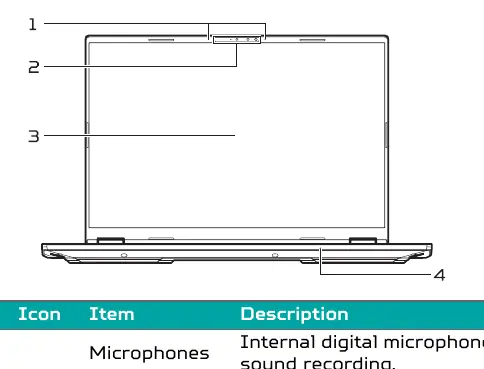
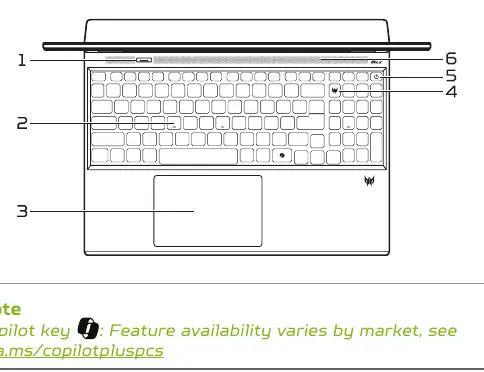
To begin, ensure your computer is set up according to the provided Setup Guide. You can manage your system settings, including performance modes and fan control, through the integrated PredatorSense application. The device supports Windows 11 and includes features like facial recognition via an IR camera.
Safety and Maintenance
Proper care is essential for the longevity of your device. Avoid exposing the computer to extreme temperatures, magnetic fields, or moisture. When cleaning, turn off the computer and disconnect the AC adapter, using only a soft, moist cloth. For battery safety, avoid charging in extreme temperatures and use only authorized Acer charging equipment. Never attempt to replace a built-in battery yourself; contact an authorized service center.
PredatorSense Software
PredatorSense allows you to fine-tune power consumption, monitor system health, and customize lighting effects. You can create scenario profiles to synchronize settings with specific applications, adjust fan speeds, and manage GPU operating modes. The Experience Zone provides quick access to AI-assisted camera and microphone settings.
Security and Troubleshooting
Protect your data by setting Supervisor and User passwords in the BIOS utility. If you encounter issues, the system provides error messages to help identify problems. For persistent issues, consult the troubleshooting section or contact an authorized Acer service center. Always keep your software updated to protect against cyber threats, and use caution when connecting to public Wi-Fi networks.
Disposal
Follow local regulations when disposing of used batteries and electronic components. Do not dispose of batteries in fire or as household waste.
Related manuals
Related manuals from the same brand or category.
Documents / Warranty Safety
Acer Nitro 16S AI User Manual
ACERHome Appliances / Washing Machines
Acer Nitro V 16S User Manual
ACERGeneral / Other Manuals
Acer NITRO 16S AI User Manual
ACERComputers / Laptops
LG gram 16ZB90R-G.AP78G Business Edition Notebook
LGComputers / Laptops
ASUS VivoBook Pro 16X OLED N7600PC-L2029T Laptop Overview
ASUSComputers / Laptops
Alienware 16X Aurora AC16251 Owner's Manual
AlienwareComputers / Laptops
LG 16T90R Series Notebook User Guide
LGComputers / Laptops
Seeed Studio reComputer 16GB Edge AI Device
Seeed Studio
Manual page author
Michael Turner
Technical manual editor
Reviews PDF manuals for structure, safety notes, and practical product details so readers can find the right information quickly.