Computers / Laptops
Acer Nitro V 16S User's Manual
Comprehensive user guide for the Acer Nitro V 16S laptop, covering setup, system maintenance, security, NitroSense software, and troubleshooting.
Table of contents
Product Overview
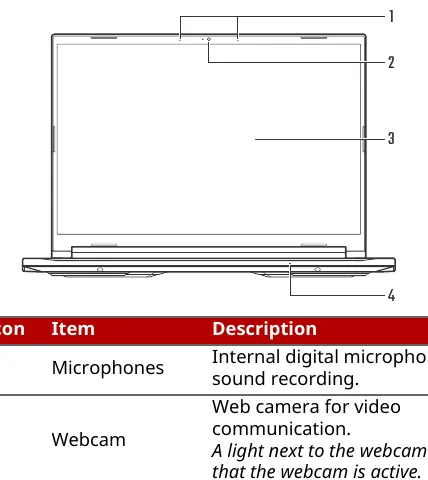
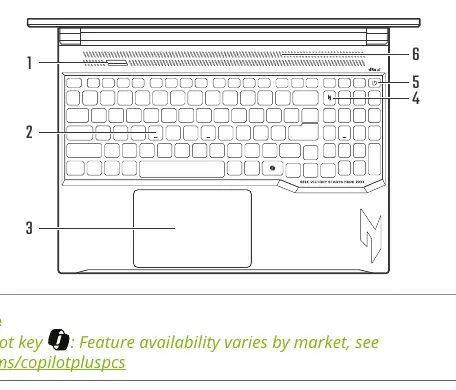
The Acer Nitro V 16S is a high-performance notebook designed for mobile computing. It features a range of connectivity options, including USB 3.2 Gen 1 and Gen 2 ports, a Thunderbolt 4 port, HDMI 2.1, and a MicroSD card reader. The device is equipped with advanced cooling systems to maintain optimal performance during intensive tasks.
Getting Started and Maintenance
To ensure the longevity of your device, follow these basic care guidelines:
- Use only the provided or Acer-approved AC adapter.
- Avoid exposing the computer to extreme temperatures (below 0°C or above 50°C), direct sunlight, or moisture.
- Keep the device away from magnetic fields and heavy vibrations.
- Clean the computer using a soft, moist cloth; avoid liquid or aerosol cleaners.
Battery Safety and Optimization
The notebook uses an embedded Lithium battery. For safety and performance:
- Do not attempt to replace a built-in battery yourself; contact an authorized service center.
- Charge the battery in a clean, well-ventilated area between 0°C and 35°C.
- Avoid leaving the battery fully discharged for extended periods.
- Use the NitroSense software to manage battery charging modes, such as Optimized Battery Charging, which limits capacity to 80% to extend battery lifespan.
NitroSense Software
NitroSense is the central hub for managing your laptop's performance. Key features include:
- Scenario Profiles: Customize system modes, fan performance, and audio settings.
- System Mode: Switch between Quiet, Balanced, Performance, and Turbo modes based on your power supply.
- Fan Control: Adjust cooling performance with Auto, Max, or Custom settings.
- Checkup: Evaluate the health of your battery, storage, and RAM.
- Personal Settings: Configure GPU operating modes (Optimus or NVIDIA GPU only) and screen settings like Bluelight Shield.
Troubleshooting and Security
If you encounter issues, consult the troubleshooting section for common error messages and solutions. Always keep your system updated and use security software to protect against cyber threats. For hardware security, the device includes a security slot for a physical lock and supports BIOS-level password protection.
Related manuals
Related manuals from the same brand or category.
Documents / Warranty Safety
Acer Nitro 16S AI User Manual
ACERHome Appliances / Washing Machines
Acer Nitro V 16S User Manual
ACERGeneral / Other Manuals
Acer NITRO 16S AI User Manual
ACERComputers / Laptops
LG gram 16ZB90R-G.AP78G Business Edition Notebook
LGComputers / Laptops
ASUS VivoBook Pro 16X OLED N7600PC-L2029T Laptop Overview
ASUSComputers / Laptops
Alienware 16X Aurora AC16251 Owner's Manual
AlienwareComputers / Laptops
LG 16T90R Series Notebook User Guide
LGComputers / Laptops
Seeed Studio reComputer 16GB Edge AI Device
Seeed Studio
Manual page author
David Miller
Documentation analyst
Organizes user manual content into clear summaries, with attention to model details, product context, and everyday usability.