Software / Apps Services
Allied Telesis 10GbE UTM Firewall Release Note v5.5.5-1.x
Official release notes and upgrade instructions for the Allied Telesis 10GbE UTM Firewall, covering system backup, software updates, and configuration management.
Table of contents
Manual images
Jump to the sectionIntroduction to 10GbE UTM Firewall
The Allied Telesis 10GbE Unified Threat Management (UTM) Firewall is a high-performance, integrated security platform designed for modern business environments. It combines powerful 10G firewall capabilities with comprehensive VPN support, allowing for secure connectivity between head offices and branch locations. This virtualized solution runs on the Vista Manager Network Appliance (VST-APL) and utilizes the AlliedWare Plus operating system.
Important Considerations Before Upgrading
Before performing any software updates, it is critical to review the release notes for changes that may impact network behavior. Specifically, users should note that interface matching in Web Control is no longer supported in the Firewall application from version 5.5.3-2.1 onwards. Configuration rules utilizing the ip subnet command with interface matching will no longer function as previously intended.
System Backup and Preparation
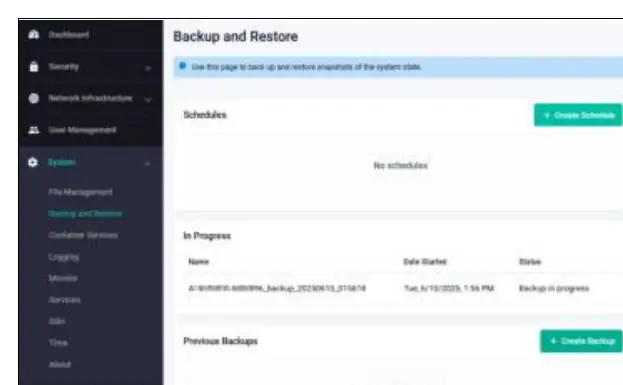
Prior to upgrading, it is essential to perform a full system backup. The VST-APL Backup and Restore feature allows users to save the appliance configuration, application image files, and current application instance snapshots. Backups should be stored on external media connected via the USB port, using supported file systems such as FAT32, exFAT, or ext4. Always verify that the backup location has sufficient free space before initiating the process.
Upgrading the VST-APL Appliance
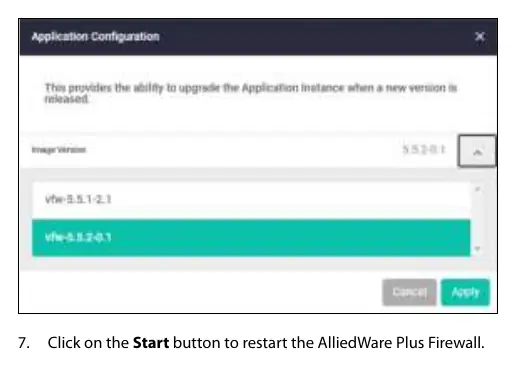
The upgrade process involves two main components: the VST-APL operating system and the Firewall application. Users must download the appropriate software files from the Allied Telesis Support Portal. The operating system upgrade is performed via the File Management page by selecting the new boot release file and rebooting the appliance. Once the operating system is updated, the Firewall application can be upgraded by uploading the new .app file, stopping the current instance, and applying the new version through the application configuration menu.
Post-Upgrade Maintenance
After a successful upgrade, it is recommended to remove obsolete files from the device's persistent memory to free up storage space. Navigate to the System > File Management page to delete previous versions of the operating system or application files that are no longer required. Always ensure that the current, stable versions are retained to maintain system integrity.
Manufacturer information
Allied Telesis
Practical help
Common problems
Backup fails due to file size limitations.
Ensure the external media uses a file system that supports large files, such as ext4.
Interface matching in Web Control not working.
This feature is not supported from version 5.5.3-2.1 onwards; update your configuration rules accordingly.
Application instance not visible for backup.
Ensure the application is in a 'Running' or 'Stopped' state via the Container Services menu.
Before use
- Download the correct .iso and .app files from the Allied Telesis Support Portal.
- Perform a full system backup using the Backup and Restore feature.
- Verify sufficient free space on external USB storage.
- Check current software versions in the System > About page.
- Ensure the appliance configuration is saved before rebooting.
Specs in practice
- VST-APL Operating System
- The base software environment (ISO file) running on the appliance.
- AW+ Firewall application
- The specific security application (APP file) providing UTM functionality.
Images and diagrams
- The Backup and Restore interface allows scheduling and manual creation of system snapshots.
- The File Management page is the central hub for uploading new firmware and deleting obsolete files.
- The Application Configuration dialog is used to select and apply specific image versions for the firewall.
Model compatibility
- Requires Vista Manager Network Appliance (AT-VST-APL-6 or VST-APL-10).
- Supported external media formats: FAT32, exFAT, ext2, ext3, ext4.

Manual page author
David Miller
Documentation analyst
Organizes user manual content into clear summaries, with attention to model details, product context, and everyday usability.