Software / Apps Services
Communication for All: Apple iPad 10th Generation User Guide
A simplified guide for setting up and managing an Apple iPad 10th Generation for communication purposes, including WiFi configuration, Guided Access, and software updates.
Table of contents
Manual images
Jump to the sectionTurning the iPad on and off
To turn on the iPad, press and hold the on/off button until the Apple logo appears in the center of the screen. To turn it off, press and hold the same button until the screen goes black. To exit apps and return to the home page, swipe up from the bottom of the screen.
Connecting to home WiFi
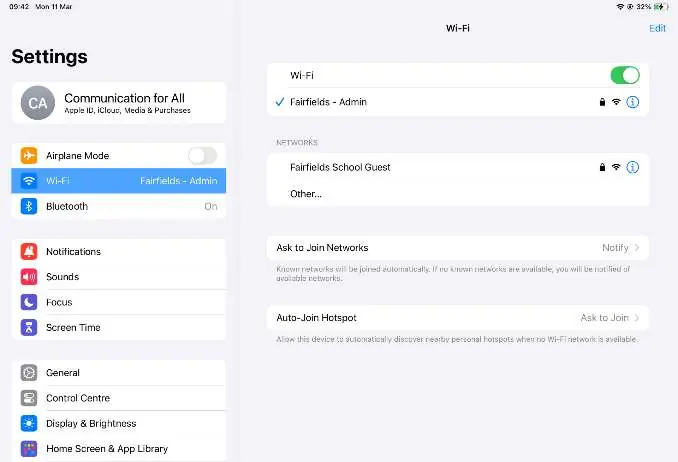
Locate your home network username and password on the back of your internet router. Open the Settings icon, tap WiFi, and ensure the green slider is enabled. Select your router's network name from the list. When prompted, enter the WiFi password, noting that it is case-sensitive, and tap Join. A blue tick next to the router name and a WiFi icon at the top right of the screen indicate a successful connection.
Guided Access
Guided Access allows you to restrict the iPad to a specific communication app. The passcode for this feature is provided on your Loan Form. Do not share this code with the user.
- Turning on: Open the communication app, triple-click the on/off button, and tap Start.
- Turning off: Triple-click the on/off button, enter the passcode, and tap End.
- Locking parts of the screen: While in Guided Access, triple-click the on/off button, enter the passcode, draw a circle around the areas you wish to disable, and tap Start. To remove a locked area, triple-click the button, enter the passcode, and tap the X on the edge of the locked section.
Software Update
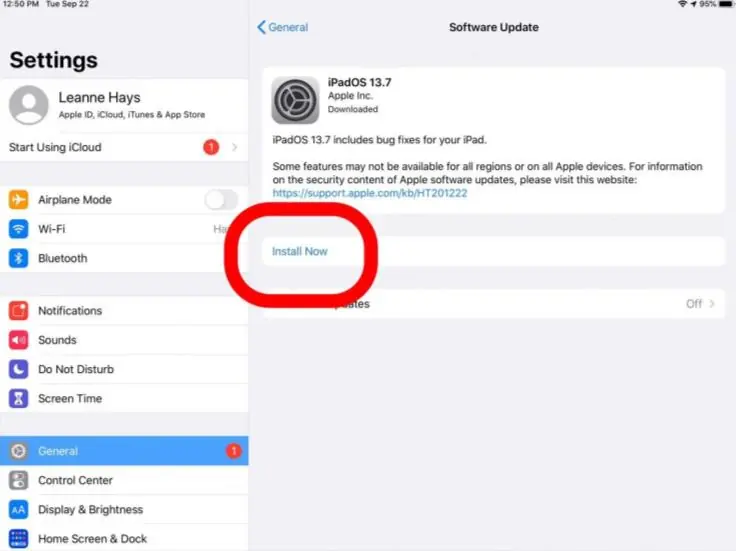
Regular software updates ensure the communication app runs smoothly. If the Settings icon shows a notification badge, an update is available. Connect the iPad to a power source and the internet, then navigate to Settings > General > Software Update. Tap Install Now and follow the on-screen instructions to complete the process.
Manufacturer information
Apple Inc.
Practical help
Common problems
WiFi connection fails
Ensure the WiFi slider is green, the password is entered correctly (it is case-sensitive), and you have selected the correct network name matching your router.
Cannot exit a communication app
Guided Access is likely active. Triple-click the on/off button and enter the passcode to disable it.
Before use
- Locate the WiFi username and password on your router.
- Ensure the iPad is charged before starting updates.
- Keep the Loan Form safe to access the Guided Access passcode.
- Verify the communication app is open before enabling Guided Access.
Specs in practice
- Guided Access
- A security feature that locks the iPad to a single app and can disable specific screen areas.
- Case-sensitive password
- WiFi passwords must be entered with the exact same capital and lowercase letters as printed on the router.
Images and diagrams
- The Settings icon displays a red badge when a software update is pending.
- The WiFi menu shows a blue tick next to the connected network.
Model compatibility
- This guide is specifically for the Apple iPad 10th Generation (64GB).
- Software updates may require agreeing to new terms and conditions.

Manual page author
David Miller
Documentation analyst
Organizes user manual content into clear summaries, with attention to model details, product context, and everyday usability.