Electronics / Digital Photo Frames
Arzopa 10.1-inch Digital Photo Frame User Manual
Quick guide for the Arzopa 10.1-inch Digital Photo Frame. Learn how to set up the stand, connect to Wi-Fi, use the Frameo app, manage photos, and configure settings.
Table of contents
Manual images
Click an image to enlargeQuick guide from the manual
This digital photo frame requires a constant power connection as it does not have a built-in battery. To begin, install the stand, connect the power adapter, and follow the on-screen instructions to connect to a 2.4GHz Wi-Fi network. You must download the Frameo app on your smartphone to send photos and manage the frame.
Device Overview
The frame features a 10.1-inch IPS touch screen. On the back, you will find the following ports and features:
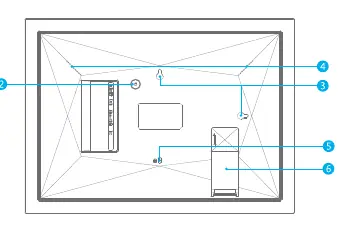
- Power Button: For turning the device on and off.
- Reset: For factory resetting the device.
- USB Port: For external storage.
- Micro SD Slot: For importing/exporting photos.
- DC Power Port: For the power adapter.
- Wall Mount Hole: For mounting the frame on a wall.
Installation and Setup
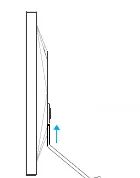
Installing the stand: Screw the stand into the back of the frame. You can position the frame in either landscape or portrait orientation. Alternatively, use the wall mount hole to hang the frame.
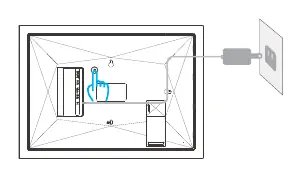
Powering on: Connect the power cable to the frame and plug the adapter into a wall socket. The system will start in a few seconds.
Initial Setup: Upon first boot, select your language, connect to a 2.4GHz Wi-Fi network, and follow the prompts to name your frame and set the time zone.
Using Frameo
To send photos to the frame, you must use the Frameo app:
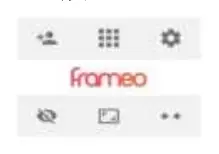
- Download the Frameo app from the App Store or Google Play.
- Open the app and follow the instructions to connect your frame using the unique code generated on the frame's screen.
- To add friends, tap the 'Add friend' icon on the frame. This generates a code valid for 12 hours, which you can share with friends and family.
Settings and Management
Access the settings menu by tapping the screen. Key features include:
- My Frame: Change frame name, location, language, and time zone.
- Manage Photos: Import photos from external storage (Micro SD), export photos, delete photos, or hide/show specific images.
- Display: Adjust brightness and set sleep mode to save energy.
- Slideshow: Configure timer, caption display, fill frame settings, and photo order (date or shuffle).
- Backup and Restore: Back up your photos and settings to external storage (e.g., Micro SD card).
Troubleshooting
If you encounter issues, ensure the frame is connected to a 2.4GHz Wi-Fi network. If the frame does not appear in the app, ensure you are using the correct binding code. For persistent issues, you can use the 'Reset frame' option in the settings menu, which will remove all data and settings.
Practical help
Common problems
Frame cannot connect to Wi-Fi
Ensure you are using a 2.4GHz network. Move the frame closer to the router or restart the frame.
Cannot bind frame via app
Ensure you are the owner or follow the 'Invite others to bind' instructions. If you are not the owner, ask the owner to send an invite.
Frame does not turn on
The frame has no built-in battery; ensure it is plugged into a wall socket.
Before use
- Install the stand in landscape or portrait orientation.
- Connect the power adapter to a wall socket.
- Download the Frameo app from the App Store or Google Play.
- Ensure you have a 2.4GHz Wi-Fi network available.
Specs in practice
- 2.4GHz Wi-Fi
- Required network frequency for connectivity; 5GHz is not supported.
- Micro SD/USB
- Ports used for importing or exporting photos and performing backups.
Images and diagrams
- The back panel contains the Reset button, USB port, Micro SD slot, and DC Power port.
- The wall mount hole is located on the back for wall installation.
Model compatibility
- Supports 2.4GHz Wi-Fi networks only.
- No built-in battery; must remain plugged in for operation.
- Supports Micro SD cards and USB drives for storage.

Manual page author
Emily Carter
User documentation editor
Prepares concise manual descriptions and highlights the most useful setup, operation, and maintenance information for readers.