Electronics / Digital Photo Frames
User Manual for Frameo 101F Digital Photo Frame
Quick start guide and user manual for the Frameo 101F WiFi Digital Photo Frame. Learn how to set up your frame, connect with friends, manage photos, adjust slideshow settings, and use external storage.
Table of contents
Manual images
Click an image to enlargeQuick Start Guide
To begin using your Frameo 101F, follow these initial setup steps:
- Power on: Connect the frame to power.
- Language: Select your preferred language.
- Wi-Fi: Connect the frame to your local Wi-Fi network.
- Date and Time: Verify or correct the date and time settings.
- Update: If prompted, update the frame to the latest software version.
- Personalize: Enter your name and the location where the frame is placed (e.g., "Living Room").
Download the Frameo app from the Google Play Store or Apple App Store to start sending photos and videos to your frame.
Navigating the Frame
The frame is operated via touch screen. Swipe left or right to browse photos. Tap once on the screen to access the main menu, which includes the following features:
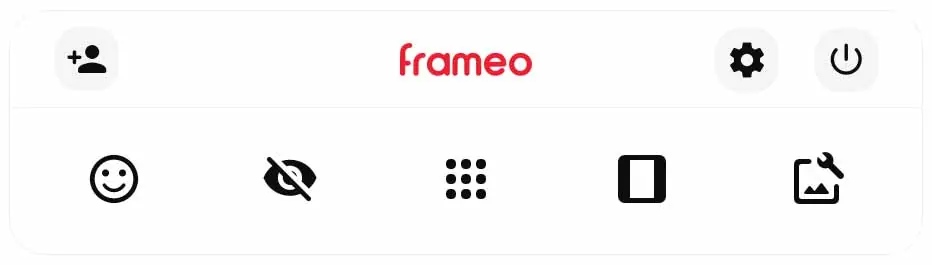

- Add friend: Generates a connection code to share with friends and family.
- Settings: Access the configuration menu.
- Power menu: Options to power off, restart, or enter sleep mode.
- React: Send reactions to the sender of the photo.
- Hide photo: Removes the current photo from the slideshow.
- Gallery: View and navigate through all photos.
- Fit to frame/Fill frame: Toggle between fitting the whole photo or filling the screen.
Managing Photos and Friends
You can manage your content and connections directly on the frame:
- Adding Friends: Tap the 'Add friend' icon to generate a code valid for 12 hours. Share this code with friends so they can connect via the Frameo app.
- Importing/Exporting: Use an external storage device (e.g., microSD card) to import photos to the frame's internal memory or export photos from the frame.
- Managing Photos: Use the 'Manage photos' menu to show, hide, or permanently delete photos.
Settings and Customization
Customize your experience through the Settings menu:
- Display: Adjust brightness levels and configure Sleep mode to save power.
- Slideshow: Set the timer for photo duration, enable/disable captions, adjust photo display order (by date or shuffle), and configure video playback settings.
- Wi-Fi: Manage network connections or reset Wi-Fi settings.
- Notifications: Toggle notifications for new photos, new friends, or software updates.
Backup and Maintenance
Ensure your data is safe and the device remains functional:
- Backup: You can back up your photos, friends, and settings to an external storage device (e.g., microSD card).
- Automatic Backup: The frame can automatically perform a backup within 30 hours of receiving new content.
- Restore: Use the 'Restore from backup' option to recover data from an external storage device.
- Reset: The 'Reset frame' option will permanently remove all data, including photos, friends, and settings, returning the device to its factory state.
Practical help
Common problems
Frame not connecting to Wi-Fi
Check your network settings or use the 'Reset Wi-Fi' option in the settings menu to clear old information and reconnect.
Backup failed
Ensure the external storage (microSD card) is correctly inserted and has sufficient space.
Cannot see 'Restore from backup' button
Confirm that the external storage device containing the backup is correctly mounted.
Before use
- Download the Frameo app on your smartphone
- Connect the frame to a power source
- Ensure a stable Wi-Fi connection is available
- Have a microSD card ready if you plan to use external storage for backups
Specs in practice
- Fit to frame
- Ensures the entire photo is visible on the screen, potentially adding background bars.
Images and diagrams
- The main menu icons allow quick access to adding friends, settings, power options, reactions, hiding photos, gallery access, and display adjustments.
Model compatibility
- Supports external storage via microSD card for imports, exports, and backups.

Manual page author
Michael Turner
Technical manual editor
Reviews PDF manuals for structure, safety notes, and practical product details so readers can find the right information quickly.