Electronics / Digital Photo Frames
User Manual for Frameo 1000Y Digital Photo Frame
Quick guide for the Frameo 1000Y digital photo frame. Learn how to set up your frame, connect with friends, manage photos, and configure settings.
Table of contents
Manual images
Click an image to enlargeQuick Start Guide
To set up your Frameo 1000Y for the first time, follow these steps:
- Connect the power adapter to the device.
- Select your preferred language.
- Connect the frame to your Wi-Fi network.
- Update the firmware if prompted.
- Enter your name and the location of the frame (e.g., Living Room).
- Set the correct time zone.
Getting Started
Download the Frameo app on your iOS or Android smartphone to send photos to your frame. You will need to connect your frame to the internet via Wi-Fi to receive photos from friends and family.
Connecting Friends
To allow friends and family to send photos to your frame:
- Tap the Add Friend icon on the frame screen.
- A unique code will be generated, valid for 12 hours.
- Share this code with your friend via SMS, E-mail, or messaging apps.
- Once they enter the code in their Frameo app, they will be connected to your frame.
Navigating Your Frame
The frame is operated via the touchscreen. Swipe left or right to browse photos. Tap once on the screen to access the menu bar, which includes:
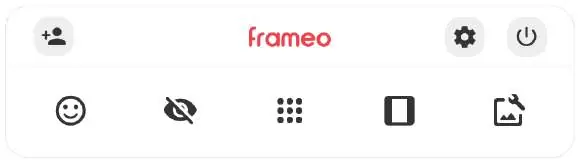

- Add Friend: Generate a connection code.
- Settings: Access frame configuration.
- Power Menu: Reboot, power off, or enter sleep mode.
- React: Send reactions to the sender.
- Hide Photo: Remove the current photo from the slideshow.
- Gallery: Browse your photos.
- Adjust Photo: Change how the photo is displayed (Fill/Fit).
Manage Photos
In the Manage Photos menu, you can view storage usage, hide or delete photos, and import/export photos using a microSD card (max 32GB). Use the Fill Frame setting to scale photos to the screen or Fit to Frame to show the full photo with borders.
Backup and Restore
You can back up your photos, friends, and settings to a microSD card. To restore from a backup, you must first reset the frame to the setup screen, then select the restore option. Note that restoring will overwrite existing data on the frame.
Maintenance and Safety
Always use the power button or the power menu to turn off the device. Do not disconnect the power while the frame is in operation. For support, visit https://support.frameo.net/hc.
Official resources from the manual
Practical help
Common problems
Cannot connect to Wi-Fi
Ensure the network is active. If using a captive portal, a browser icon will appear in the top right corner to enter credentials.
Cannot add a friend
Ensure the friend has the Frameo app installed. The connection code is only valid for 12 hours; generate a new one if it expires.
Backup failed
Ensure the microSD card is correctly inserted and has sufficient space. Check that the card is not write-protected.
Before use
- Download the Frameo app on your smartphone.
- Connect the power adapter to the frame.
- Ensure you have a stable Wi-Fi network available.
- Have a microSD card (max 32GB) ready if you plan to import or back up photos.
Specs in practice
- Max 32GB microSD
- The maximum capacity for external memory cards used for importing, exporting, or backing up data.
Images and diagrams
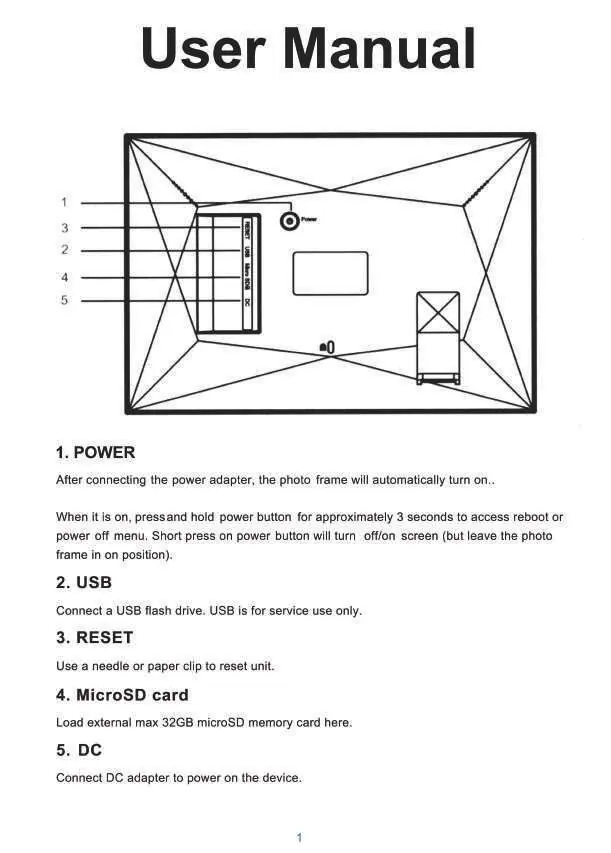
- Power button: Press and hold for 3 seconds to access the reboot/power off menu.
- USB port: Reserved for service use only.
- Reset: Use a needle or paper clip to reset the unit.
- MicroSD card slot: Used for loading external memory.
Model compatibility
- Compatible with iOS and Android devices via the Frameo app.
- Supports microSD cards up to 32GB.

Manual page author
Michael Turner
Technical manual editor
Reviews PDF manuals for structure, safety notes, and practical product details so readers can find the right information quickly.