Computers / Laptops
DELL Inspiron 14 Plus 7430 Owner's Manual
Comprehensive owner's manual for the DELL Inspiron 14 Plus 7430, covering setup, technical specifications, hardware components, and troubleshooting.
Table of contents
Product Overview
The Inspiron 14 Plus 7430 is a high-performance laptop designed for versatility and efficiency. It features a 14-inch 2.5K display with ComfortView Plus technology to reduce blue light exposure. The device is powered by 13th Generation Intel Core processors and supports various memory and storage configurations to meet diverse user needs.
Setup and Initial Use
To set up your computer, connect the power adapter and press the power button. During the initial startup, follow the on-screen Windows setup instructions. It is recommended to connect to a network for updates and sign in with a Microsoft account. The device includes pre-installed Dell applications such as My Dell, SupportAssist, and Dell Update to help manage system health and software.
Technical Specifications
- Processor: Options include 13th Gen Intel Core i5 and i7 series.
- Memory: Integrated LPDDR5/LPDDR5x memory, 16GB or 32GB configurations.
- Storage: Supports M.2 2230/2280 PCIe NVMe solid-state drives up to 2TB.
- Graphics: Integrated Intel UHD/Iris Xe Graphics or discrete NVIDIA GeForce RTX 3050/4050.
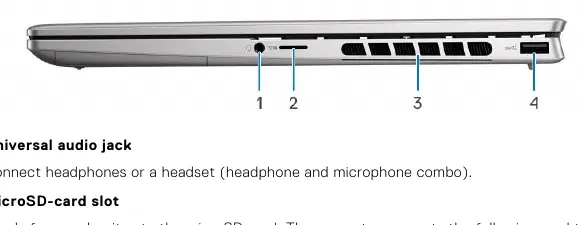
- Ports: Includes Thunderbolt 4, USB 3.2 Gen 1, HDMI 2.0, and a universal audio jack.
Safety and Maintenance
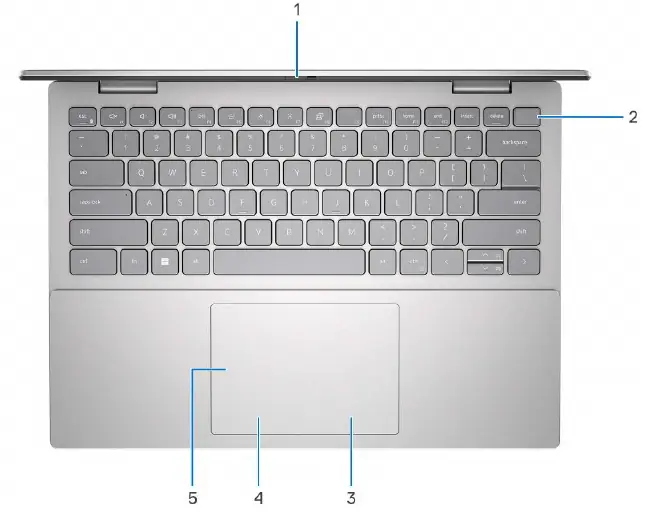
Always handle the device with care. Keep air vents clear of dust and obstructions to prevent overheating, which can degrade performance. The laptop features a privacy shutter for the camera and an optional fingerprint reader integrated into the power button for enhanced security. If you need to work inside the computer, ensure it is powered off and disconnected from all power sources. Use appropriate ESD protection when handling internal components.
Troubleshooting
If you encounter issues, use the built-in Dell SupportAssist diagnostics or the Pre-boot System Performance Check. The system includes diagnostic lights and built-in self-tests (BIST) for the LCD and power rails to help identify hardware failures. For battery-related issues, ensure the power adapter is connected and check the battery status light behavior. If the battery is swollen, discontinue use and contact support.
Related manuals
Related manuals from the same brand or category.
Computers / Laptops
DELL Latitude 5420 Setup and Specifications
DELLComputers / Laptops
DELL Precision 3480 Mobile Workstation Owner’s Manual
DELLComputers / Laptops
DELL XPS 13 Plus 9320 Setup and Specifications
DELLComputers / Laptops
DELL Precision 5570 Setup and Specifications
DELLComputers / Laptops
DELL Precision 7670 External Display Connection Guide
DELLElectronics / Monitors
DELL Precision 5570 External Display Connection Guide
DELLComputers / Laptops
LG gram 16ZB90R-G.AP78G Business Edition Notebook
LGComputers / Laptops
ASUS VivoBook Pro 16X OLED N7600PC-L2029T Laptop Overview
ASUSComputers / Laptops
Alienware 16X Aurora AC16251 Owner's Manual
Alienware
Manual page author
Michael Turner
Technical manual editor
Reviews PDF manuals for structure, safety notes, and practical product details so readers can find the right information quickly.