Computers / Laptops
Alienware 16X Aurora AC16251 Owner's Manual
Comprehensive owner's manual for the Alienware 16X Aurora AC16251, covering technical specifications, setup, maintenance, troubleshooting, and component replacement procedures.
Table of contents
Product Overview
The Alienware 16X Aurora AC16251 is a high-performance laptop featuring advanced processing power, discrete NVIDIA graphics, and a high-resolution display. It is designed for gaming and demanding tasks, offering extensive customization through the Alienware Command Center.
Technical Specifications
- Processor: Intel Core Ultra 5, 7, or 9 (HX series).
- Memory: DDR5 5600 MT/s, up to 64 GB via two SODIMM slots.
- Storage: Supports two M.2 2230 or 2280 SSD slots.
- Display: 16-inch WQXGA (2560 x 1600), 240 Hz, NVIDIA G-SYNC, and low blue light technology.
- Graphics: Integrated Intel Graphics and discrete NVIDIA GeForce RTX 5060 or 5070.
- Connectivity: Thunderbolt 4, USB 3.2 Gen 1/2, HDMI 2.1, RJ45 Ethernet, and Wi-Fi 7.
Safety and Maintenance
Before performing any internal work, ensure the computer is shut down, disconnected from power, and in Service Mode. Always use an ESD field service kit to prevent electrostatic discharge damage. Handle components by their edges and avoid touching pins or contacts. Swollen batteries must be replaced immediately and disposed of properly.
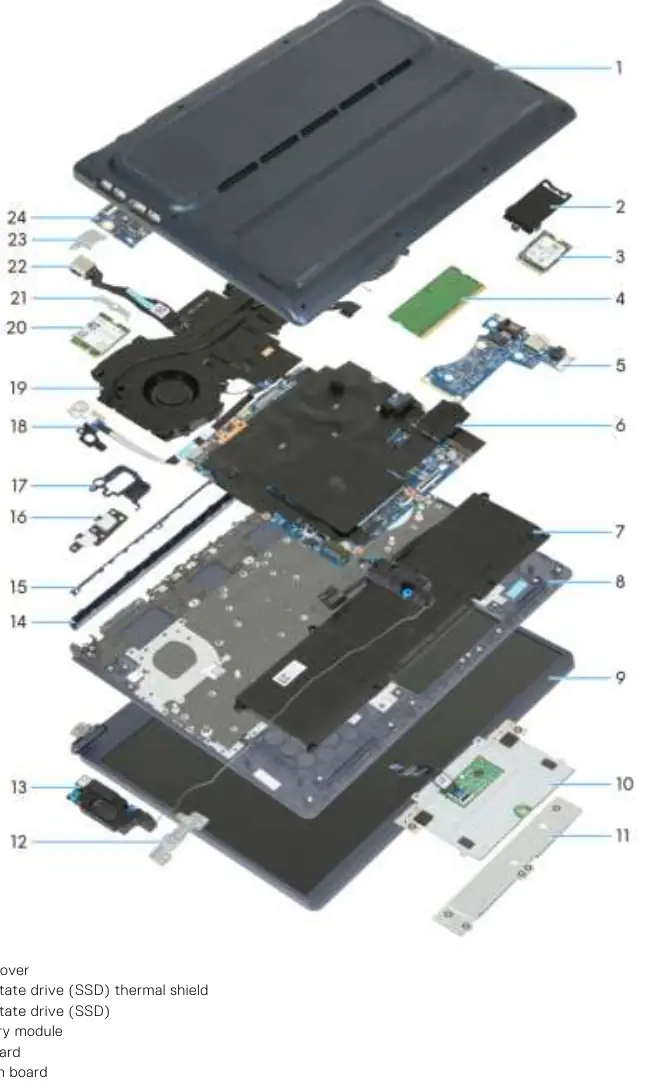
Setup and Operation
To set up the device, connect the power adapter and press the power button. The battery-charge status light provides visual feedback on power and charging states. Use the Alienware Command Center to manage lighting, thermal profiles, and system performance.
Troubleshooting
The system includes built-in diagnostics such as SupportAssist Pre-boot System Performance Check and various self-tests (M-BIST, L-BIST, LCD-BIST). Diagnostic light codes (amber/white) help identify hardware issues. If the system fails to boot, perform a hard reset by draining flea power.
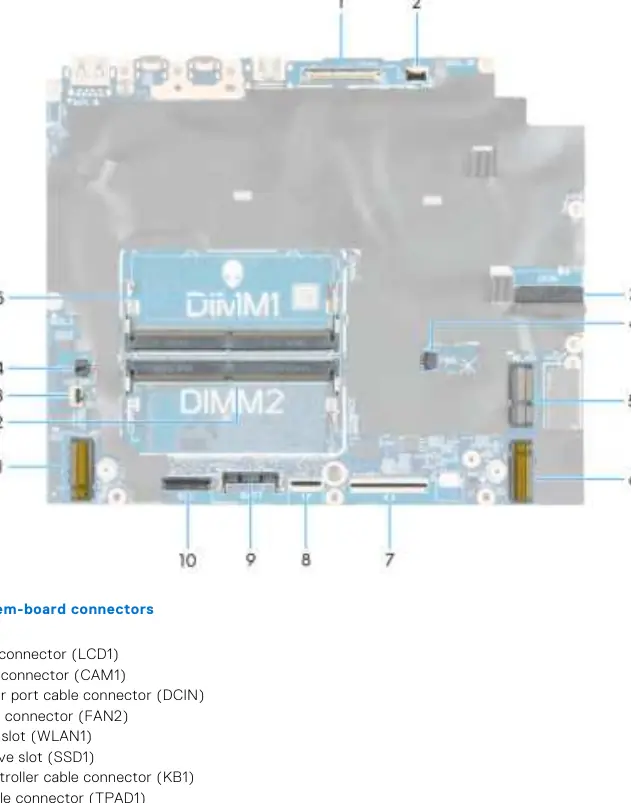
BIOS Setup
Access the BIOS by pressing F2 during startup. The BIOS allows for system configuration, security settings (including Admin and System passwords), and firmware updates. Use the F12 One Time Boot menu for diagnostics and boot device selection.
Related manuals
Related manuals from the same brand or category.
Computers / Laptops
ASUS VivoBook Pro 16X OLED N7600PC-L2029T Laptop Overview
ASUSComputers / Laptops
LG 16T90R Series Notebook User Guide
LGComputers / Laptops
Welcome to Your Acer Predator Helios Neo 16S AI
ACERComputers / Laptops
Acer Nitro V 16S User's Manual
ACERComputers / Laptops
Seeed Studio reComputer 16GB Edge AI Device
Seeed StudioComputers / Laptops
DELL Inspiron 14 Plus 7430 Owner's Manual
DELLComputers / Laptops
Hama 16000mAh Power Pack
HAMAComputers / Laptops
DELL Inspiron 16 Plus 7640 User Guide
DELLComputers / Laptops
ASUS NUC Intel Core Ultra 7 155H Mini PC Volatility and Data Security Guide
ASUS
Manual page author
David Miller
Documentation analyst
Organizes user manual content into clear summaries, with attention to model details, product context, and everyday usability.