Electronics / Speakers Soundbars
User Guide for Denon Home Subwoofer
Quick start guide for the Denon Home Subwoofer, covering unpacking, placement, wireless/wired network connection, HEOS app setup, and basic troubleshooting.
Table of contents
Manual images
Jump to the sectionQuick guide from the manual
This document provides essential steps to set up your Denon Home Subwoofer. It is designed to be paired wirelessly with other Denon Home speakers or sound bars. Ensure you have a stable Wi-Fi connection and a mobile device with the HEOS app installed before beginning.
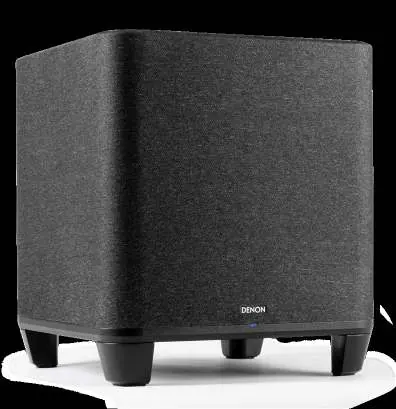
Unpacking and Placement
- Remove the subwoofer and power cord from the packaging.
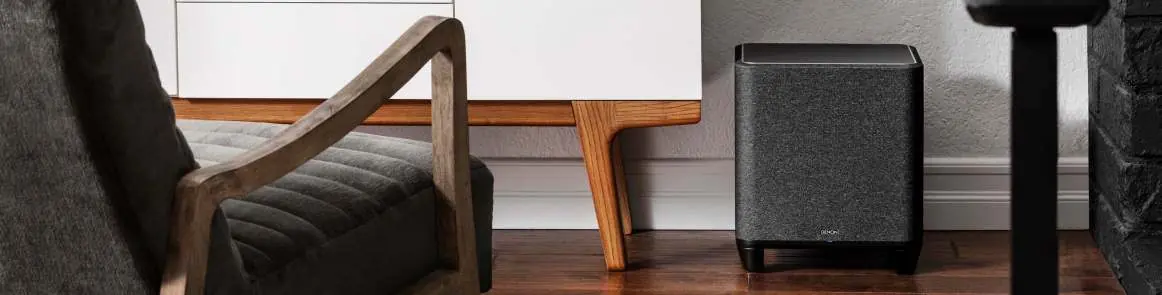
- Place the subwoofer in a convenient location within the same room as the Denon Home speaker or sound bar you intend to group it with.
Connection
Power: Connect the provided power cord to the subwoofer and a wall outlet.
Network: The subwoofer is primarily designed for wireless connection. If you prefer a wired network, connect an Ethernet cable (not included) between the subwoofer and your router. Do not connect an Ethernet cable if you are using a wireless network.
Control and Setup
- Download the HEOS app from the Apple App Store, Google Play, or Amazon App Store.
- Launch the HEOS app and follow the on-screen instructions to add the subwoofer to your network.
- Use the app to group the subwoofer with your desired Denon Home speaker.
- Access advanced settings like volume, low pass filter, and phase (0/180°) directly within the HEOS app.
Basic Troubleshooting
- Network Connection Issues: Ensure your mobile device is connected to the same wireless network. If problems persist, try a wired Ethernet connection to set it up, then switch to wireless via Settings > My Devices > [Device Name] > Advanced > NETWORK SETTINGS in the HEOS app.
- WPS Setup: If your router supports WPS, press the WPS button on the router, then press and hold the CONNECT button on the rear of the subwoofer for 5 seconds.
- Resetting: To reset, press and hold the RESET button on the rear panel for 5 seconds until the front light flashes amber. This erases network settings and EQ.
Technical Specifications
- Dimensions: 330 x 373 x 330 mm (13 x 14.5 x 13 inches)
- Weight: 12.5 kg (27.5 lbs)
- Wireless: Wi-Fi 2.4 GHz (IEEE 802.11b/g/n) and 5 GHz (IEEE 802.11a/n/ac)
- Power: 120 Volts AC, 60 Hz
Manufacturer information
Denon
Practical help
Common problems
Subwoofer will not connect to the wireless network.
Ensure your mobile device is on the same network. Alternatively, connect via Ethernet cable to configure wireless settings in the HEOS app under Advanced Network Settings.
Need to reset the subwoofer.
Press and hold the RESET button on the rear panel for 5 seconds until the front light flashes amber.
Before use
- Wi-Fi router with active Internet connection.
- Mobile device (iOS, Android, or Kindle) connected to your network.
- Existing Denon Home speaker or sound bar to pair with.
- HEOS app downloaded and installed.
Specs in practice
- Power Supply
- 120 Volts AC, 60 Hz.
- Wireless Technology
- Supports dual-band Wi-Fi (2.4 GHz and 5 GHz) for reliable streaming.
Images and diagrams
- The rear panel contains the power input, Ethernet port, CONNECT button, and RESET button.
- The front light indicates connection status (e.g., flashing green during WPS connection, solid blue when connected).
Model compatibility
- Designed specifically for use with Denon Home speakers and sound bars.
- Supports USB thumb drives for music playback via HEOS-enabled products on the same network.

Manual page author
David Miller
Documentation analyst
Organizes user manual content into clear summaries, with attention to model details, product context, and everyday usability.