Power / Power Distribution Units
User Manual for EnGenius PDU 6P 10A ECP106-INT
Quick guide for the EnGenius PDU 6P 10A (ECP106-INT). Learn about hardware installation, port overview, LED status indicators, and system requirements for cloud management.
Table of contents
Manual images
Click an image to enlargeQuick guide from the manual
This document provides installation and configuration instructions for the EnGenius PDU 6P 10A (Model: ECP106-INT). The device features real-time power consumption monitoring, remote switching per outlet, and a 1.3-inch display for visualizing power information. It supports local and cloud management with analytic reports and includes a 12A circuit breaker for overload protection.
Package Contents
Ensure your package includes the following items:
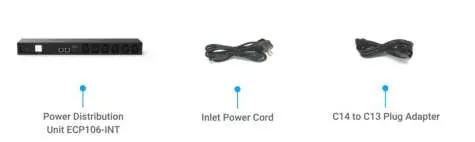
- Power Distribution Unit (ECP106-INT)
- Inlet Power Cord
- C14 to C13 Plug Adapter
- Mounting Brackets
- Rubber Feet Cushion
- Spacer
- 8 (M3x5) Screws
- 4 (T4x19) Screws
- Drywall Anchor Kit
System Requirements
To configure and manage the PDU, ensure your environment meets the following requirements:
- Web Browser: Google Chrome (105.0.5195.127 or later) or Microsoft Edge (112.0.1722.48 or later).
- Network: The network environment must be DHCP-enabled. The PDU will be assigned an IP address dynamically by the DHCP server. You can check the assigned IP address via the PDU's LCD menu under Information.
Hardware Overview
The PDU features several ports and controls:
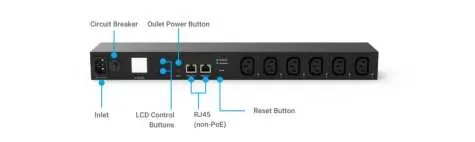
- Inlet: Power input.
- Circuit Breaker: Protects against overloading.
- Outlet Power Button: Controls power to outlets.
- LCD Control Buttons: Used for navigating the display menu.
- RJ45 (non-PoE): Network connection port.
- Reset Button: Used for system resets.
LED Indicators
The PDU uses various LEDs to indicate status:
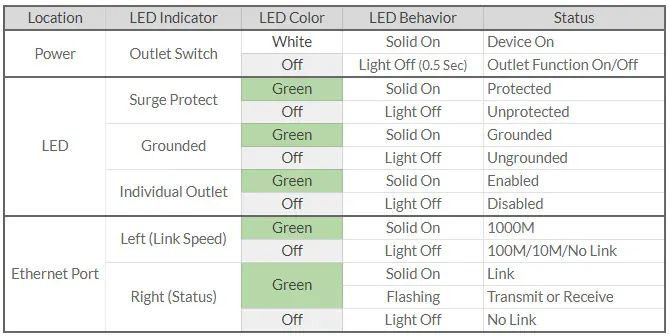
- Power (Outlet Switch): White solid indicates device is on; off indicates outlet function is off.
- Surge Protect: Green solid indicates protected; off indicates unprotected.
- Grounded: Green solid indicates grounded; off indicates ungrounded.
- Individual Outlet: Green solid indicates enabled; off indicates disabled.
- Ethernet Port (Left/Link Speed): Green solid indicates 1000M; off indicates 100M/10M/No Link.
- Ethernet Port (Right/Status): Green solid indicates link; flashing indicates transmit/receive; off indicates no link.
Reset Procedure
To reset the device to factory defaults:
- Press and hold the reset button for at least 15 seconds. Holding it for less than 15 seconds will only trigger a reboot.
- To initiate a factory reset, navigate to the LCD menu and select the Factory reset option. The screen will indicate the progress with a progress bar.
Manufacturer information
EnGenius Technologies
Practical help
Common problems
Device not connecting to network
Ensure your network environment is DHCP-enabled. The PDU requires a dynamic IP address assignment.
Need to perform a factory reset
Navigate to the LCD menu and select the Factory reset option. Alternatively, press and hold the reset button for at least 15 seconds.
Device rebooting unexpectedly
If you press the reset button for less than 15 seconds, the system will only trigger a reboot.
Before use
- Verify all package contents are present (PDU, power cord, brackets, screws).
- Ensure the network environment is DHCP-enabled.
- Use a supported web browser (Chrome 105+ or Edge 112+).
- Check the PDU's LCD menu for the assigned IP address.
Specs in practice
- 12A Circuit Breaker
- Provides protection against electrical overloading.
- 1.3 inches display
- Integrated screen for visualizing power information and system status.
- RJ45 (non-PoE)
- Network port for connecting the PDU to your local network.
Images and diagrams
- Hardware Overview: Identifies the location of the inlet, circuit breaker, outlet power button, LCD control buttons, RJ45 ports, and reset button.
- LED Status Table: Provides a reference for interpreting LED colors and behaviors for power, surge protection, grounding, individual outlets, and Ethernet connectivity.
Model compatibility
- Requires DHCP-enabled network environment.
- Compatible with modern web browsers (Chrome/Edge).

Manual page author
David Miller
Documentation analyst
Organizes user manual content into clear summaries, with attention to model details, product context, and everyday usability.