Music / Audio Effects
User Manual for Erica Synths × 112dB Echolocator Precision Delay
Quick guide for the Erica Synths × 112dB Echolocator. Learn about signal flow, control parameters, MIDI configuration, preset management, and firmware updates.
Table of contents
Manual images
Click an image to enlargeQuick Guide
The Erica Synths × 112dB Echolocator is a stereo delay unit featuring 12 parameters for sound design, MIDI control, and preset management. This guide covers the essential operations, connections, and configuration settings required to get started.
Signal Flow
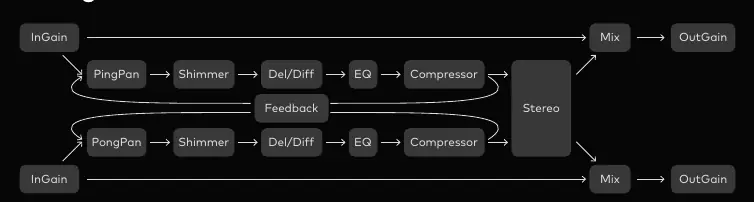
The Echolocator processes audio through a specific chain: InGain, Ping/PongPan, Shimmer, Delay/Diff, EQ, Compressor, and Stereo output. Feedback loops are integrated to allow for complex delay textures.
Controls and Interface
The front panel provides hands-on control over the delay parameters:
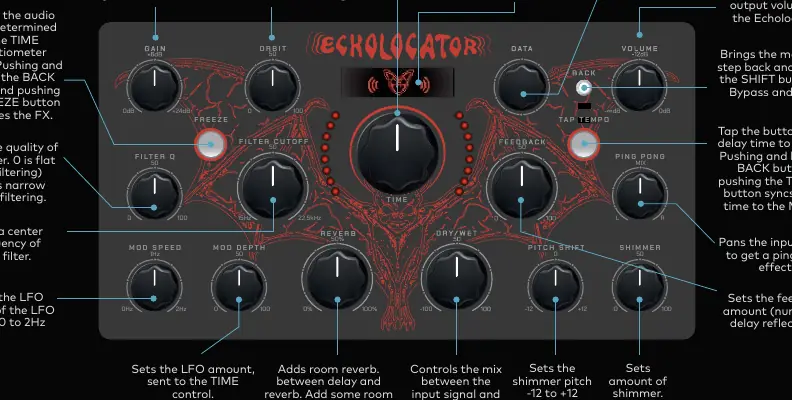
- TIME: Sets delay time from 4ms to 4 seconds. In SYNC mode, it acts as a time multiplier/divider.
- FILTER Q & CUTOFF: Adjusts the quality and center frequency of the filter.
- MOD SPEED & DEPTH: Controls the LFO speed (0-2Hz) and amount sent to the TIME control.
- FEEDBACK: Sets the number of delay reflections.
- SHIMMER: Adds pitch-shifted signal to the delay.
- DATA Encoder: Used for menu navigation, preset management, and configuration.
- FREEZE: Freezes the audio buffer.
- TAP TEMPO: Syncs delay time to tempo or MIDI clock.
Connections
The rear panel includes the following inputs and outputs:
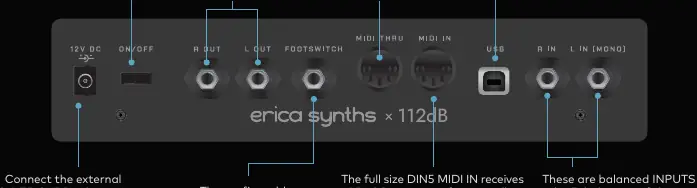
- Power: 12V DC input. Use only the supplied PSU.
- Inputs: Balanced inputs. Use the LEFT input for mono signals.
- Outputs: Balanced outputs.
- Footswitch: Input for a TS type non-latching footswitch to control bypass, freeze, or patch navigation.
- MIDI: DIN5 MIDI IN and MIDI THRU (configurable).
- USB: Type-B port for firmware updates and preset management.
Menu and Preset Management
Access the main menu by pushing the BACK button. Use the DATA encoder to navigate:
- PATCH: Manage presets (Save, Name, Sort, Magic/Randomize).
- EFFECT: Configure DSP behavior, including filter routing, shimmer types, and preset morphing.
- MIDI: Configure MIDI channels, output modes, and CC assignments.
- FOOTSWITCH: Assign functions to single tap, double tap, and hold actions.
- SYSTEM: Adjust display brightness, screensaver, pot catch settings, and perform factory resets.
Firmware Upgrade
To update the firmware:
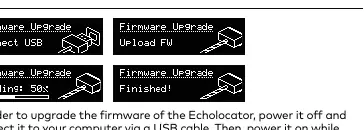
- Power off the unit.
- Connect the unit to a computer via USB.
- Power on while holding both the DATA ENCODER and TAP TEMPO button.
- The unit will appear as an external drive. Drag and drop the .uf2 firmware file into the directory.
- The unit will restart automatically once the update is finished.
Safety and Maintenance
Follow these guidelines to ensure proper operation:
- Use only the supplied power supply unit.
- Do not expose the unit to water, humidity, or extreme temperatures (above +50°C or below -20°C).
- Transport carefully to avoid physical damage.
- Ship for repairs only in original packaging.
Practical help
Common problems
Unit does not power on
Ensure you are using the power supply unit (PSU) supplied with the device. Using other PSUs may cause damage.
Audio signal issues
If using a mono signal, ensure it is connected to the LEFT input. Check input gain settings.
Firmware update not starting
Ensure you are holding both the DATA ENCODER and TAP TEMPO button while powering on the unit.
Potentiometer values jumping
Enable 'POT CATCH' in the SYSTEM menu to ensure gradual transitions when changing presets.
Before use
- Use only the supplied power supply unit.
- Ensure the unit is placed in a dry environment.
- Check that the input signal level is appropriate (guitar to line levels).
- Connect USB cable only if performing firmware updates or preset management.
Images and diagrams
- Signal Flow diagram shows the path from InGain through Ping/PongPan, Shimmer, Del/Diff, EQ, Compressor, and Stereo output.
- Front panel diagram labels all potentiometers and buttons including Time, Filter Q, Orbit, and Data encoder.
- Rear panel diagram shows power input, balanced outputs, footswitch jack, MIDI ports, USB, and balanced inputs.
Model compatibility
- Requires a TS type non-latching footswitch.
- USB connection is for firmware updates and preset management only.
- MIDI IN receives MIDI CC messages for controlling parameters.

Manual page author
Emily Carter
User documentation editor
Prepares concise manual descriptions and highlights the most useful setup, operation, and maintenance information for readers.