Music / Audio Effects
User Manual for Erica Synths Xenodrive FX Unit
Quick guide for the Erica Synths Xenodrive stereo distortion and waveshaper. Learn about signal flow, parameter controls, MIDI implementation, preset management, and firmware updates.
Table of contents
Manual images
Click an image to enlargeQuick guide from the manual
The Erica Synths Xenodrive is a stereo distortion, overdrive, and waveshaper FX unit. It features 12 parameters for sound design, preset management, and MIDI control. Always use the supplied power supply unit (PSU) to avoid permanent damage to the device. The unit is not waterproof and should be kept within a temperature range of -20° C to +50° C.
Signal path and processing
The signal path is designed to radically alter harmonic content. It follows this chain: Audio Input -> Gain Stage -> Compressor -> Overdrive -> Waveshaper -> Equalizer -> Noise Gate -> Balanced Output. The Gain Stage can boost signals up to +24dB, acting as an analog overdrive. The Waveshaper uses a 16x16 wavetable to wrap and fold the incoming signal.

Controls and interface
The front panel features hands-on controls for all major parameters, including:
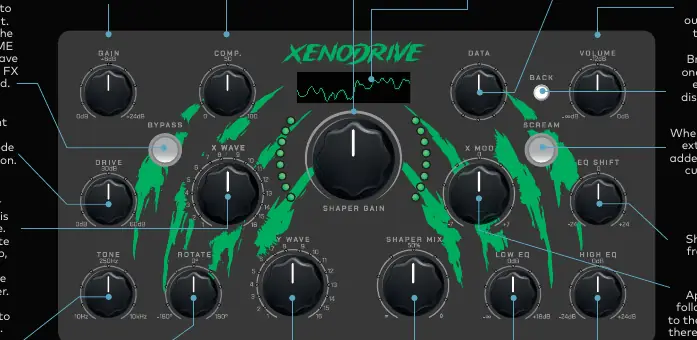
- Gain & Drive: Adjusts input gain and pre-drive germanium diode emulation.
- Waveshaper: X WAVE and Y WAVE knobs select the wavetable position, while SHAPER GAIN sets intensity.
- EQ: Low and High EQ controls with EQ SHIFT for frequency center adjustment.
- Data Encoder: Used for navigating menus, saving presets, and configuration.
- OLED Display: Provides visual feedback on presets, waveforms, and settings.
Connections
The rear panel includes:
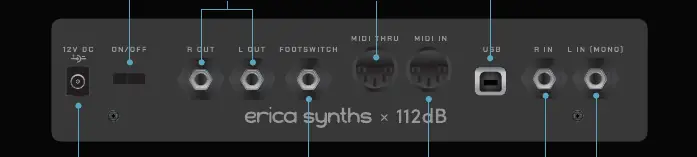
- Audio I/O: Balanced inputs and outputs. Use the LEFT input for mono signals.
- Footswitch: Supports a TS type non-latching footswitch for bypassing, freezing, or navigating patches.
- MIDI: DIN5 MIDI IN and configurable MIDI THRU/OUT.
- USB: Type-B port for firmware updates and preset management.
Preset management
The Xenodrive comes with 42 factory presets and space for 60 user presets. Use the DATA encoder to navigate and activate presets. You can save, rename, and sort presets via the PATCH menu. The MAGIC feature generates random parameter combinations for new sound ideas. Presets can be backed up to a computer via USB as .nvp files.
Effect settings
The EFFECT menu allows for per-preset configuration of DSP behavior, including:
- Noise Gate: Threshold and release time settings to control signal decay.
- FX Level: Adjusts the balance between dry and wet signals.
- Analog Mix: Toggle between analog VCA fading or digital dry/wet mixing.
- Morphing: Set a fade-in time for preset changes (0.1s to 10s).
MIDI and footswitch configuration
The MIDI menu allows you to set the MIDI channel and configure MIDI output modes (MIDI OUT, MIDI THRU, or OFF). You can assign custom MIDI CC messages to all parameters. The FOOTSWITCH menu allows you to assign functions like BYPASS, SCREAM, or preset navigation to single taps, double taps, or holds.
System settings and firmware
The SYSTEM menu provides access to OLED brightness, screensaver settings, and the POT CATCH feature. POT CATCH prevents sudden parameter jumps when changing presets by requiring the knob to pass the saved position. To upgrade firmware, power off the unit, hold the DATA ENCODER and SCREAM button while powering on, and drag the .uf2 file to the Xenodrive drive on your computer.
Practical help
Common problems
No sound or signal
Check the input gain, volume settings, and ensure the unit is not in bypass mode.
Firmware update not starting
Ensure you are holding both the DATA ENCODER and the SCREAM button while powering on the unit.
Parameter values jump unexpectedly when changing presets
Enable the POT CATCH setting in the SYSTEM menu to ensure gradual transitions.
Before use
- Use only the supplied power supply unit (PSU).
- Connect audio inputs to the rear panel; use the LEFT input for mono signals.
- Ensure the unit is at room temperature if it has been transported in cold conditions.
- Connect a USB Type-B cable to a computer for firmware updates or preset management.
Images and diagrams
- Signal Flow: Audio In -> Gain -> Compressor -> Overdrive -> Waveshaper -> EQ -> Noise Gate -> Output.
Model compatibility
- Supports standard TS type non-latching footswitches.
- USB Type-B cable required for firmware updates and preset management (not included).

Manual page author
Michael Turner
Technical manual editor
Reviews PDF manuals for structure, safety notes, and practical product details so readers can find the right information quickly.