Home / Security
User Manual for Extron OCS 100C Occupancy Sensor
Quick setup and configuration guide for the Extron OCS 100C dual-technology occupancy sensor. Learn about installation, wiring, DIP switch settings, sensitivity adjustments, and troubleshooting.
Table of contents
Manual images
Click an image to enlargeQuick Guide from the Manual
The OCS 100C is a dual-technology occupancy sensor utilizing ultrasonic (US) and infrared (PIR) sensors, along with a photocell. For optimal performance, the device is designed to detect occupancy using both PIR and US sensors with default settings. Before installation, ensure you have a 24 VDC power source or the included PC 1224 power converter.
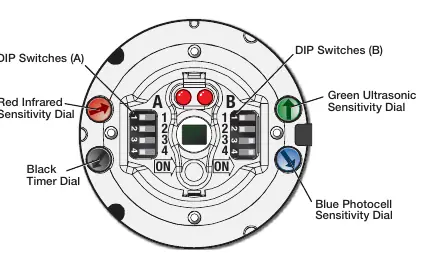
Product Overview
The sensor features a front panel with status LEDs and adjustment dials. The ultrasonic sensors detect movement via sound waves, while the infrared sensor detects heat differences. The photocell prevents the sensor from triggering when the area is adequately lit by natural light.
Installation
The OCS 100C is designed for ceiling mounting. Follow these guidelines for installation:
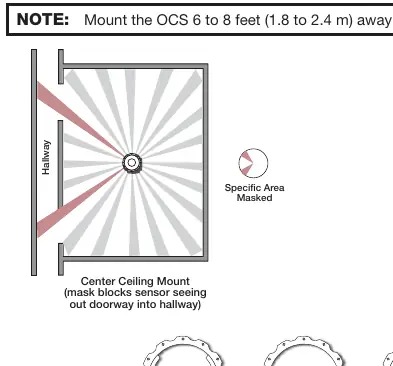
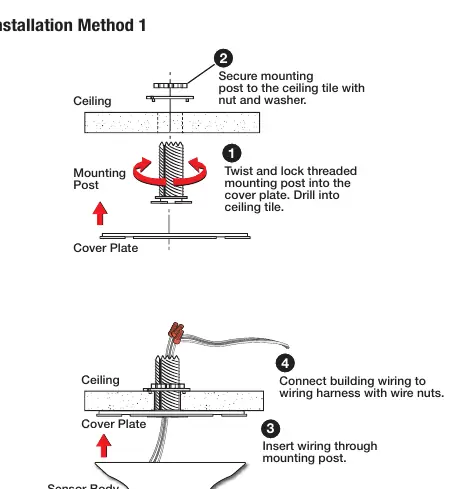
- Mounting: Use the provided installation methods (Method 1 or 2) to secure the sensor to the ceiling. Ensure the sensor is mounted 6 to 8 feet away from HVAC vents and high airflow areas.
- Masking: Use the included infrared masks to block the PIR sensor from detecting motion in specific areas, such as doorways or hallways.
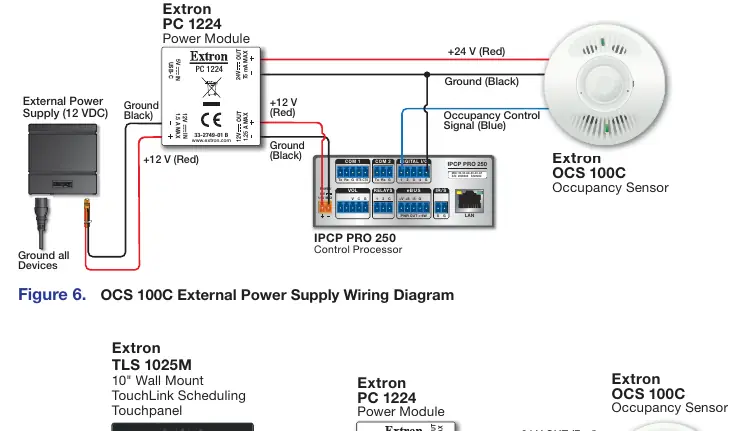
- Wiring: The sensor requires 24 VDC. If the connected device does not provide 24 VDC, use the supplied PC 1224 power module. Connect the red wire to +24 VDC and the black wire to ground.
Configuration and Settings
The sensor is configured using DIP switches and adjustment dials located behind the retainer ring.
- DIP Switches A: Controls occupancy detection behavior (Dual technology mode), sensor status indicators, and automatic adjust reset.
- DIP Switches B: Controls high airflow compensation, doorway mount mode, and toggles between Automatic and Manual modes for timer and sensitivity adjustments.
- Adjustment Dials: Use the dials to manually set the timer (8 to 42 minutes), infrared sensitivity, ultrasonic sensitivity, and photocell sensitivity.
- Test Mode: To enter test mode, open the retainer ring, rotate the black timer dial to midway, then return to the minimum setting. The timer will remain in test mode for 1 hour.
Troubleshooting
If you encounter issues, refer to the following solutions:
- Sensor remains ON: Likely caused by constant noise. Reduce green and red sensitivity knobs by 1/8 turn or remove the noise source.
- Sensor remains OFF: Sensitivity may be too low. Increase both green and red knobs by 1/8 turn.
- Hallway traffic triggers sensor: The infrared sensor may be seeing into the hallway. Reposition the sensor or install IR masks.
Manufacturer information
Extron Electronics
Practical help
Common problems
Sensor remains ON
Reduce both green and red sensitivity knobs by 1/8 (15%) turn or remove the noise source.
Sensor remains OFF
Increase both green and red sensitivity knobs by 1/8 (15%) turn. If A2 DIP switch is OFF, set knobs to normal levels.
Hallway traffic triggers sensor
Reposition the sensor so it cannot see into the hallway or install the IR masks.
Before use
- Verify 24 VDC power source is available (or use PC 1224 power module).
- Ensure the sensor is mounted 6 to 8 feet away from HVAC vents.
- Check that DIP switches are in the desired configuration (default is A2 OFF).
- Test sensor coverage before final installation.
- Ensure the sensor is mounted 10 feet above the coverage area for optimal dimensions.
Specs in practice
- Photocell Range
- 10 to 1000 LUX.
- Power Requirement
- 24 VDC.
Images and diagrams
- Figure 1 & 2: Front panel features, DIP switches, and sensitivity dials.
- Figure 4: Mask patterns and sensory coverage diagrams.
- Figure 5: Installation methods for ceiling mounting.
- Figure 6 & 7: Wiring diagrams for external power and USB power.
Model compatibility
- Requires 24 VDC power.
- Compatible with Extron control products equipped with Digital I/O or eBUS.
- Only connect to Class III SELV systems.

Manual page author
Michael Turner
Technical manual editor
Reviews PDF manuals for structure, safety notes, and practical product details so readers can find the right information quickly.