Home / Security
Extron UCS 601 Pro AV Dock User Guide
Quick guide for the Extron UCS 601 Pro AV Dock. Learn about installation, cabling, mounting, troubleshooting, and LED status indicators for this 4K USB-C docking station.
Table of contents
Manual images
Click an image to enlargeQuick guide from the manual
The Extron UCS 601 is a professional AV dock designed to connect USB-C laptops to HDMI displays and USB peripherals. Key requirements: The connected USB-C source must support DisplayPort Alt Mode. To ensure signal integrity, USB cables must not exceed 6 feet (1.8 meters), and the use of adapters or patch panels should be avoided. Before changing the DisplayPort Alt Mode switch, you must disconnect the AC power and USB-C cable, wait 45 seconds, and then reconnect.
Product overview
The UCS 601 provides an interface between USB-C sources and HDMI displays. It supports resolutions up to 4K/60Hz, HDCP 2.3/1.4, and provides up to 60W of power delivery to the host. The unit is rack-mountable and includes mounting accessories.
Front and rear panel features
Front Panel:
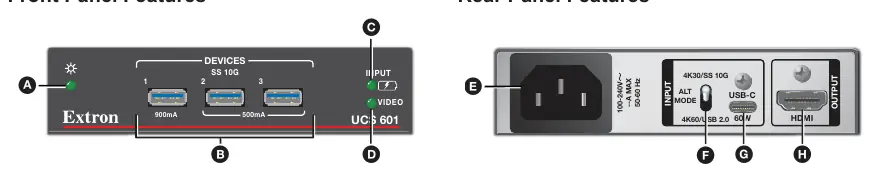
- Power LED: Indicates the power status of the unit.
- USB 3.2 Type-A Device Ports (3): Connect up to three USB peripherals such as cameras, touch displays, or microphones.
- Power Delivery LED: Indicates the status of USB-C power delivery to the host PC.
- Video Signal LED: Indicates the input video signal status.
Rear Panel:
- IEC Power Connector: Connects the AC power cord.
- DisplayPort Alt Mode Function Switch: Toggle up to support 4K/30Hz and USB 3.2. Toggle down to support 4K/60Hz and USB 2.0.
- USB-C Input: Connects the USB-C source device.
- HDMI Output: Connects to the HDMI display.
Cabling and setup

- Connect the USB-C source device to the USB-C input on the rear panel.
- Connect the HDMI display to the HDMI output.
- Connect USB peripherals to the front USB 3.2 ports.
- Connect the AC power cord to the IEC power connector.
- If necessary, adjust the DisplayPort Alt Mode switch (requires power cycling the unit).
LockIt lacing brackets
Use the included LockIt Lacing Brackets to secure cables:
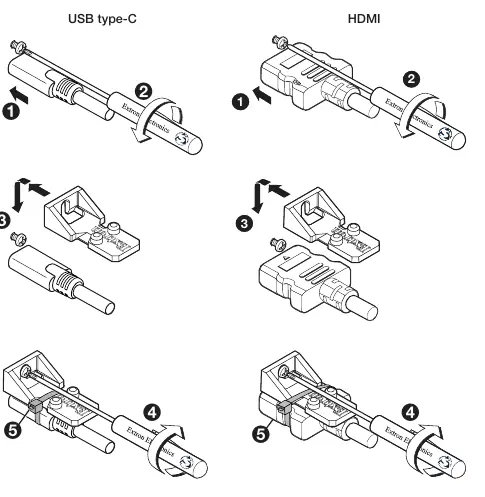
- Plug the cable into the port.
- Loosen the connection mounting screw on the panel.
- Place the lacing bracket over the screw and against the connector.
- Tighten the screw to secure the bracket.
- Use the included tie wrap to secure the cable to the bracket.
Mounting
The UCS 601 can be mounted using the included ZipClip 200 accessory:
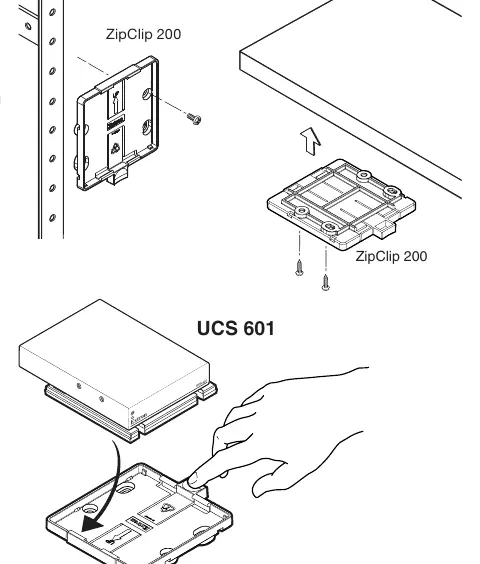
- ZipClip 200: Mount the clip onto a rack rail or under-desk surface using the four included screws.
- Attachment: Align the mounting holes on the bottom of the UCS 601 with the ZipCaddy and fasten the screws.
- Release: Use the quick-release tab to detach the unit from the ZipClip 200.
Troubleshooting
If you encounter issues, ensure all cables are routed correctly and are under 6 feet (1.8m) in length. Check the LED indicators:
- Power LED: If off, the AC power supply is not connected or is defective.
- Power Delivery LED: If off, check the troubleshooting steps; the USB-C source may not be connected.
- Video Signal LED: If off, ensure the HDMI cable is connected.
Manufacturer information
Extron Electronics
Practical help
Common problems
Power LED is off
Ensure the AC power supply is connected and functioning.
Power Delivery LED is off
Verify the USB-C source is properly connected to the unit.
Video Signal LED is off
Ensure the HDMI cable is securely connected to the display and the dock.
Signal loss or data issues
Ensure USB cables are under 6 feet (1.8m) and avoid using additional adapters or patch panels.
Before use
- Verify the USB-C source supports DisplayPort Alt Mode.
- Ensure HDMI display is connected.
- Check that all USB cables are under 6 feet (1.8m).
- Ensure the power supply is connected to an AC outlet.
- Determine if you need 4K/30Hz (USB 3.2) or 4K/60Hz (USB 2.0) and set the Alt Mode switch accordingly.
Specs in practice
- Power Delivery
- Provides up to 60W of charging power to the connected USB-C source.
- DisplayPort Alt Mode Switch
- Toggle up for 4K/30Hz + USB 3.2; toggle down for 4K/60Hz + USB 2.0.
- USB 3.2 Type-A Ports
- Three ports for peripherals like cameras, touch displays, and microphones.
Images and diagrams
- Front Panel: Shows USB ports, power/video LEDs.
- Rear Panel: Shows power input, HDMI output, USB-C input, and Alt Mode switch.
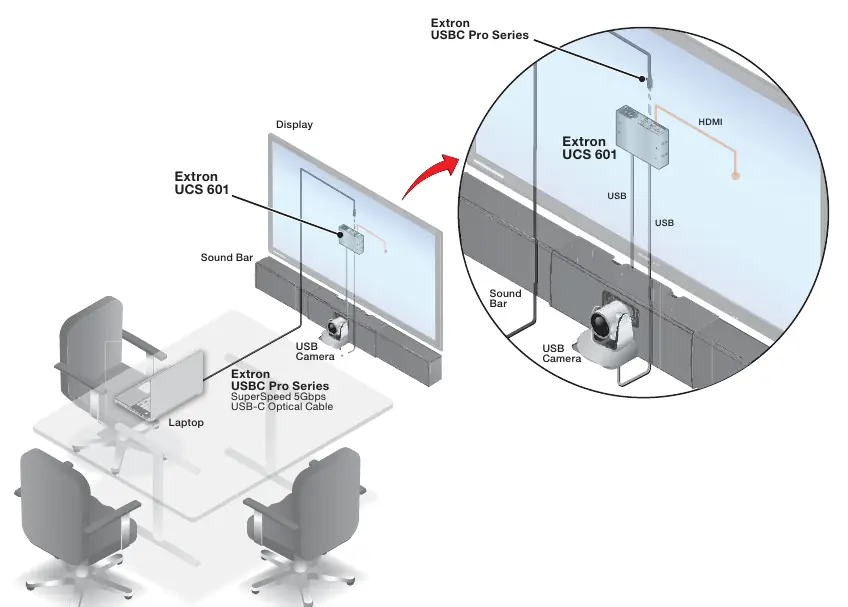
- Application Diagram: Shows connection flow from laptop to dock to display/peripherals.
Model compatibility
- Requires USB-C source with DisplayPort Alt Mode support.
- Not suitable for use in air handling spaces or wall cavities.
- Extron recommends HDMI Pro Series cables for 4K/UHD signals.

Manual page author
Michael Turner
Technical manual editor
Reviews PDF manuals for structure, safety notes, and practical product details so readers can find the right information quickly.