Electronics / Thermal Cameras
User Manual for Foxtech Bi-Focus Thermal Camera
Quick guide for the Foxtech Bi-Focus 10X optical zoom and thermal camera with 3-axis gimbal. Includes installation, wiring, operation, and troubleshooting.
Table of contents
Manual images
Click an image to enlargeQuick guide from the manual
The Foxtech Bi-Focus is a 3-axis stabilized gimbal featuring a 10X optical zoom camera and a 320x240 thermal camera. Before operation, ensure the supply voltage is within the 3S-6S (DC 12V-26V) range. The device supports Sbus and UART control, and requires a Class 10 TF card (16G-128G) for storage. Always verify electrical connections and mechanical installation before powering on.
Device Overview
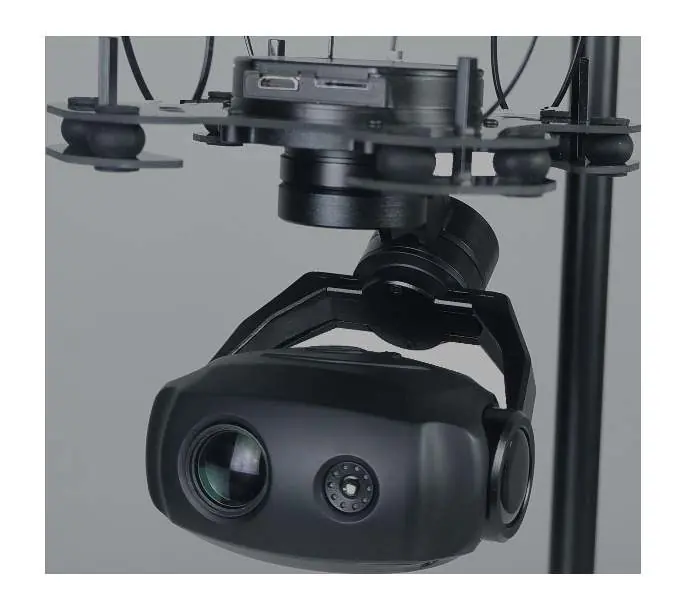
The system consists of a thermal movement, a zoom visible light movement, and a stabilized gimbal. It supports 1080P 60fps video output and dual-channel synchronous video recording. The gimbal is based on FOC technology for high stability and precision.
Installation and Wiring
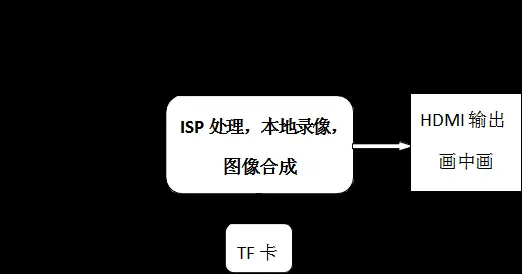
The external electrical interface includes power, communication (SBUS and serial), HDMI video, and a TF card slot. The video interface uses an HDMI Type-C connector. The 8-pin socket pinout is as follows:
- Pin 1: GND
- Pin 2: 5V (+5V output)
- Pin 3: S/I BUS (SBUS channels)
- Pin 4: TXD4 (UART4_Tx Reserved)
- Pin 5: RXD3 (Serial port reception)
- Pin 6: TXD3 (Serial port transmission)
- Pin 7-8: Reserved
Operation
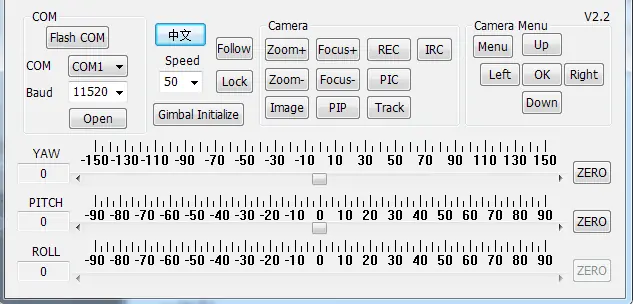
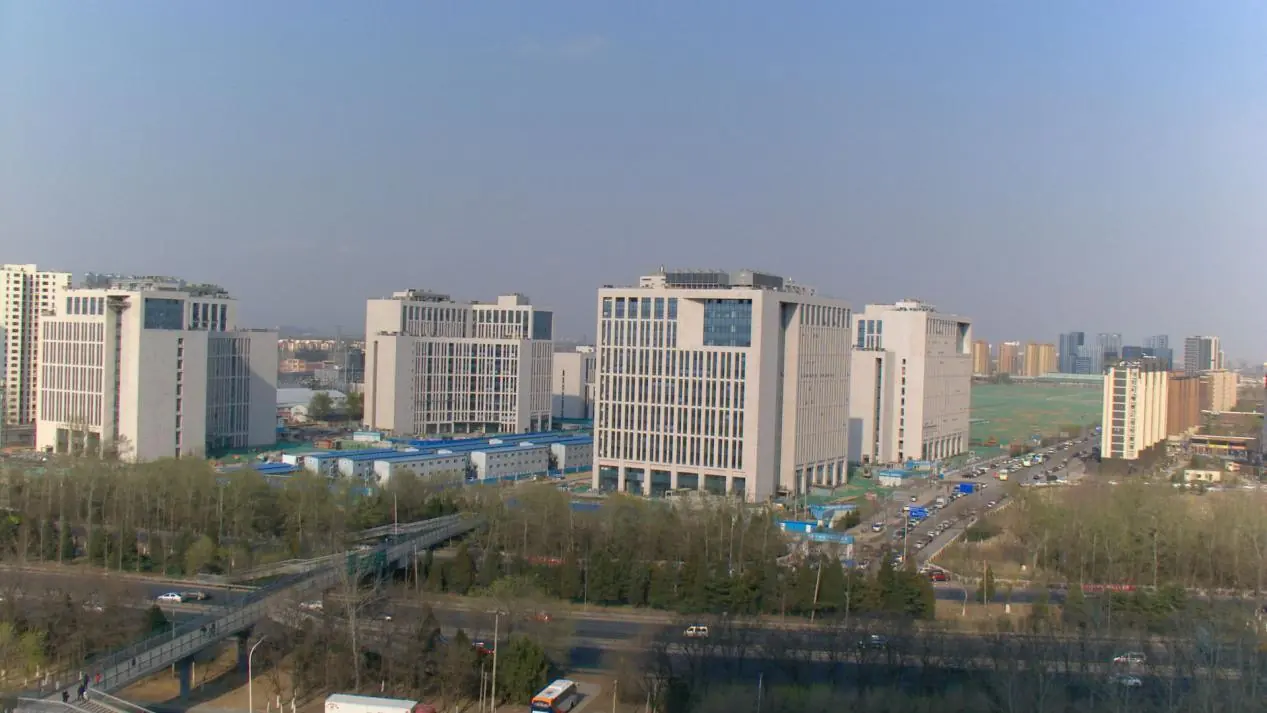
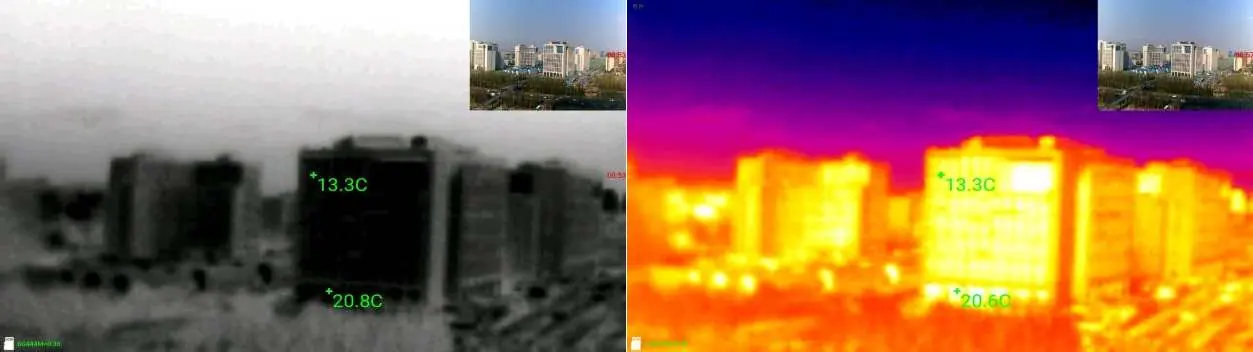
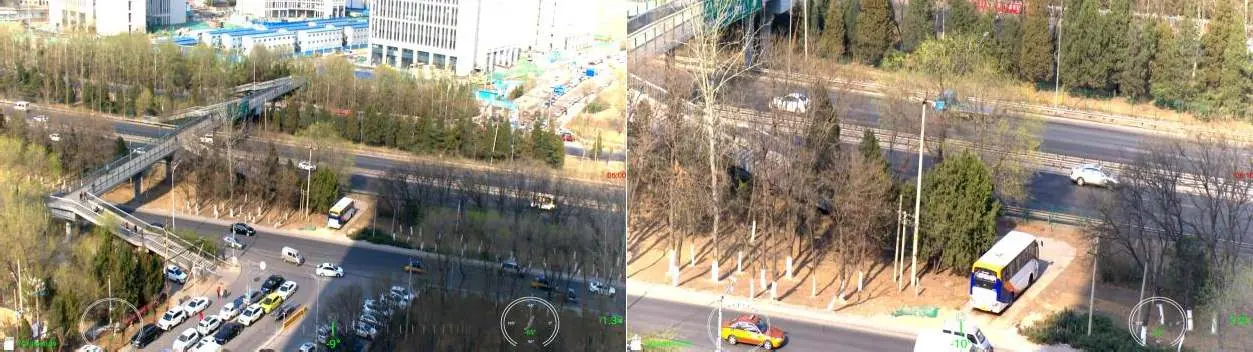
Upon power-on, the system initializes within 21 seconds. The device supports multiple thermal imaging pseudo-color patterns and Picture-in-Picture (PIP) modes, including single visible light, single thermal, and various split-screen configurations. Users can control zoom, focus, and recording via the handheld terminal or serial commands.
Gimbal Control
The gimbal supports multiple modes, including Yaw Locking, Yaw Following, and Attitude Control. Speed is adaptive based on the current speed mode (high/low) and the camera zoom level. An automatic drift correction command is available to calibrate the gimbal if screen tilt occurs due to temperature changes or prolonged use.
Maintenance
Keep the lens clean using a special lens cloth to avoid oil stains and chemical damage. If the device is not used for a long period, energize it weekly to check functionality. Clean the lens and check mechanical/electrical interfaces every half month. Store in a dry, ventilated environment.
Practical help
Common problems
Cannot control gimbal and camera
Check the communication protocol and confirm the docking signal definition.
No video or unresponsive control
Check for poor contact of the docking cable or external cable damage; replug the docking plug-in.
Blurred or degraded image quality
Adjust observation distance, refocus the camera, or clean the lens with cotton and alcohol.
Before use
- Check structural parts for deformation or looseness.
- Clean the lens with a lens cloth.
- Verify mechanical installation is secure.
- Verify electrical connections are correct.
- Ensure supply voltage is within 3S-6S (12V-26V) range.
- Ensure TF card is inserted if recording is required.
Specs in practice
- Thermal Resolution
- 320x240 pixels.
- Optical Zoom
- 10X optical zoom capability.
Images and diagrams
- The gimbal structure diagram identifies the power/control input, HDMI/TF card slot, zoom lens, and thermal camera.
- The electrical interface diagram details the 8-pin socket pinout for power and communication.
- The software interface diagram shows the COM port settings and channel configuration options.
Model compatibility
- Supports Sbus and UART control methods.
- Requires Class 10 TF card (16G-128G) for storage.
- Memory card is not hot-swappable.

Manual page author
David Miller
Documentation analyst
Organizes user manual content into clear summaries, with attention to model details, product context, and everyday usability.