Home Appliances / Refrigerators
Furrion 110V Smart RV TV Operating Instructions
Quick guide for the Furrion 110V Smart RV TV. Includes setup, installation, connection, settings, and troubleshooting steps.
Table of contents
Manual images
Click an image to enlargeQuick guide from the manual
This manual provides instructions for the Furrion 110V Smart RV TV. Key operations include initial setup, connecting external devices via HDMI or wireless networks, and adjusting picture and sound settings. Always ensure the TV is installed in a stable location with adequate ventilation and that the power source matches the specified voltage (110-240V).
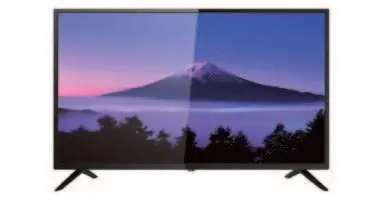
Safety Warnings
Important: To reduce the risk of electric shock, do not remove the back cover. There are no user-serviceable parts inside. Do not expose the unit to rain or moisture. Ensure the power plug is fully inserted. If the TV does not operate properly, unplug it and contact an authorized dealer.
Installation
The TV can be installed using the supplied stands or a wall mount.
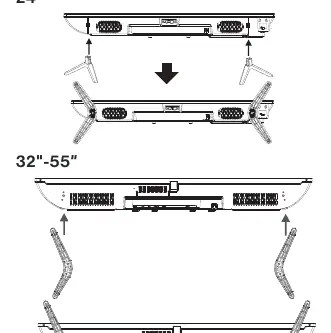
- TV Stands: Attach the supplied stands using the provided screws. Ensure the TV is placed on a stable surface.
- Wall Mount: Follow the installation guide supplied with your wall-mount bracket. Refer to the VESA mounting pattern table in the manual to ensure the correct screw size and pattern are used for your specific TV size.
- Ventilation: Leave at least 4 inches (10 cm) of free space around the entire unit to prevent overheating.
Connections
The TV features various input and output ports for external devices:
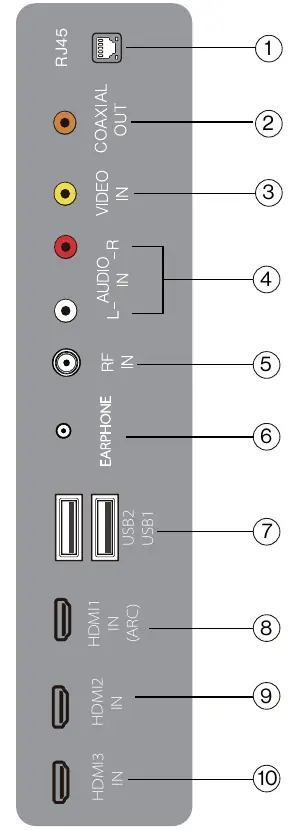
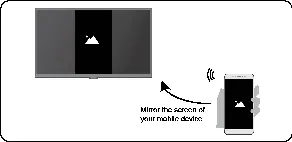
- HDMI: Connect DVD players, game consoles, or cable boxes. HDMI 1 supports ARC (Audio Return Channel) for external audio systems.
- Wired LAN: Connect an Ethernet cable for network access.
- Wireless: Connect to a Wi-Fi network via the Network Configuration menu.
- USB: Connect USB storage devices for media playback (supports NTFS/FAT32).
- Coaxial Out: Connect to an external digital audio system.
Remote Control
The remote control allows you to navigate the TV interface. Key buttons include:
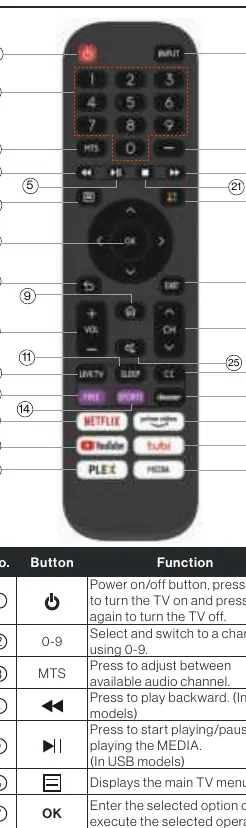
- Power: Turns the TV on/off.
- Source: Selects the input signal.
- Menu: Accesses the main TV menu.
- Home: Takes you to the home screen.
- App Buttons: Direct access to apps like Netflix, YouTube, and Prime Video.
Settings
Access the main menu by pressing the Setting button on your remote. You can adjust:
- Picture: Adjust Picture Mode (Standard, Vivid, Theater, etc.), Backlight, Brightness, Contrast, and Sharpness.
- Sound: Adjust Sound Mode, Audio Output settings, and Balance.
- Network: Configure wired or wireless network connections.
- Channel: Scan for channels and manage your channel list.
- System: Manage parental controls, time settings, HDMI-CEC, and application management.
Troubleshooting
If you encounter issues, try these steps:
- TV does not operate: Check power cord, try another outlet, or replace remote batteries.
- No sound: Check volume, ensure Mute is off, and verify audio cable connections.
- Wireless connection failed: Ensure the router is on and the TV is within range.
- Poor picture: Check antenna/cable connections and ensure channels are set into memory.
Manufacturer information
Furrion
Practical help
Common problems
TV does not operate
Ensure the power cord is plugged in, try another AC outlet, check the fuse/circuit breaker, or replace the remote control batteries.
Normal picture, but no sound
Check volume settings, ensure 'Mute' is not active, try another channel, and check audio cable connections.
Wireless network connection failed
Ensure your wireless router is on and connected to the internet. Position the router in a central location.
Poor TV reception
Ensure the antenna amplifier is on, adjust the antenna position, and check that the antenna connection is tight.
Before use
- Verify all contents: Smart TV, remote control, quick start guide, warranty manual, warning card, wall mount screws, AAA batteries, and TV stand.
- Ensure the TV is placed on a stable surface or mounted securely.
- Leave 4 inches (10 cm) of free space around the unit for ventilation.
- Install two AAA batteries into the remote control.
- Connect the power cord securely to the TV and the wall outlet.
Specs in practice
- VESA Mounting
- Standardized hole pattern on the back of the TV for wall mounting. Check the manual's table for your specific model size.
Images and diagrams
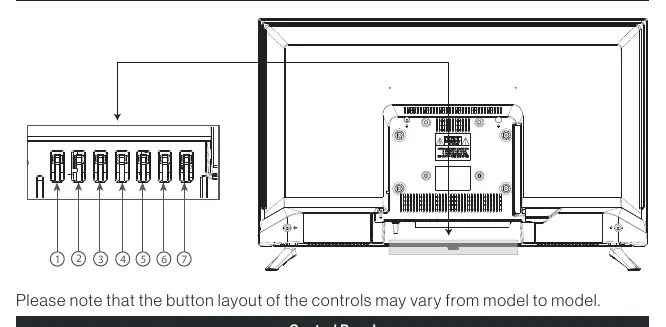
- Control Panel: Located on the TV, includes buttons for Power, Source, Menu, Channel, and Volume.
- Input/Output Ports: Includes RJ45, Coaxial Out, Video In, Audio In, RF In, Earphone jack, USB ports, and HDMI inputs.
Model compatibility
- Supports 110-240V 50/60Hz power input.
- USB storage supports NTFS and FAT32 formats.
- Headphones with microphones are not supported.

Manual page author
Emily Carter
User documentation editor
Prepares concise manual descriptions and highlights the most useful setup, operation, and maintenance information for readers.