Computers / Laptops
Gigabyte AI TOP Utility Software Manual
A comprehensive installation and configuration guide for the Gigabyte AI TOP Utility software on Windows WSL. Learn how to set up WSL, install dependencies, configure GPU drivers, and mount SSDs for optimal performance.
Table of contents
Manual images
Click an image to enlargeQuick guide from the manual
The Gigabyte AI TOP Utility is designed to run within the Windows Subsystem for Linux (WSL) environment. This manual provides the necessary steps to prepare your Windows 11 system, configure WSL, install required dependencies, set up GPU drivers, and mount storage for AI training tasks.
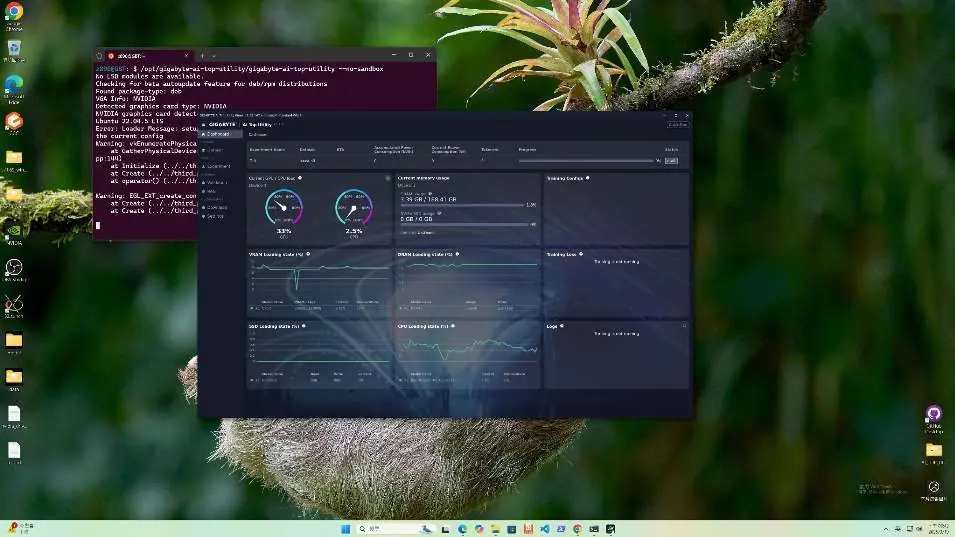
Prerequisites and WSL Setup
Before installing the utility, ensure your system meets the following requirements:
- Windows 11 operating system.
- WSL 2 (Windows Subsystem for Linux) installed.
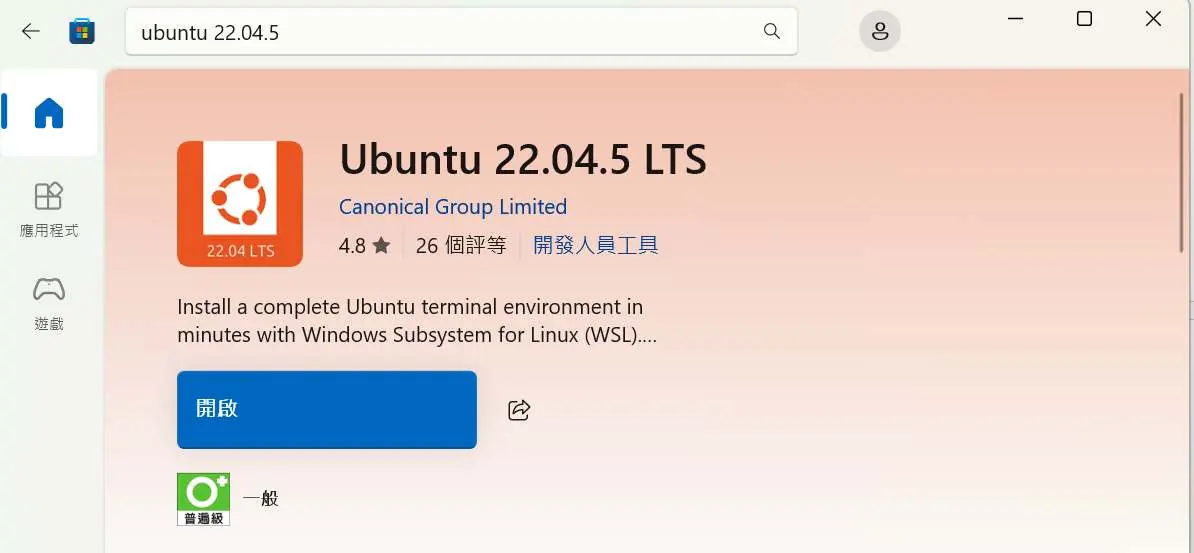
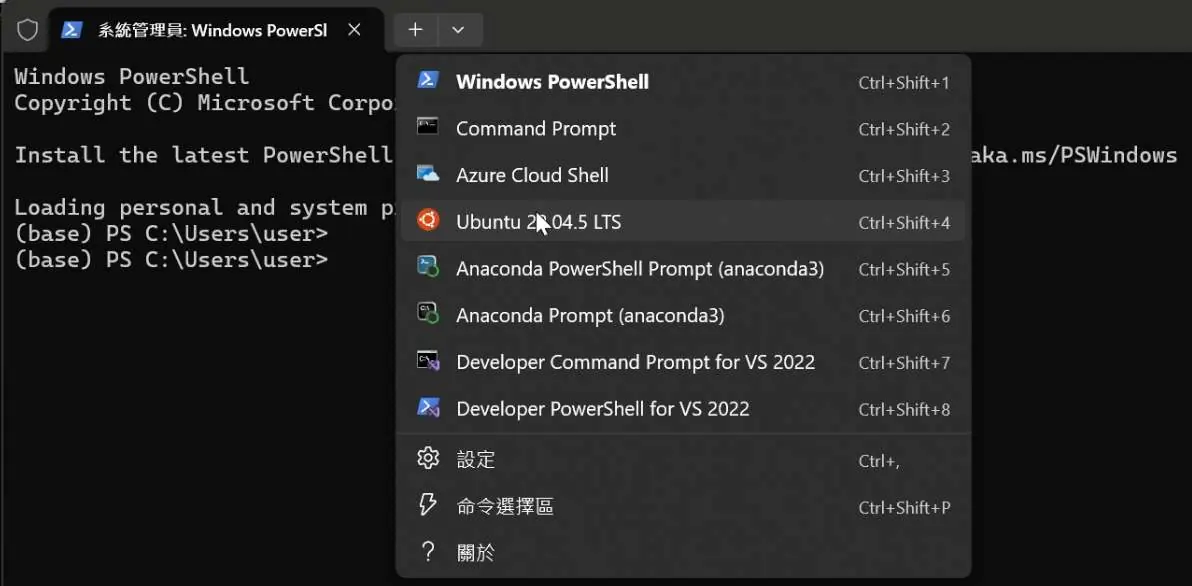
- Ubuntu 22.04.5 LTS installed via the Microsoft Store.
- Uninstall any existing versions of Ubuntu before proceeding.
To install Ubuntu, search for 'Ubuntu 22.04.5 LTS' in the Microsoft Store, click 'Free', and then 'Get'.
Configuring WSL System Memory
By default, WSL 2 allocates up to 50% of your total system RAM. You can manually adjust this by editing the .wslconfig file:
- Open PowerShell as Administrator.
- Navigate to your user directory using the command: cd ~
- Open the configuration file: notepad .\.wslconfig
- Add the following lines to set memory and swap limits: memory=192GB (adjust as needed) and swap=8GB (optional).
- Save the file and restart WSL using: wsl --shutdown, then launch WSL again.
Installing Dependencies and Software
Once WSL is configured, you must install necessary dependencies and software within the Ubuntu terminal:
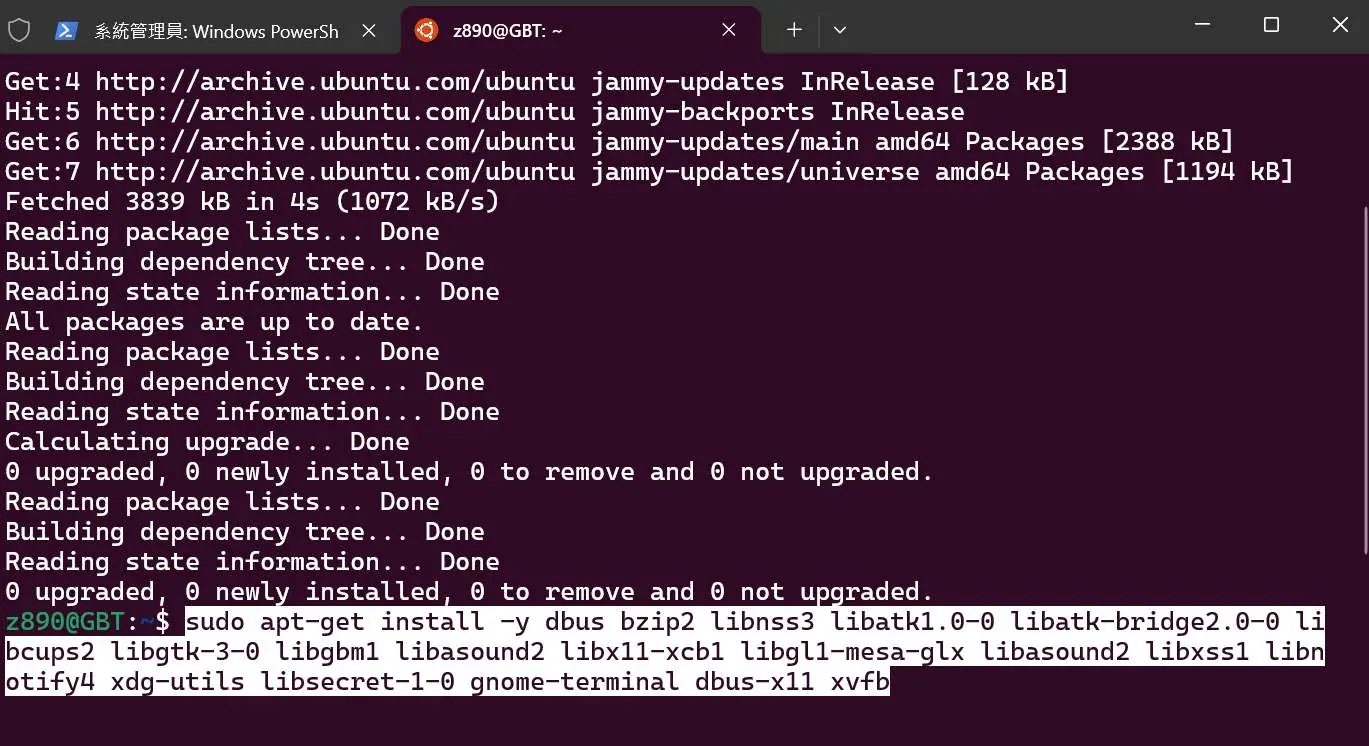
- Update and Upgrade: Run sudo apt update, sudo apt upgrade, and sudo apt install -f.
- Install Dependencies: Execute the provided apt-get install commands to add required libraries like dbus, libnss3, libatk, and others.
- VcXsrv: Download and install VcXsrv. When running, select 'Disable access control' and ensure Windows Firewall allows the application.
- Google Chrome: Install the Linux version of Chrome inside WSL to ensure full graphical browser functionality.
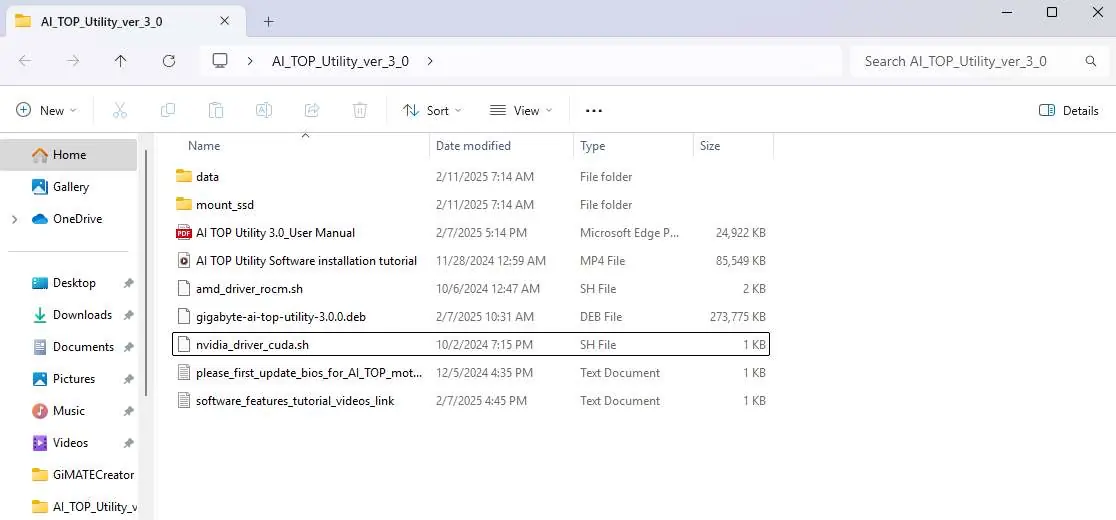
- AI TOP Utility: Place the .deb file in your home directory and install it using: sudo dpkg -i gigabyte-ai-top-utility-4.0.0.deb.
GPU Driver Installation
The utility requires specific GPU drivers to function correctly. Locate the driver file (nvidia_driver_cuda.sh or amd_driver_rocm.sh) in the AI_TOP_Utility folder and copy it to your WSL home directory. Run the installation script using the bash command in your Ubuntu terminal.
Mounting SSD for WSL
If your model size exceeds VRAM/DRAM capacity, you can mount an NVMe SSD for additional capacity:
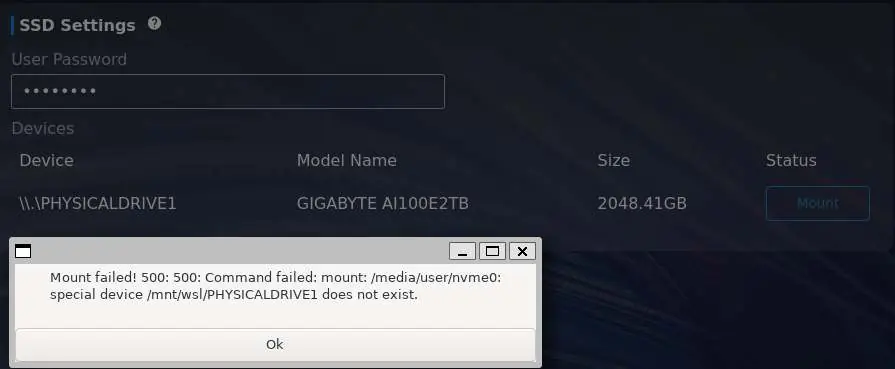
- Mount the drive in PowerShell (Admin) using: wsl --mount \\.\PHYSICALDRIVE1 --type ext4.
- In the AI TOP Utility Settings tab, enter your OS password and click 'Mount'.
- If mounting fails, ensure the SSD is formatted as EXT4, not NTFS.
Manufacturer information
Gigabyte Technology Co., Ltd.
Practical help
Common problems
Mount failed! 500: Command failed
Ensure the command 'wsl --mount \\.\PHYSICALDRIVE1 --type ext4' was executed in PowerShell with Administrator privileges before clicking the 'Mount' button in the application.
Authorization required error when using VcXsrv
Ensure VcXsrv is running with the 'Disable access control' option selected.
SSD mounting fails even after running the mount command
The SSD is likely formatted as NTFS. It must be reformatted to EXT4 to be compatible with WSL.
Before use
- Install Windows 11 and WSL 2.
- Uninstall any existing Ubuntu versions.
- Download Ubuntu 22.04.5 LTS from the Microsoft Store.
- Ensure PowerShell is running with System Administrator privileges.
- Verify GPU type (NVIDIA or AMD) to select the correct driver script.
Images and diagrams
- The .wslconfig file setup shows how to define memory and swap limits.
- The SSD Settings interface demonstrates the 'Mount' button and status indicators for physical drives.
Model compatibility
- Requires Windows 11 and WSL 2.
- Requires Ubuntu 22.04.5 LTS.
- Supports both NVIDIA and AMD GPU drivers.

Manual page author
David Miller
Documentation analyst
Organizes user manual content into clear summaries, with attention to model details, product context, and everyday usability.