Computers / Printers
Honeywell Voyager 1602g Wireless Area Imaging Pocket Scanner
Quick start guide for the Honeywell Voyager 1602g wireless pocket scanner, covering charging, Bluetooth pairing, reading techniques, and configuration settings.
Table of contents
Getting Started
The Voyager 1602g is a wireless area-imaging pocket scanner. Before the first use, the internal battery must be fully charged. Charging can be performed using a dedicated power supply or by connecting the device to a computer via a USB cable. Note that charging via a USB cable connected to a computer may result in slower charge times compared to using a dedicated power supply.
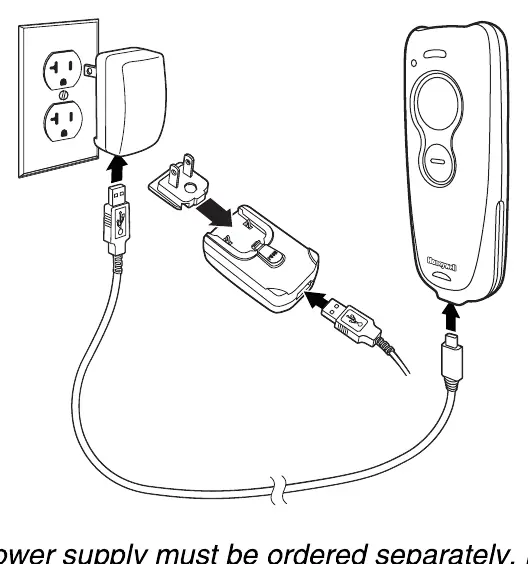
Connecting the Scanner
To connect the scanner to a computer, ensure the computer is powered off before connecting the USB cable. Once connected, power up the computer. The scanner will emit clicks while attempting to connect to the host. A single beep indicates a successful link, while three beeps indicate that the connection was not established.
Battery Charge Indicator
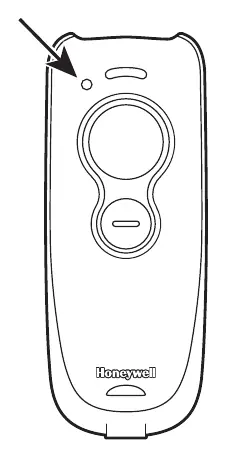
The scanner features an LED indicator located at the top left. When the battery is charging, the LED flashes orange. Once the battery is fully charged, the LED remains solid green.
Reading Techniques
The scanner projects an aiming beam that should be centered over the bar code. The beam can be positioned in any direction for a successful read. For optimal performance, hold the scanner close to smaller bar codes and further away from larger ones. If the bar code is highly reflective, such as a laminated surface, tilting the scanner at an angle may improve scanning results.
Bluetooth Pairing
The scanner can be paired with a Honeywell Access Point or other Bluetooth-enabled devices, including personal computers, laptops, tablets, and Apple devices. To pair, scan the Bluetooth HID Keyboard Connect bar code. Set your host device to search for new Bluetooth devices and select the Voyager 1602g from the list. If automatic pairing does not occur, you may be prompted to enter a PIN code using the provided programming charts.
Configuration and Defaults
Users can reset the scanner to standard product defaults by scanning the appropriate bar code. Additional settings, such as beeper volume, suffix configuration (adding a carriage return or tab), and enabling support for poor quality 1D bar codes, can be adjusted by scanning specific configuration bar codes provided in this guide. Advanced data formatting can be achieved using the Data Format Editor instructions.
Related manuals
Related manuals from the same brand or category.
Computers / Printers
Honeywell Voyager 1250g Single Line Laser Scanner User Guide
HoneywellComputers / Printers
Honeywell Voyager 1250g Single-Line Laser Scanner User's Guide
HoneywellDocuments / Warranty Safety
Honeywell Voyager 1602g Wireless Area-Imaging Pocket Scanner
HoneywellDocuments / Warranty Safety
Honeywell Voyager 1450g/1452g/1450g2DHR Series Area-Imaging Scanner User's Guide
HoneywellPower / Batteries Chargers
Honeywell GaN 140W Ultra Fast Wall Charger Owner’s Manual
HoneywellElectronics / Televisions
Honeywell Voyager 1400g Series Area-Imaging Scanner
HoneywellDocuments / Warranty Safety
Honeywell Voyager 1250g Single-Line Laser Scanner Quick Start Guide
Honeywell
Manual page author
Michael Turner
Technical manual editor
Reviews PDF manuals for structure, safety notes, and practical product details so readers can find the right information quickly.