Mobile / Smartphones
HUAWEI nova 11i User Manual
Quick guide for HUAWEI nova 11i, covering system gestures, screen recording, camera modes, Multi-window, and privacy settings.
Table of contents
Manual images
Jump to the sectionQuick guide from the manual
This guide provides essential instructions for operating your HUAWEI nova 11i. It covers basic system navigation, advanced features like Super Device, camera operation, and privacy management. For detailed troubleshooting or advanced configurations, refer to the full device settings menu.
System Navigation
The device supports gesture-based navigation. To enable this, go to Settings > System & updates > System navigation and select Gestures.
- Go back: Swipe inward from the left or right edge.
- Home: Swipe up from the bottom.
- Recent tasks: Swipe up from the bottom and hold.
- Close app: In the recent tasks view, swipe up on an app preview.
Screenshots and Screen Recording
You can capture your screen using several methods:
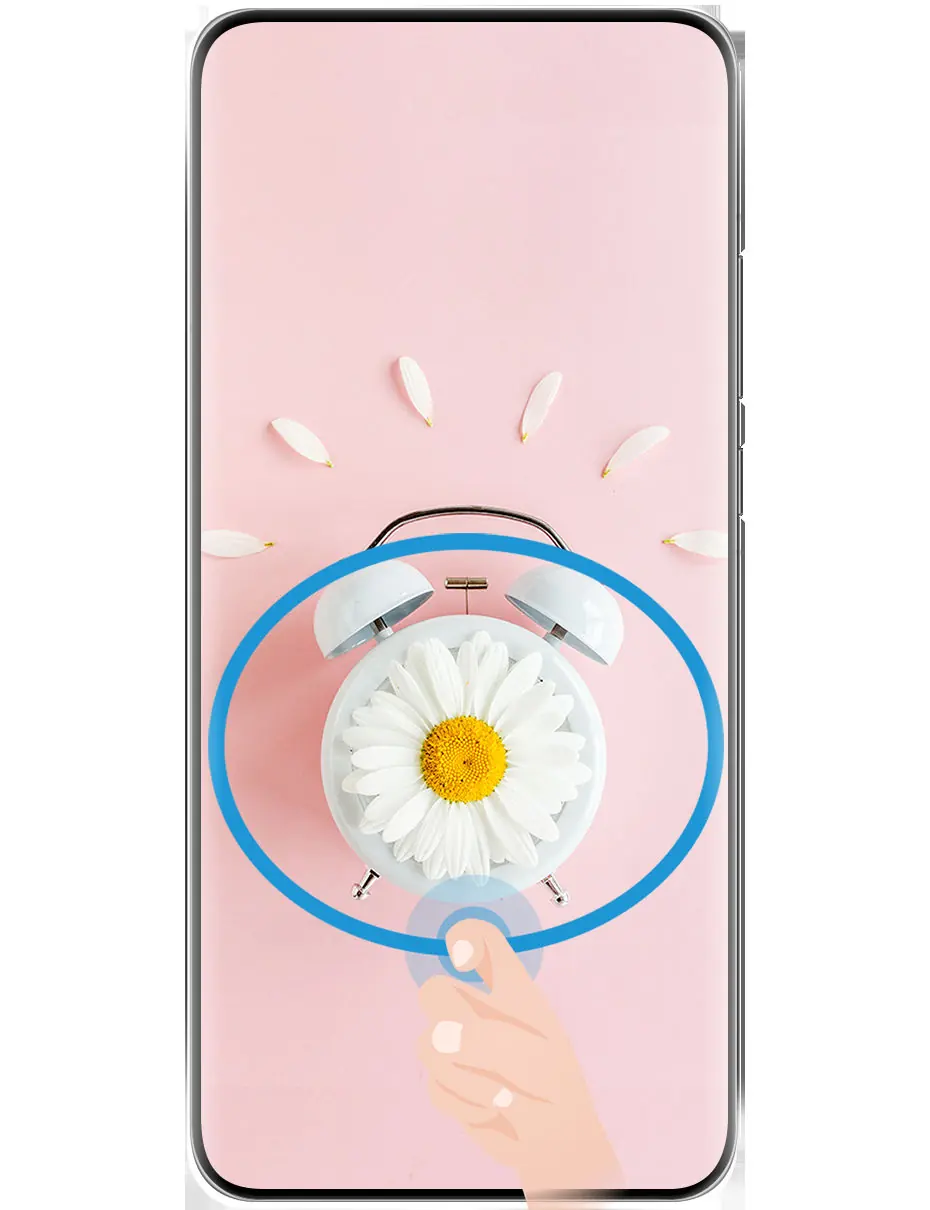
- Knuckle gestures: Knock twice on the screen to take a screenshot. Draw an 'S' for a scrolling screenshot.
- Button shortcut: Press the Power and Volume down buttons simultaneously.
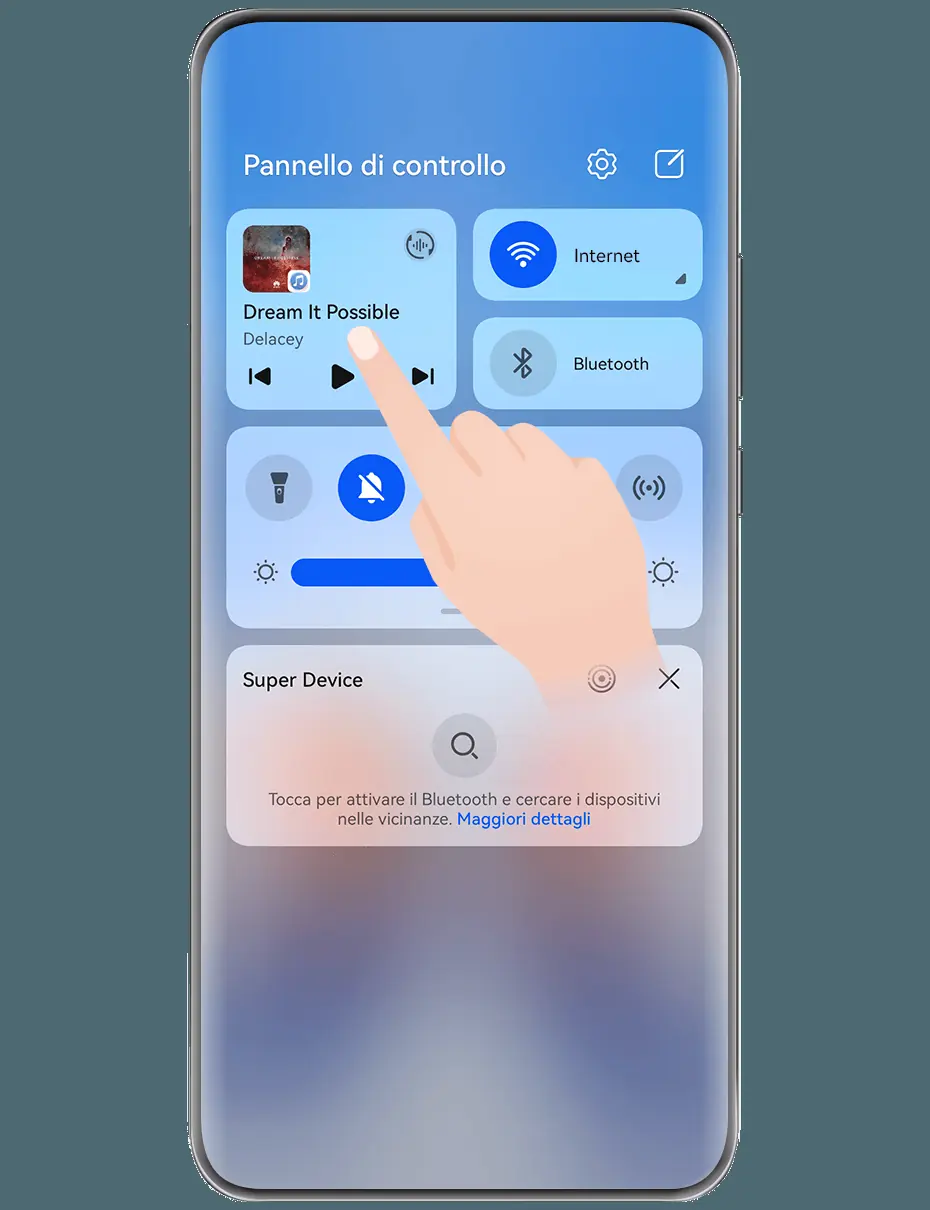
- Control Panel: Swipe down from the top-right corner to open the Control Panel and tap the Screenshot icon.
To record the screen, use the shortcut in the Control Panel or knock twice with two knuckles.
Camera and Gallery
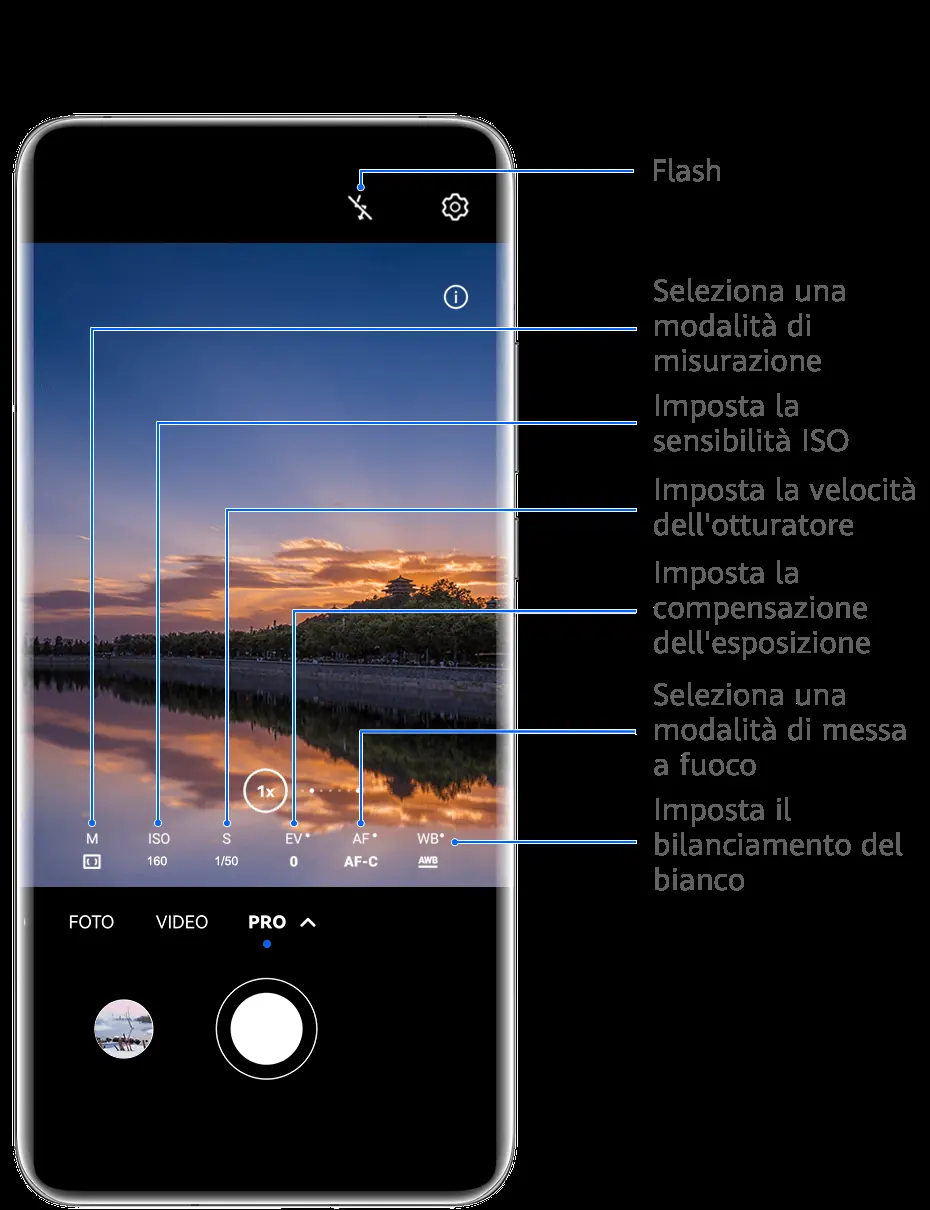
The camera app supports various modes including Portrait, Night, Aperture, and Pro. Use Master AI for intelligent scene optimization. You can manage your photos and videos in the Gallery, where you can organize albums, edit media, and use the Highlight feature to automatically create video clips.
Multi-window and Super Device
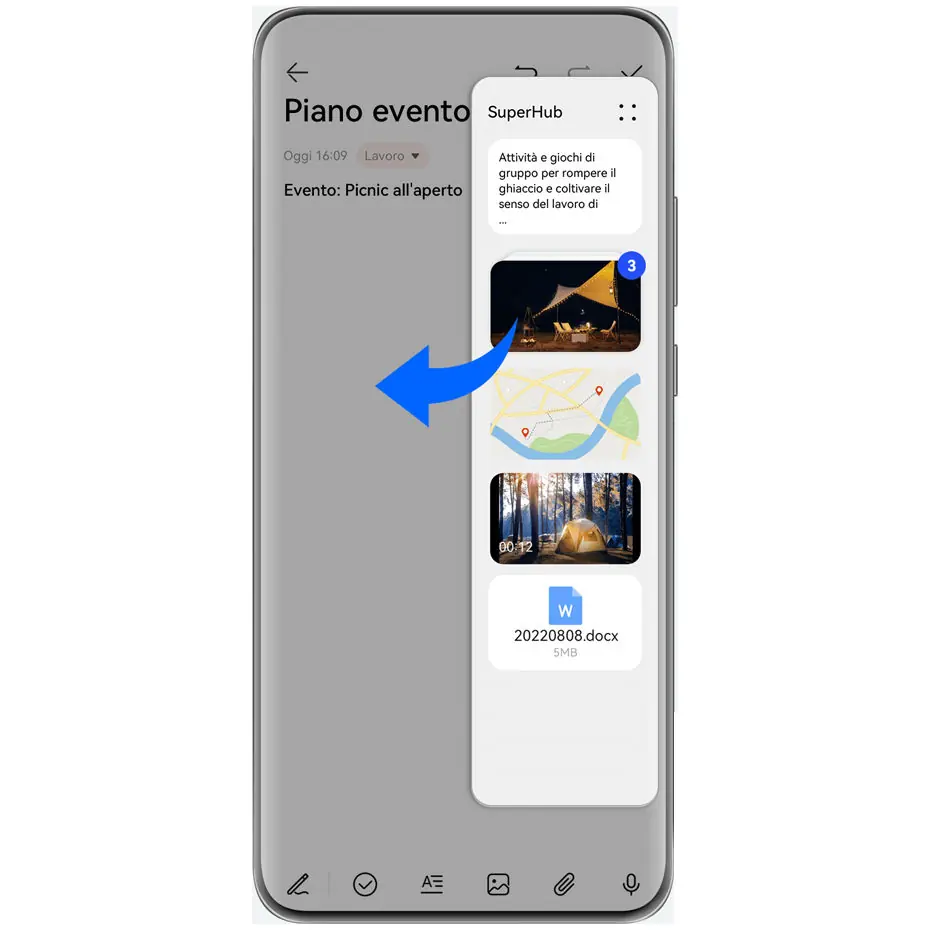
Use the Multi-window menu to open apps in floating windows or split-screen mode. Super Device allows seamless collaboration with other Huawei devices (tablets, laptops, Visions) by enabling Bluetooth and Wi-Fi and signing in to the same HUAWEI ID.
Privacy and Security
Manage your security settings via Settings > Security. You can set up fingerprint and face recognition for device unlocking and app access. The Privacy dashboard allows you to monitor app permissions and enhance image privacy by removing sensitive metadata when sharing photos.
Manufacturer information
Huawei Technologies Co., Ltd.
Practical help
Common problems
AI Voice not responding
Ensure the device is updated to the latest system version and that you are in a supported region/language.
Cannot use Super Device
Verify that Bluetooth and Wi-Fi are enabled on all devices and that they are signed into the same HUAWEI ID.
Screenshot/Recording gestures not working
Check Settings > Accessibility features > Shortcuts & gestures to ensure the specific gesture is enabled.
Before use
- Sign in to your HUAWEI ID.
- Enable Wi-Fi and Bluetooth for full feature support.
- Configure system navigation (Gestures vs. Buttons).
- Set up fingerprint or face recognition for security.
- Update the system to the latest version.
Specs in practice
- Super Device
- A feature for seamless multi-device collaboration and file/media transfer.
- Multi-window
- Allows running multiple apps simultaneously in floating or split-screen views.
Images and diagrams
- System navigation gestures (swipe patterns).
- Control Panel layout and shortcut customization.
- Camera interface controls (zoom, flash, mode selection).
- Super Device connection interface.
Model compatibility
- Super Device features vary by product model.
- Multi-camera mode is only supported on specific phone models.
- Some features like AI Voice are region-dependent.

Manual page author
Emily Carter
User documentation editor
Prepares concise manual descriptions and highlights the most useful setup, operation, and maintenance information for readers.