Computers / Laptops
Huawei Enjoy 10e User Manual
Comprehensive user guide for the Huawei Enjoy 10e, covering basic operations, camera features, system settings, and maintenance.
Table of contents
Manual images
Jump to the sectionGetting Started
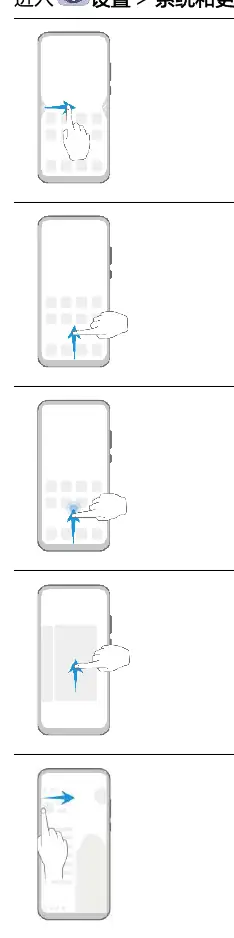
The Huawei Enjoy 10e is designed for intuitive use with a variety of navigation gestures. You can navigate the system by swiping from the edges of the screen to go back, swiping up from the bottom to return to the home screen, or swiping up and pausing to view recent tasks. The device also supports traditional three-key navigation if preferred.
Camera and Gallery
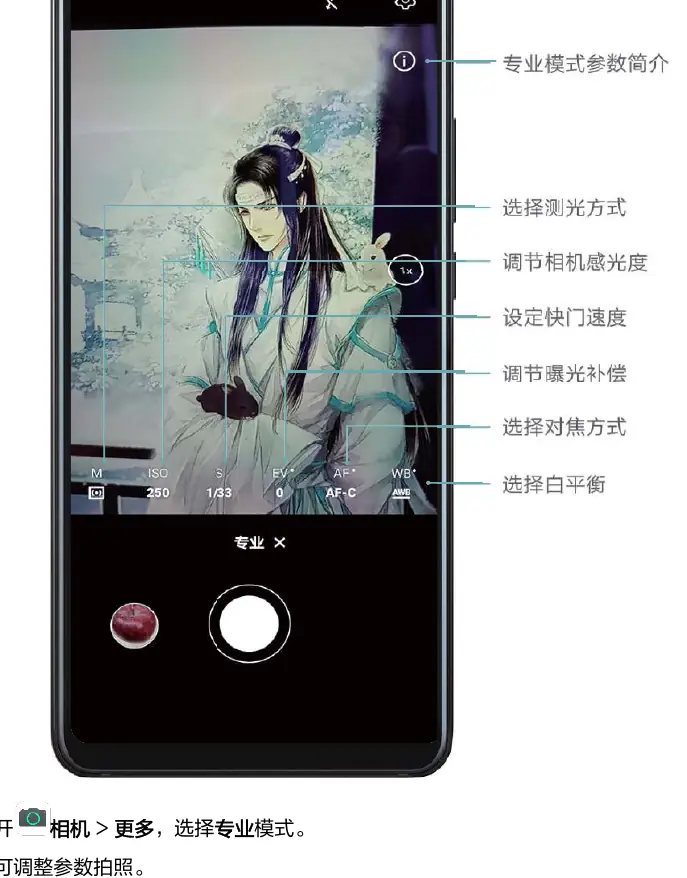
The camera app offers professional modes, HDR, and panoramic shooting to capture high-quality images. You can manage your photos and videos in the Gallery, which supports cloud synchronization, editing, and sharing. Advanced features like professional mode allow manual adjustment of ISO, shutter speed, and white balance for better control over your photography.
System Settings
The Settings menu provides extensive customization options. You can manage your WLAN and Bluetooth connections, configure mobile network settings, and adjust display brightness and color temperature. The device includes a dedicated 'Phone Manager' to optimize performance, clean up storage, and manage data usage. Security features such as face recognition and app locks help protect your privacy.
Maintenance and Troubleshooting
To keep your device running smoothly, use the Phone Manager to clear cache and redundant files. If you encounter issues, you can enter Safe Mode to troubleshoot third-party applications. For system-level problems, the device supports eRecovery and system updates via the Huawei Phone Assistant on a computer. Always ensure your battery is sufficiently charged before performing system updates or resets.
Battery and Charging
The device supports efficient charging. It is recommended to use the original charger and cable to prevent overheating or slow charging. You can monitor battery usage in the settings and enable power-saving modes to extend standby time when needed.
Manufacturer information
Huawei Technologies Co., Ltd.
Practical help
Common problems
Device overheating during charging
Stop using the phone while charging, close unnecessary apps, and move the device to a cooler environment.
Phone unresponsive after pressing power button
The battery may be completely drained. Charge the device for at least 10 minutes before attempting to power it on again.
System running abnormally
Enter Safe Mode to determine if a third-party app is causing the issue. If the issue persists, back up your data and contact Huawei support.
Before use
- Ensure the SIM card is correctly inserted.
- Charge the device using the provided original charger.
- Connect to a stable WLAN network for initial setup.
- Log in to your Huawei account for cloud services.
- Check for system updates in Settings.
Images and diagrams
- Navigation gestures: Swiping from edges for back, bottom for home, and bottom-pause for recent tasks.
- Camera interface: Adjusting ISO, shutter speed, and white balance in professional mode.
- Charging status: Understanding battery icons based on charge percentage.
Model compatibility
- Phone Clone supports iOS 8.0+ and Android 4.4+ devices.
- Huawei Histen sound effects are only available when headphones are connected.
- Some pre-installed system apps cannot be uninstalled.

Manual page author
David Miller
Documentation analyst
Organizes user manual content into clear summaries, with attention to model details, product context, and everyday usability.